
AI assistance inside an editable website
AI website builders can produce an impressive first draft. The harder question is what happens next: can you edit the result, maintain a consistent design system and hand the website over to someone else?
Elementor’s official MCP integration approaches that problem by connecting external AI assistants to the builder itself. Instead of asking an assistant for code to paste into WordPress, you can ask it to work with native Elementor structures.
The opportunity is substantial. So are the reasons to start carefully.
Quick verdict: Elementor MCP is worth exploring if you want AI assistance inside an editable WordPress workflow, particularly when building with Elementor’s Atomic/V4 elements. Consider it an additional way to operate the builder, with human review still responsible for the finished website.
Information checked: October 2, 2026. This guide draws on official Elementor documentation, release notes and the MCP specification. It is not a controlled performance benchmark or a test of every supported AI client.
When did Elementor MCP launch?
There are two dates to distinguish:
- September 15, 2026: Elementor announced the public MCP beta.
- September 22, 2026: Elementor introduced the integration in Elementor Core 4.3.0. The corresponding Elementor Pro 4.3.0 release expanded it with Pro capabilities, including Theme Builder templates, Popups and Components.
The beta announcement establishes when public testing opened; the changelog establishes when the feature entered the released plugin.
This is also a feature still receiving fixes. Core 4.3.3, released on September 30, included corrections for MCP build-error reporting, Atomic style values and access control when MCP is disabled. Our recommendation is to assess the latest compatible stable releases rather than install the original launch version simply because it meets the minimum requirement.
What is Elementor MCP?
MCP stands for Model Context Protocol: a standard through which AI applications connect to tools and contextual information supplied by external systems.
The AI application acts as the host; an MCP server exposes capabilities it can discover and use. In this case, Elementor provides website-building capabilities to a compatible assistant.
Elementor’s implementation lets assistants work with native page structures, classes, variables and dynamic content. The output remains editable in the visual builder. Its official documentation also describes template management and reusable Components, with availability depending on the installed products and plan.
A practical request might be:
Create a draft services page using our existing typography, colours and button classes. Preserve the global header and footer.
The value comes from giving the assistant a defined task inside a system you can inspect and continue editing.
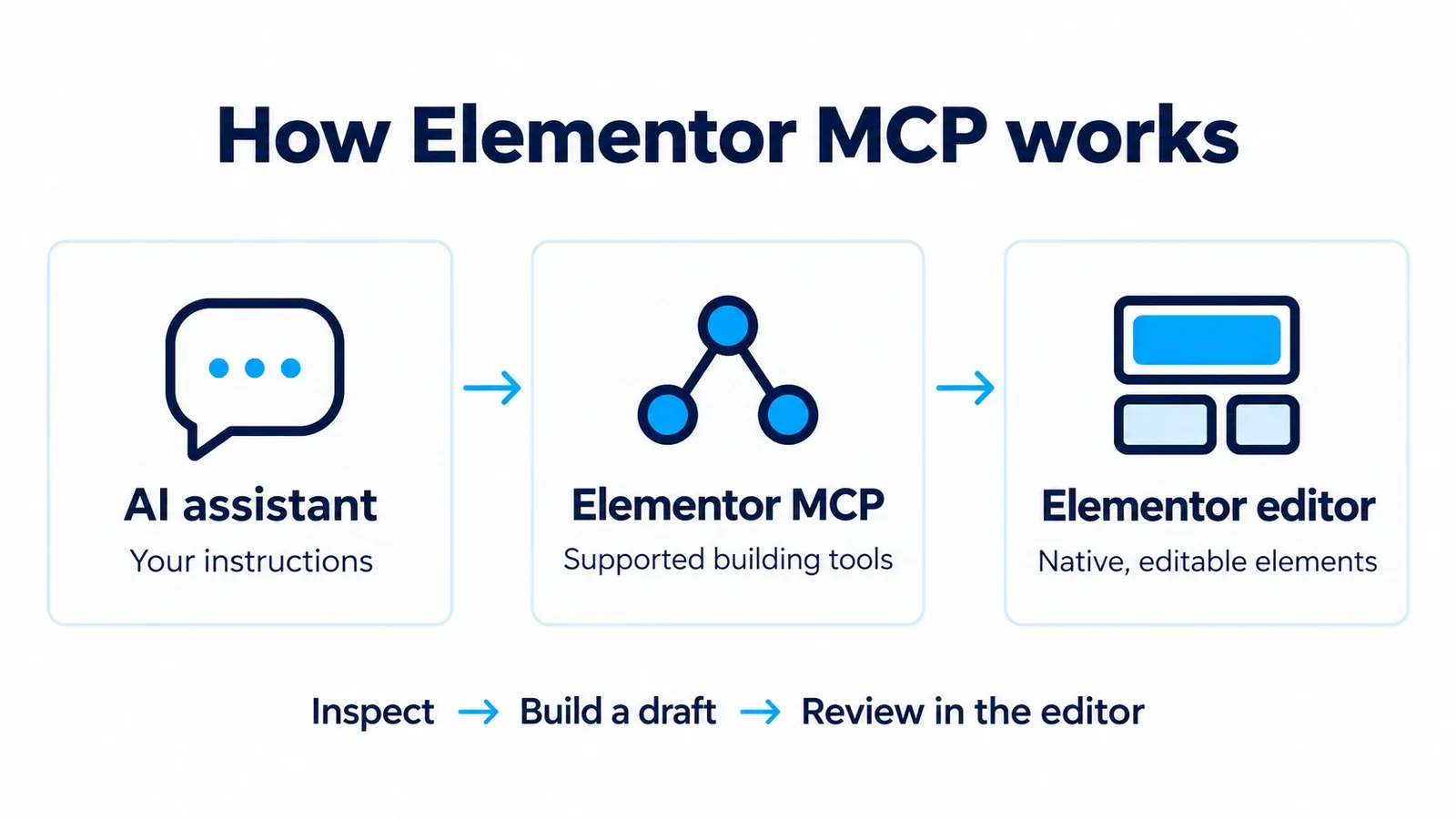
How the AI assistant, MCP connection and Elementor editor work together.
The compatibility limitation to check first
As of the information-checked date, Elementor’s official MCP FAQ states that editing existing layouts is supported for Atomic/V4 elements, with older V3 widget-layout support described as forthcoming.
Do not assume that installing the latest plugin makes every older Elementor page available for MCP editing.
There is an important distinction here: Elementor’s visual editor can accommodate V4 elements alongside older containers, but that coexistence does not establish complete MCP support for legacy widgets.
Before adopting the integration for an existing site, identify which pages and templates use supported elements. A limited pilot is more useful than an immediate site-wide migration.
How to install and connect Elementor MCP
The official connection is accessed from Elementor’s WordPress dashboard. You do not need a separate third-party MCP plugin for this setup.
1. Prepare the website
Elementor documents WordPress 6.8 or later and Elementor Core 4.3.0 or later as minimum requirements. For Pro capabilities, its building guide specifies Elementor Pro 4.3.0 or later. Connection access is restricted to site administrators.
Create a backup and, preferably, begin on staging.
2. Generate the connection
In WordPress:
- Open Elementor → Elementor MCP.
- Select Enable MCP access.
- Choose the AI client.
- Acknowledge that generating the prompt creates an application password.
- Select Generate Prompt, then Copy prompt.
- Use the generated instructions in your chosen client.
Elementor provides options for Claude Code, Claude Desktop, Codex, Cursor and other MCP-compatible clients. Exact configuration steps depend on the client.
Treat the generated prompt as a credential: keep it out of public repositories, screenshots and shared documents.
3. Confirm access before allowing edits
Start with a read-only request:
Inspect this site’s available Elementor capabilities and design system. Report what you can access. Do not modify anything.
A saved configuration is only the first step. The assistant should successfully inspect the intended website before you rely on it for changes.
To disconnect a client, revoke its application password under Users → Profile → Application Passwords. Elementor also provides a site-wide MCP switch.
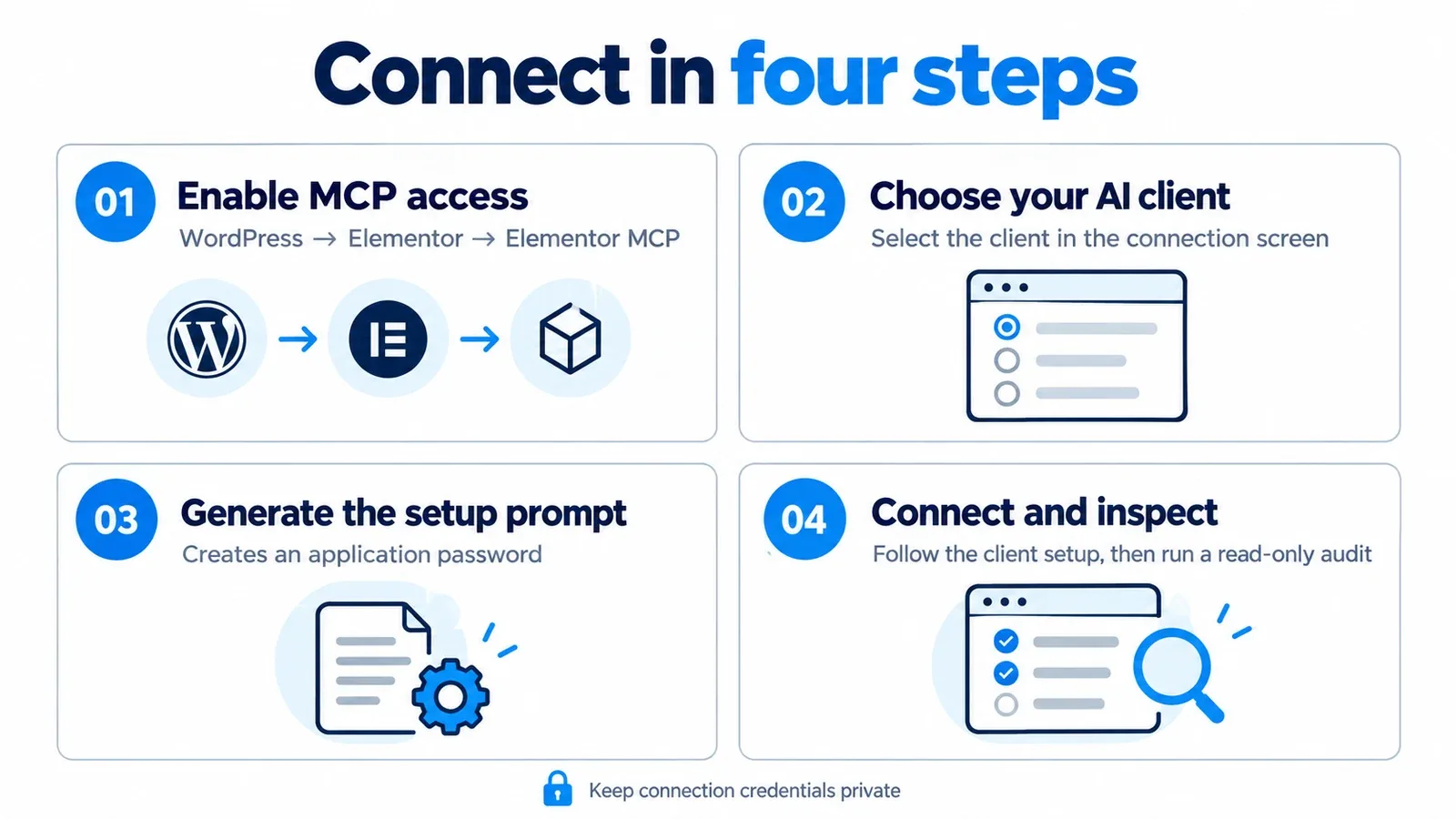
Connect securely, then confirm access with a read-only audit.
Is Elementor MCP free?
Connecting to the official Elementor MCP is free.
Elementor says basic features follow the free offering, while Pro features require an appropriate Pro plan. The external AI tool’s charges are separate.
For budgeting, separate three things:
- Elementor licensing: the features your website needs.
- AI usage: subscriptions, credits or API charges imposed by your chosen client.
- Website operation: hosting, maintenance and any other required services.
A free connection does not make paid Elementor features free, and it does not remove the AI provider’s usage limits.
Check current plan inclusions, billing terms and renewal conditions before buying. For the broader decision about whether Pro fits your workflow, read our Elementor Pro Review: Who Is It Actually For?.
Best practices: give the AI a system to follow
Our recommended workflow begins with inspection and boundaries. A request such as “make this website better” leaves too many decisions undefined.
Start with an audit
Ask the assistant to identify the target document, its structure and the styles already in use.
For an established site, explicitly name what must be preserved: shared templates, existing content, responsive settings and public URLs.
This creates a useful baseline for reviewing the proposed work.
Reuse classes and variables
A page can look convincing while being difficult to maintain. Repeated local colour values, one-off spacing and inconsistent button rules become expensive as the site grows.
Our recommendation is to tell the assistant to:
- Reuse existing global typography and colour variables.
- Apply established classes before creating new ones.
- Explain why any additional class is necessary.
- Avoid unnecessary nesting and custom CSS.
- Preserve the site’s responsive conventions.
A shared class also deserves extra scrutiny: changing it may affect more than the page currently being edited.
Make each task small enough to review
Begin with a draft section or a single page. Inspect the result before extending the approach to other documents.
Use a clear brief, for example:
Inspect the existing design system first. Create one draft landing page with a hero, three informational cards and a closing CTA. Reuse our classes and global templates. Use one H1 and logical H2/H3 headings. Do not modify other documents, install plugins or add custom code. Report the changes for review.
The boundaries make approval concrete. You can compare the saved result with the request.
Keep publication explicit
Elementor’s product page describes generation as draft-first. Its building documentation also lists publishing through the connected AI tool as an available capability.
Those statements describe different parts of the workflow: a generated draft still requires a deliberate publication decision, but publishing tools may be available to an authorised agent.
Our recommendation is to make the rule unambiguous:
Save as draft. Do not publish without explicit approval.
Review the rendered page
A successful tool response does not establish that the layout works.
Check representative desktop, tablet and mobile widths. Inspect menu behaviour, text wrapping, card padding, image cropping, keyboard focus and links.
Pay particular attention to shared templates and dynamic content. Confirm that a header appears once, a featured image is not duplicated and a content query returns the intended posts.
Ask for evidence when someone reports a problem as fixed: the changed setting, the preview and the observed result.
Avoid simultaneous edits to one document
Elementor documents conflict detection when the editor and an AI tool modify the same page. Even so, our preferred working arrangement is one active editor per document.
Split parallel work by responsibility—for example, research in one task and page construction in another—then review the saved page together.
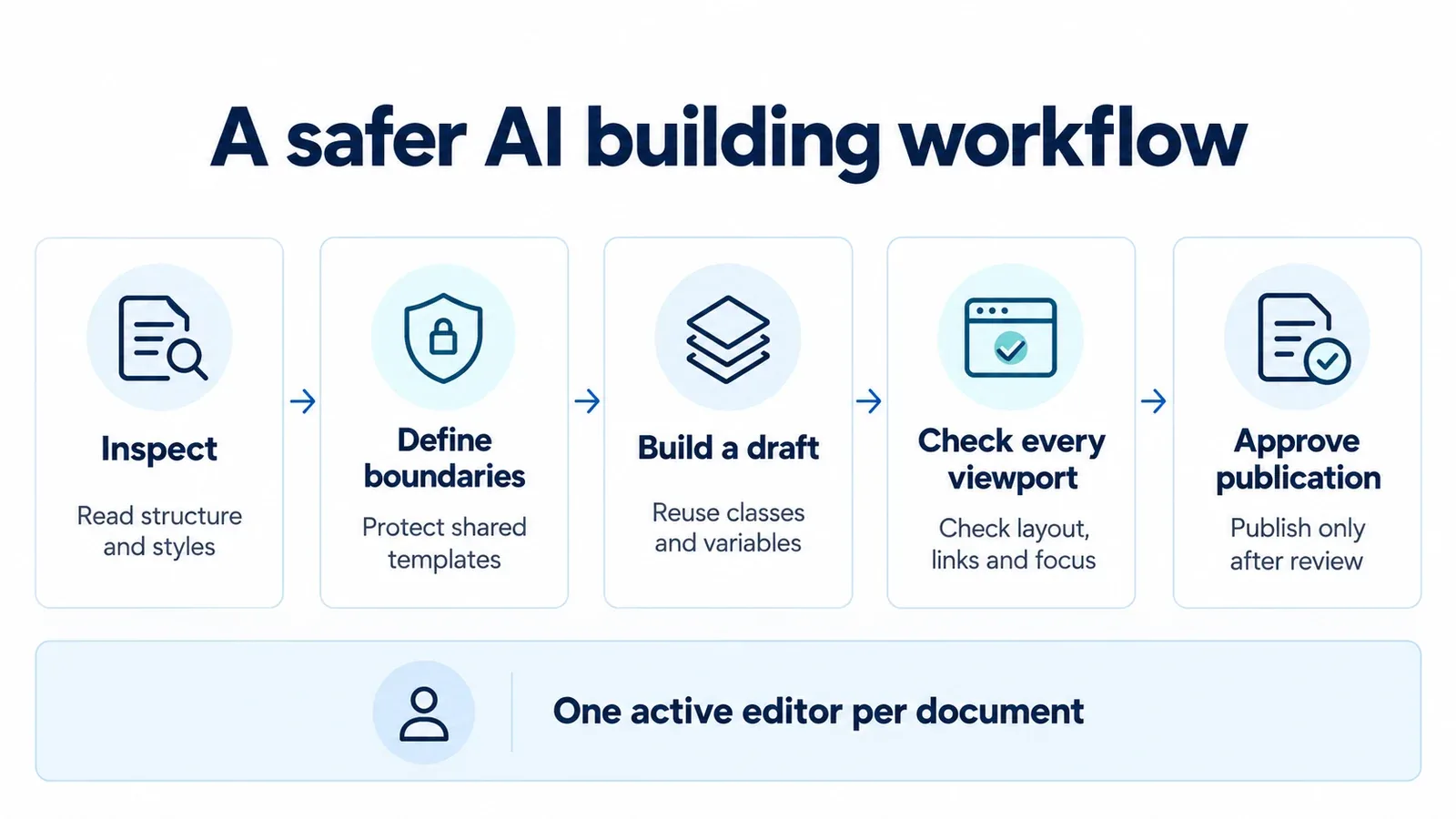
Inspect, build a draft and review the result before publication.
What Elementor MCP does not guarantee
Connecting an assistant to the builder does not establish that its design decisions are good.
It does not, by itself, verify:
- The accuracy of generated copy.
- Accessibility or usable mobile navigation.
- Search intent and SEO quality.
- Privacy compliance.
- Fast loading or clean content architecture.
Some broader actions also depend on additional software. Elementor distinguishes core building capabilities from extended WordPress administration and integrations supplied through Angie. A basic MCP connection should not be read as proof that every installed plugin is available to the assistant.
Our view is that the right measure is the quality and maintainability of the finished result, including the effort required to review it.
Our view: where website building goes next
The most promising part of Elementor MCP is the relationship between conversational instructions and an editable visual system.
We expect more website work to move between three activities: describing an outcome, inspecting what the assistant changed and refining the result in the builder. That could reduce repetitive work such as assembling familiar layouts or applying established styles.
This is an editorial expectation, not a measured productivity claim.
The harder decisions remain: what the website should communicate, how its content should be organised and what a visitor needs to accomplish.
For a publication with thousands of articles, producing another page is only one part of the job. Maintaining a coherent taxonomy, dependable templates and consistent navigation matters just as much.
Our prediction is that strong design systems will become more valuable. Clear classes, reusable components and sensible templates give an assistant a structure to follow. An inconsistent site gives it more ambiguity to resolve.
The professional advantage may therefore shift towards better briefs, better systems and better review.
Should you use it now?
Consider Elementor MCP if you already use Elementor, want native editable output and can pilot the integration on supported Atomic/V4 layouts.
Proceed cautiously if your site depends heavily on legacy widgets, complex third-party integrations or shared templates that have not been documented.
Look elsewhere if you want a finished production website with no ongoing inspection or maintenance.
For now, the strongest approach is incremental: connect, inspect, build a small draft, review the result and expand only when the workflow proves useful.
Sources and research notes
Method: desk research using primary sources.
Information checked: October 2, 2026.
Scope: official Elementor MCP, its release history, setup, documented capabilities and pricing structure.
Limitations: no controlled speed, performance, security or cross-client benchmark. Compatibility and plan inclusions may change after publication. Diagrams are original explanatory illustrations, not screenshots of the Elementor interface.