
WordPress Playground: the short answer
WordPress Playground lets you build and experiment with a WordPress site in your browser before buying hosting. It is useful for learning the editor, evaluating a layout and preparing a demonstration. It does not turn a browser tab into a reliable public website or prove that a plugin will work on your eventual host.
Our recommendation: use it for a small, clearly defined experiment, then move to a suitable development or staging environment when server behavior matters. The appeal is avoiding setup work before you know what you want to build—not avoiding every later hosting decision. Open the official browser demo to start a separate test instance.
We tried a fresh browser-based instance on October 28, 2026, created a fictional studio page, edited its title in the block editor and exported the result. This review separates that limited test from documented features we did not test. No hosting purchase, client-site import or affiliate link is involved.
What is WordPress Playground?
WordPress Playground runs actual WordPress using browser-based technology rather than first configuring a conventional hosting account. The official overview describes content editing, themes, plugins and development uses. You get a working environment, not just a picture of the dashboard.
For a beginner, that means trying the difference between a page, a post and a block without registering a domain. For a freelancer, it means exploring an idea before building a full project environment. Neither use requires pretending a small demo is a complete production system.
WordPress Playground is also different from a hosted WordPress.com plan. The browser instance is an experiment running on your device. A publicly reachable website still needs an appropriate deployment arrangement; the tool’s website address is not your own permanent hosting service.
What we actually tested in WordPress Playground
Our test instance reported WordPress 7.1.4 and PHP 8.3.36, with Twenty Twenty-Five as the theme. Those are the versions observed in this session, not a promise that a new instance will always launch the same versions.
The first launch showed a startup error. Retrying opened the site successfully, although it remained marked Unsaved and the storage check identified it as temporary. We did not diagnose this as a general outage or establish that another browser would behave identically.
We created a short page called “Decively Studio Demo” with native heading, paragraph, list and button blocks. The initial content was inserted through the instance’s content API; we then opened the actual block editor, changed the title to “Decively Studio Demo — revised” and clicked Save. The editor confirmed “Page updated.”
This WordPress Playground exercise demonstrates a modest but real workflow: stored block content rendered as a page, an editor change saved, and the revised content appeared in the exported database. It does not demonstrate Elementor Pro compatibility, payment processing or a full client-site migration.
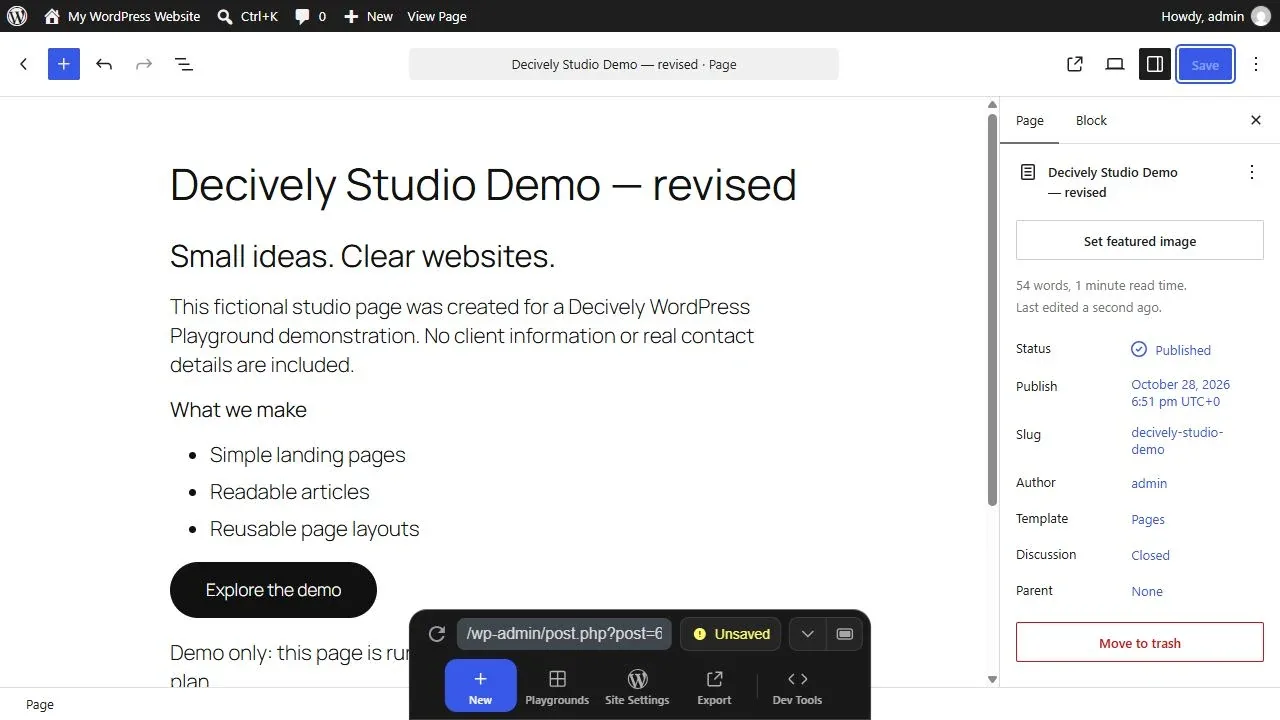
Actual screenshot of our anonymous demo instance after saving the revised title. The studio content is fictional; “Published” refers to the page inside the local test instance, not a public Decively article. View image at full size →
A useful first exercise, even if you are new to WordPress
Keep your first task small: one introductory page with a title, two short sections and a button that jumps to another section. Use invented content. It is easier to spot what changed when you are not also migrating hundreds of posts or configuring many plugins.
A manual version of our exercise is to open Pages → Add New, enter your own sample text, add a Heading and List block, then inspect the preview. Change the page title and save again. Check the rendered page instead of assuming the editor’s appearance is the complete result.
Start WordPress Playground with a question such as “Can I make this layout readable?” rather than “Can I finish my entire business website here?” Once the layout makes sense, you have a clearer brief for the next environment.
Will your WordPress Playground work disappear when you close the tab?
Not always. The current storage limitations guide distinguishes recent autosaves, saved instances and temporary sessions. It describes up to five recent autosaves when browser storage and saving are available. Those recovery points are not a long-term backup plan.
A temporary session can disappear when the browser tab closes or the whole app reloads. Browser storage can also be lost through data clearing, profile changes or storage pressure. Treat the visible storage status as part of the workflow, not a decorative label.
In our WordPress Playground session, the Unsaved indicator was a concrete reason to export before leaving. We did not prove that permanent browser storage works across every browser, and we did not perform a close-and-reopen recovery test.
On a small screen, swipe the table sideways to read every column.
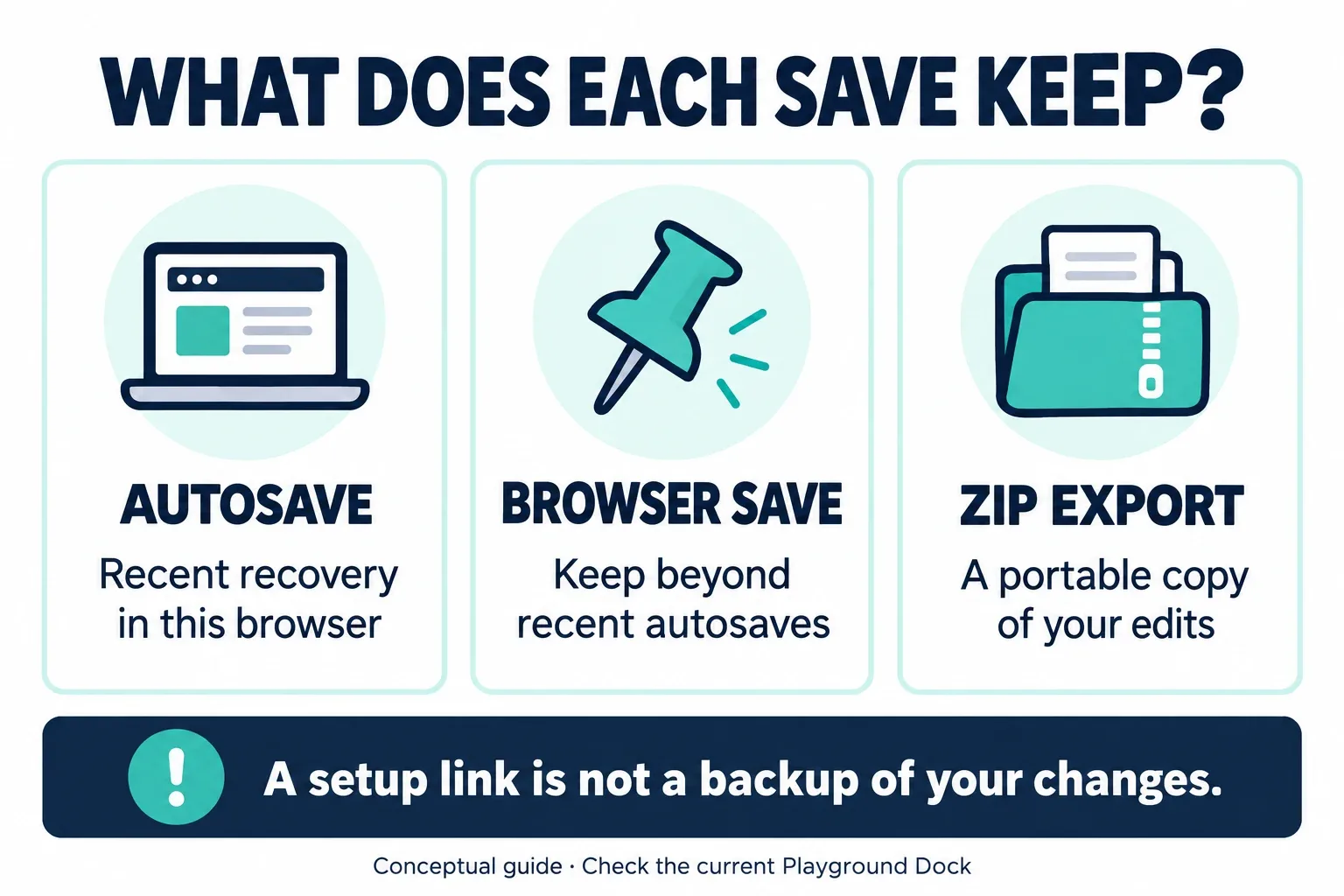
AI-generated explanation of storage choices. It is a conceptual guide, not an interface screenshot. Availability depends on the current app and browser. View image at full size →
How to export WordPress Playground—and what the ZIP keeps
We opened Export in the Dock and chose Download as .zip. The downloaded archive contained 248 entries, including theme files and a SQLite database. We inspected that database and found the revised page title. That is stronger evidence than merely seeing a download button.
We did not restore the archive into a second instance or migrate it to commercial hosting. Finding the saved page in the archive proves that the exported database contains that edit; it does not prove every file or integration will restore successfully elsewhere.
The current quick-start guide explains the intended ZIP restore route through New Playground → Import zip. For important work, test that restore while you still have the original available. An export you have never restored remains an untested backup.
Do not treat a WordPress Playground ZIP as a universal one-click import into any host. The database format, destination environment and migration method matter. Our downloaded file stayed local and was not published as a site-download package.
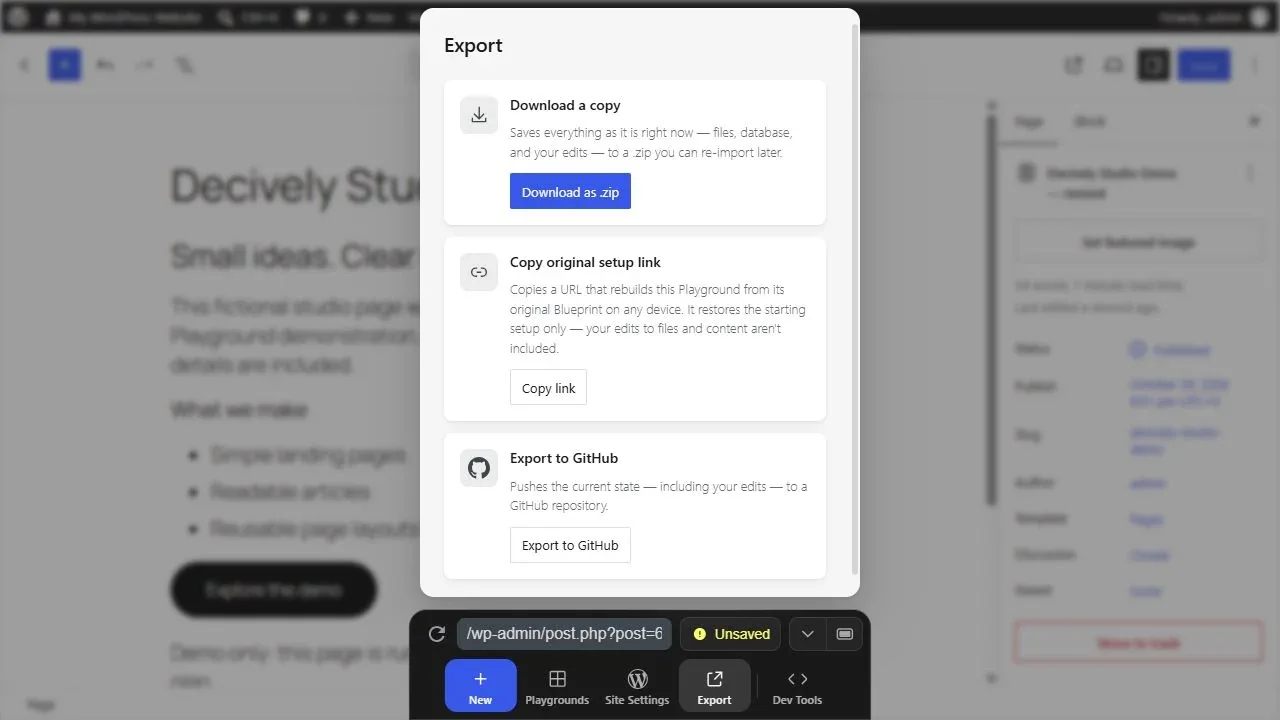
Actual Export panel from our fictional demo. It distinguishes downloading the current state from copying the original setup link. View image at full size →
A WordPress Playground setup link is not a copy of your finished page
The Export panel explicitly says the original setup link rebuilds the starting Blueprint and leaves later file and content changes behind. If you send that link after editing a page, do not assume the recipient will see your edits.
A Blueprint is a recipe for preparing an environment. WordPress’s Blueprint introduction describes repeatable setups; the usage guide covers loading those recipes. It is useful when you want the same starting conditions on another device.
For WordPress Playground demonstrations, choose the sharing method by the promise you are making: a starting setup, an exported state, or a deployed site. Those are three different deliverables. A colleague should not have to guess which one your link represents.
Can you test themes and plugins without changing your live site?
Yes, within the separate environment. The official testing guide describes loading directory themes and plugins and testing different WordPress and PHP configurations. This is useful for discovering controls or checking a particular behavior before touching your working site.
A clean install is not your existing site, however. It may lack your theme customizations, extensions, database content and server settings. A plugin that activates successfully has passed only one small check. It may still fail on your real workflow.
If you are choosing a visual page builder, our Elementor Pro review covers that purchase decision. The WordPress Playground test in this article used native blocks; we did not install Elementor Pro or verify its licensing, add-ons or advanced features here.
WordPress Playground vs local WordPress vs hosted staging
Choose the environment that answers your question. A browser experiment can tell you whether a layout or basic editor workflow is worth pursuing. A development installation offers a different setup for ongoing work. A hosted staging copy is the place to examine behavior on an appropriately matched hosting stack.
The following is an editorial decision framework, not a performance comparison. “Local WordPress” covers several approaches, and a staging site is only representative when you actually match the relevant configuration. None automatically guarantees a safe deployment.
On a small screen, swipe the table sideways to read every column.
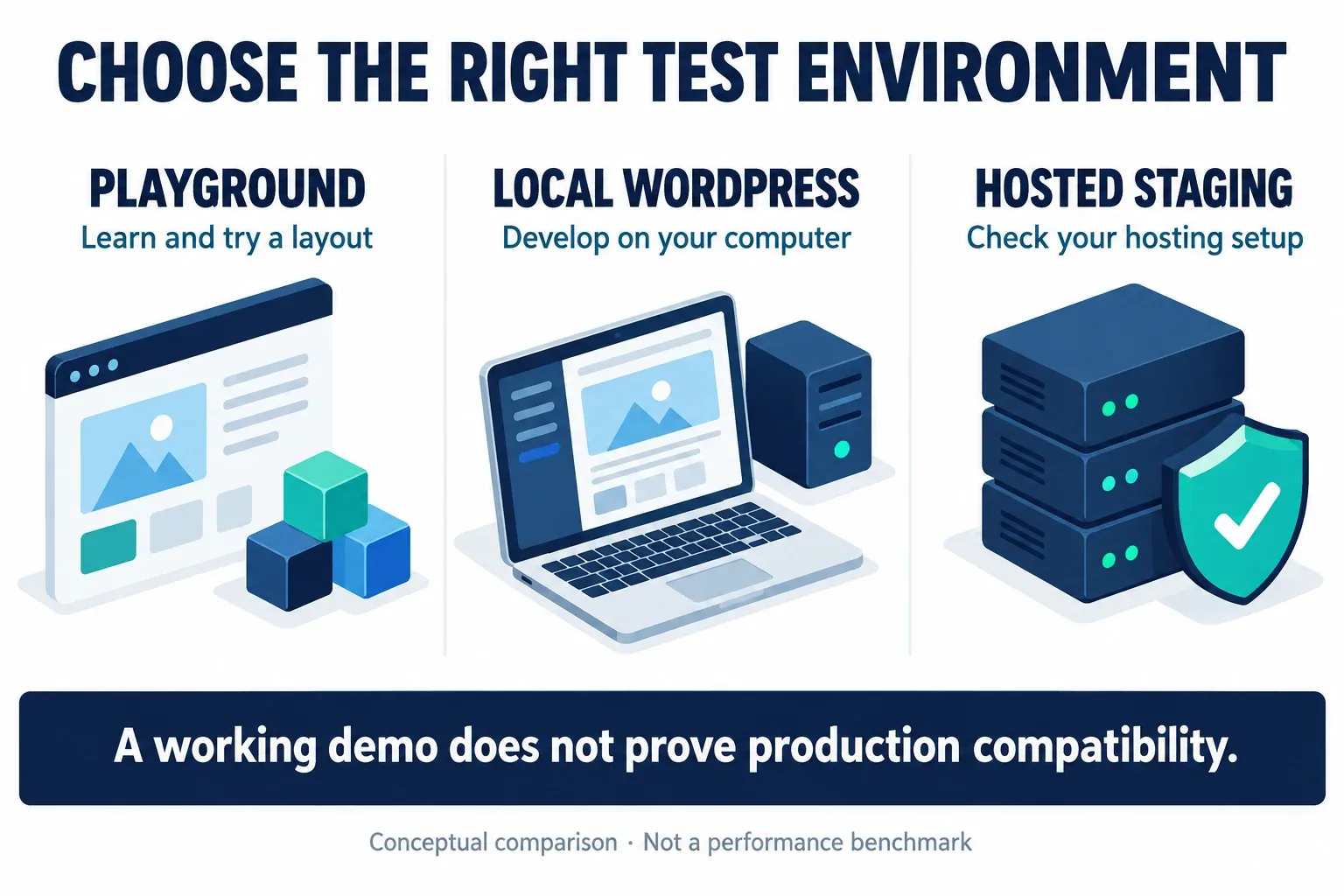
AI-generated conceptual comparison, not a test of speed, reliability or security. The right environment depends on your actual task. View image at full size →
What should still be tested on a representative staging site?
For a brochure site, check forms, links, media, mobile layout and any service that needs a real domain. For a store, extend that to cart behavior, taxes, shipping, payment-provider test modes, confirmation messages and the destination’s cache configuration. These are recommended checks, not tests we completed in this review.
WordPress Playground does not reproduce an entire hosting service merely because it runs WordPress. The project overview notes limitations around persistent connections to third-party services. A successful local screen render tells you nothing about real email delivery or a payment callback.
If your next step is sustained development, the project’s local development documentation describes additional tooling. That is a separate workflow from the quick browser exercise reviewed here. Start with the simplest environment that can actually answer your test question.
Why SQLite and browser behavior matter in WordPress Playground
The troubleshooting handbook explains that the browser runtime uses SQLite integration rather than a conventional MySQL server. That difference matters when moving beyond standard content editing, especially if an extension expects a specific database feature or server capability.
Browser workers and storage also form part of the environment. Our initial startup needed a retry, and permanent browser storage was not verified. That is a reason to keep expectations practical; it is not enough evidence to rank browsers or declare the product unreliable.
For WordPress Playground testing, write down the versions, the theme or plugin under review and the exact action that succeeded or failed. It makes a repeat test more meaningful than remembering that “it worked once.”
Is WordPress Playground worth using?
For beginners, it removes enough setup friction to make learning feel more immediate. For freelancers and creators, it is useful for small prototypes and checking whether an idea deserves more work. For educators and plugin makers, repeatable starting environments can make a demonstration easier to reproduce.
Its value falls when you expect it to replace hosting, a migration plan or a complete compatibility check. A complex project still needs a maintainable working environment and a tested route to deployment. Saving an idea cheaply is useful; mistaking it for a finished system is not.
Our verdict: WordPress Playground is worth trying before committing to hosting or a larger build. Define one small test, verify the result, keep an appropriate copy and move to representative staging when the question changes from “Can I build this?” to “Will this work for my visitors?”
Quick questions
Is WordPress Playground free to try?
The official browser demo can be opened without buying hosting. Paid themes, plugins, licenses and a later public deployment remain separate decisions; using a test environment does not make those products free.
Does WordPress Playground publish my demo to the web?
Publishing a page inside the browser instance changes its WordPress status there. It does not buy a domain or deploy a permanent public site. Our screenshot’s Published label refers only to the fictional test page.
Can I keep my edits for later?
Check the current storage mode, save the instance where supported and export a ZIP when you need a portable copy. The original setup link is not a backup of later edits.
Did Decively test plugin compatibility or ZIP restoration?
No. We verified page rendering, a block-editor title change and the revised title inside the exported database. We did not test extra plugins, checkout, email delivery or restoration into another environment.
Research notes and primary references
Research and limited hands-on checks were completed October 28, 2026. Sources are the linked official project documentation, including the Dock, storage, Blueprint and testing guides. Recommendations about environment choice and staging checks are Decively editorial judgment.
The fictional page was inserted through the test instance’s native content API, then edited and saved in its block editor. Version details and the exported database were checked. The startup retry and unverified browser persistence are disclosed; no general performance benchmark was conducted.
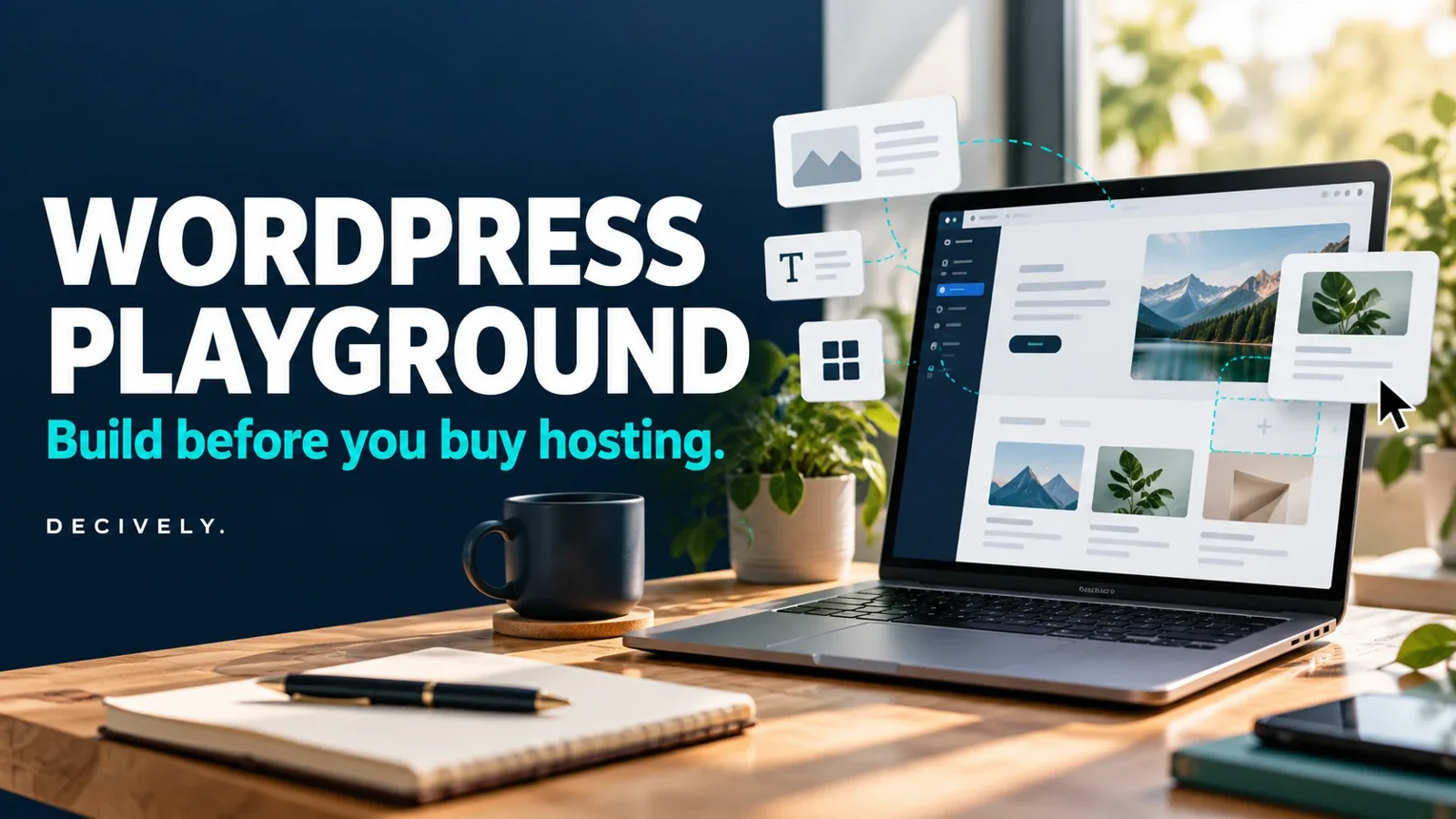
The editor and export images are actual captures of a new anonymous demo, containing invented content. The cover and two explanatory diagrams were generated for Decively and are labelled as illustrations. No private client site, account credentials or real customer data was used in the example. This article contains no affiliate links.