
iPhone storage full? Start with the charging port, then choose a drive for everyday photos or larger video batches. These four options store exported files; they do not expand the phone’s internal memory.
Affiliate disclosure: As an Amazon Associate I earn from qualifying purchases. How our affiliate links work.
Choose by iPhone port, then by storage need
USB-C iPhone · everyday photos
SanDisk Phone Drive with USB-C · 256GB
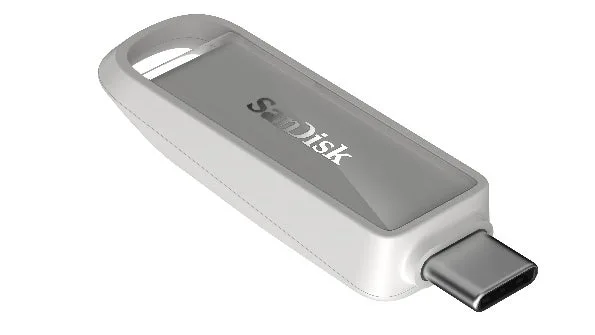
Arctic White. Photo: SanDisk / PR TIMES.
A phone-focused choice for regular photo offloads. Choose this connector for a USB-C iPhone; it does not plug directly into Lightning.
Lightning iPhone · or both ports
SanDisk Phone Drive for iPhone · 256GB
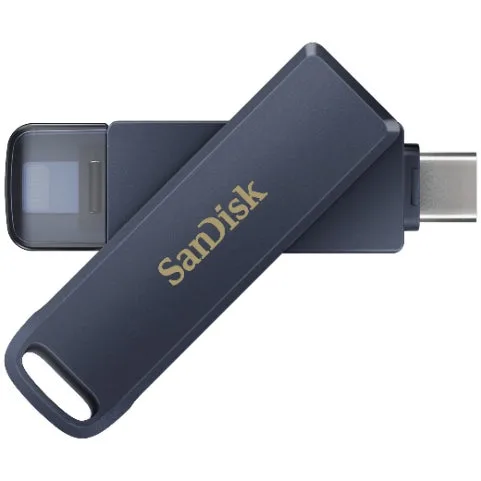
Metallic Blue (Metallic Sky). Photo: SanDisk / PR TIMES.
Lightning + USB-C in one drive. The relevant option here for older iPhones; check the SanDisk app and current iOS requirements.
Large video library · 1TB
Samsung T7 Shield · 1TB
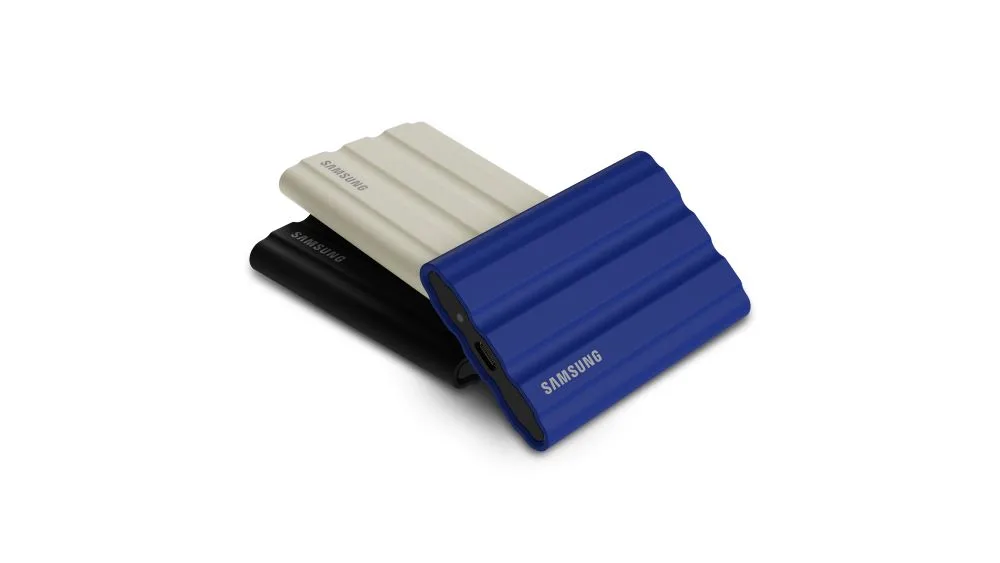
Colour lineup shown; linked model: Black 1TB. Photo: Samsung Newsroom Korea.
Choose the larger SSD when video batches outgrow a small flash drive. It connects by USB-C cable; check phone power and formatting.
Compact USB-C · manual transfers
Samsung USB Type-C Flash Drive · 256GB
A small stick for Files-based transfers. The UK redirect currently selects 128GB: select and verify 256GB before ordering.
None of these upgrades the iPhone’s internal storage. They hold exported files. You only reclaim phone space after checking the copies and removing the originals you no longer need on the phone.
International readers: Amazon can redirect to a local listing. The USB-C SanDisk link now opens the correct 256GB model in our UK check. The Samsung flash-drive redirect still selects 128GB; check and select 256GB, along with seller, delivery and warranty, before checkout.
Which external drive fits your iPhone?
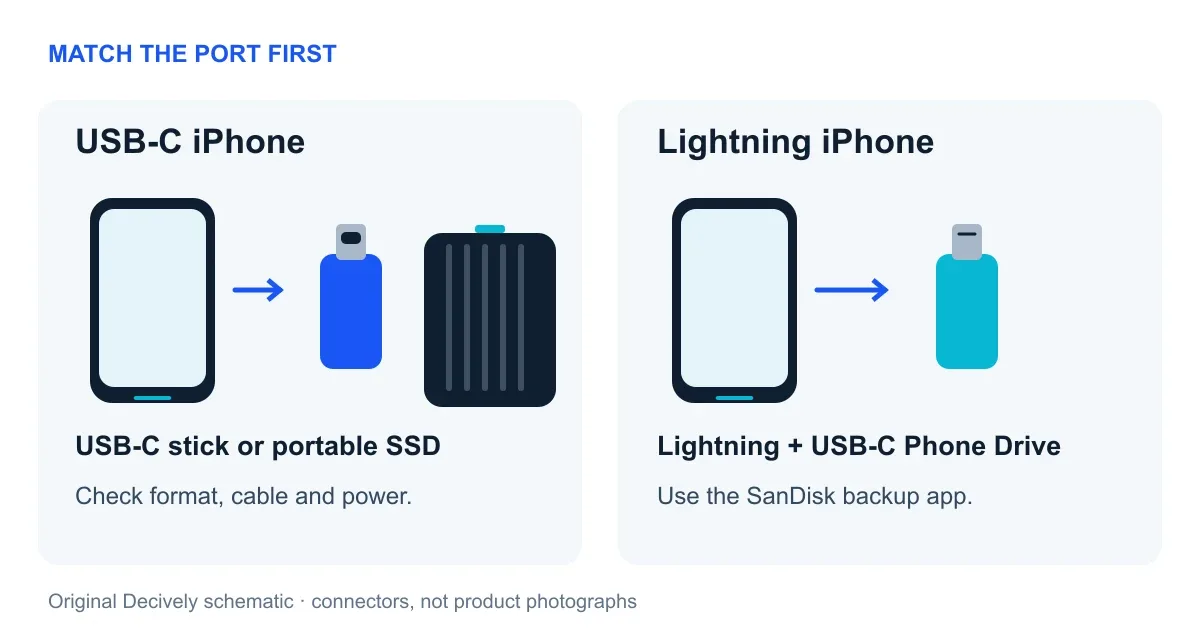
Match the connector first. USB-C compatibility also depends on formatting and available power.
Look at the charging port rather than guessing from the phone’s age. For USB-C, Apple supports external drives through the Files app when the device has a supported format and sufficient power. For a Lightning photo-backup workflow, the dual-connector SanDisk is the relevant choice here; use its compatible SanDisk app and check current iOS requirements.
For a drive shared between iPhone, Mac and Windows, exFAT is usually a practical choice. Apple requires a single data partition; not every format works. Back up anything already on the drive before reformatting, because formatting erases it. A drive that needs more power may require a powered hub or adapter.
The four options, without the spec overload
SanDisk Phone Drive with USB-C: photo offloads
The linked US selection is 256GB, Arctic White. Its USB-C connector and SanDisk backup-app option make it a logical starting point for a compatible USB-C phone. App backup requires installation and setup; plugging it in does not automatically archive your library. Skip this version if your phone has Lightning.
SanDisk Phone Drive for iPhone: two ports
The linked 256GB Metallic Blue model has both Lightning and USB-C. That matters if you are moving files from a Lightning iPhone and want a USB-C connection for another device. This is the current Phone Drive, not an older iXpand model. Confirm that the app supports your phone before ordering.
Samsung T7 Shield: room for larger batches
The linked SSD is 1TB, Black. It uses a USB-C cable rather than sitting directly in the phone’s port. Samsung reports successful recognition and data transfers in its own iPhone 15-family checks. Its US and local-store model suffixes can differ, so check warranty coverage. Independent PC Gamer tests also highlight consistent transfers, but those PC results do not establish iPhone copy speeds.
Samsung USB Type-C: a compact manual-transfer option
The intended US selection is 256GB, Blue, MUF-256DA/AM. Treat it as a USB mass-storage device for a compatible Files workflow, rather than a dedicated iPhone backup service. Samsung’s datasheet does not certify every iPhone model. Check recognition and copy a small test batch before trusting it with a large archive—and confirm the listing has not changed to 128GB.
256GB stick or 1TB SSD?
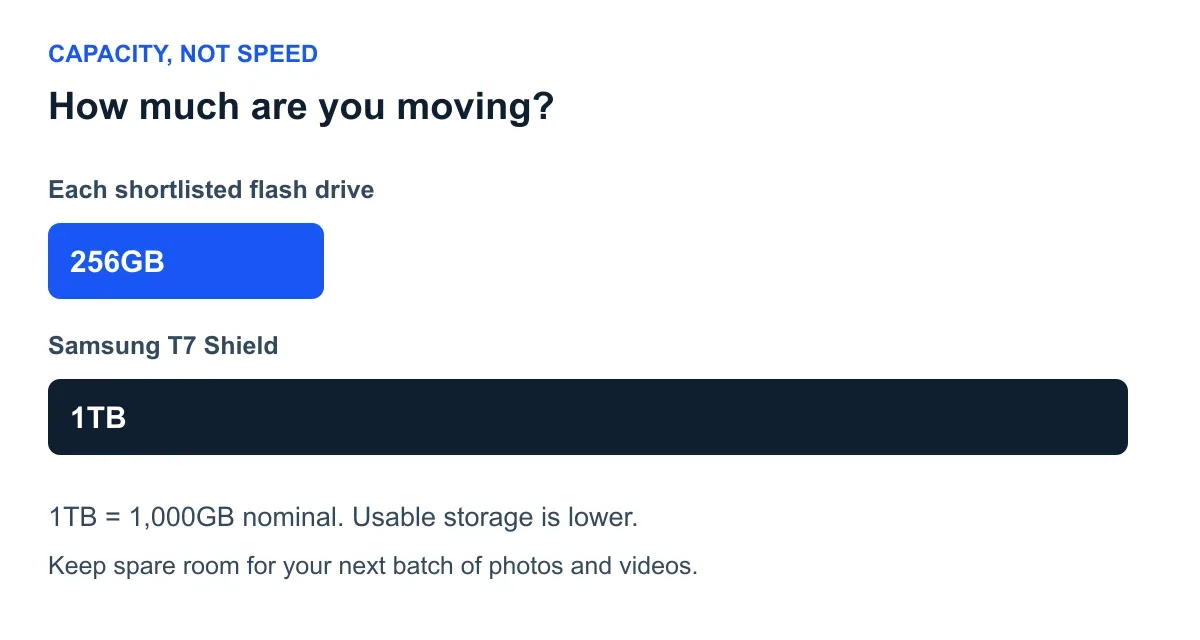
Capacity comparison, not a speed test. All four selections have less usable space than their advertised capacity.
Check Settings → General → iPhone Storage to estimate the space used by Photos, then leave room for future files. A 256GB stick suits smaller exports only if the archive fits. The T7 Shield makes more sense when your videos would nearly fill a stick or you want to keep multiple batches together. Advertised capacity is not the same as usable space.
Do not choose by the biggest read-speed number on the box. SanDisk and Samsung’s quoted speeds are manufacturer read claims, not iPhone export measurements. The phone’s port, file mix, write speed and available power all affect a transfer. This shortlist is for moving existing files; it does not promise direct ProRes recording compatibility.
How to move iPhone photos without losing them
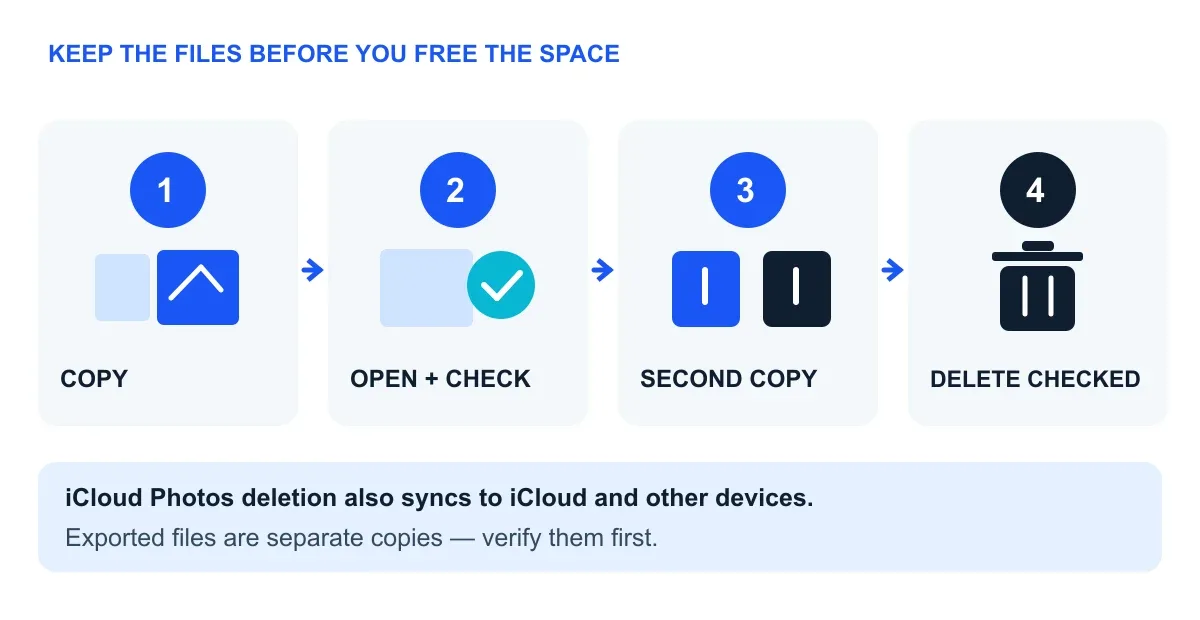
Verify the export before deleting. With iCloud Photos, deletion also affects the synced library.
On a compatible USB-C Files workflow: connect the drive and check it appears under Files → Browse → Locations. In Photos, select a manageable batch, tap Share → Export Unmodified Originals, choose the external drive and save. Apple’s unmodified-original export preserves the original file, not your applied edits. Export edited versions separately if you need them.
For the Lightning SanDisk: follow the compatible SanDisk app’s backup/export steps. Before a large transfer, open a few copied photos and videos from the drive, and ideally check them on a computer too. Keep another copy of irreplaceable files; a single flash drive is not a complete backup strategy.
If Optimize iPhone Storage is enabled, full originals may still be in iCloud and need downloading. Use smaller batches or a computer-assisted archive if the phone lacks working space. Do not assume that every thumbnail visible in Photos is already a full local file.
With iCloud Photos, deleting in Photos also deletes from iCloud and other synced devices. Only remove files after verifying the independent exports. Deleted items normally remain in Recently Deleted for 30 days, so immediate space recovery may be limited. Emptying that folder makes recovery unavailable there; do it only when your copies are secure.
Our pick: solve the port problem first
For a Lightning iPhone, choose the dual-port SanDisk. For USB-C photo batches that fit comfortably within 256GB, compare the two compact USB-C options at their current prices. Choose the T7 Shield when archive size makes a 1TB SSD more useful than a pocket stick. Connector fit and a verified export matter more than a headline speed claim.
For more purchase checklists, explore Decively’s Buying Guides.
Two questions before you buy
Does an external drive increase iPhone storage?
It adds somewhere to store files, not internal space for apps or iOS. Export, verify, then remove the local files you choose to offload.
Can I put my whole photo library on a drive?
You can export photos and videos if the drive has enough usable space and the originals are accessible. That is not a complete backup of the phone or every Photos-library feature. Keep a second copy of important files.
Research notes
This is a researched buying guide, not a Decively hands-on test. Research and link checks: October 5, 2026. Sources checked October 5, 2026: Apple iPhone User Guide (external storage and photo exports); Apple iCloud Photos support; SanDisk Phone Drive datasheets and iPhone compatibility matrix; Samsung Type-C flash-drive datasheet and portable-SSD support; PC Gamer’s external-SSD testing. Product-fit recommendations are Decively editorial interpretation. We have not performed a four-drive iPhone benchmark.