
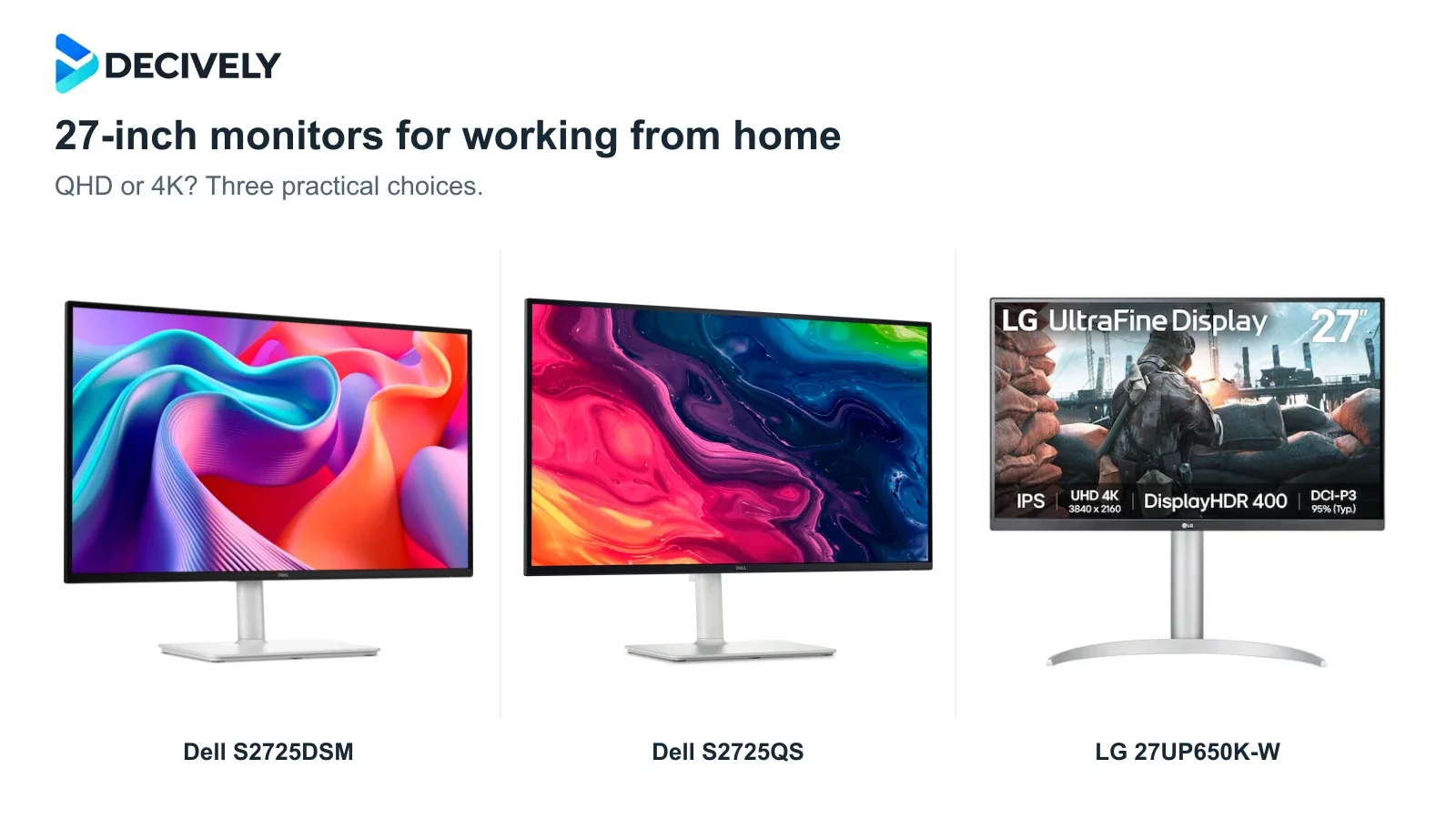
The best 27-inch monitor for working from home should make documents easy to read and give your apps room to breathe. These three IPS options cover the useful budget-to-4K choices without making you pay for a premium docking hub.
Quick verdict
Best all-round choice: Dell S2725QS. Its 4K screen and 120Hz refresh rate combine sharp text with smoother scrolling. Choose it when the premium over the QHD Dell is affordable and your computer supports the output.
Best saving: Dell S2725DSM. QHD/144Hz is a sensible fit for email, Excel and browser work when it costs meaningfully less. You trade some text detail for the saving, rather than buying a physically smaller screen.
Worth comparing on price: LG 27UP650K-W. It keeps 4K detail and an adjustable stand but stops at 60Hz. Pick it when it is substantially cheaper than the S2725QS, not simply because both say 4K.
Affiliate links. As an Amazon Associate I earn from qualifying purchases. Amazon may show local alternatives; check the exact model, seller, delivery, local warranty and returns before ordering.
Three 27-inch work monitors compared
QHD or 4K: clearer text, or more room?
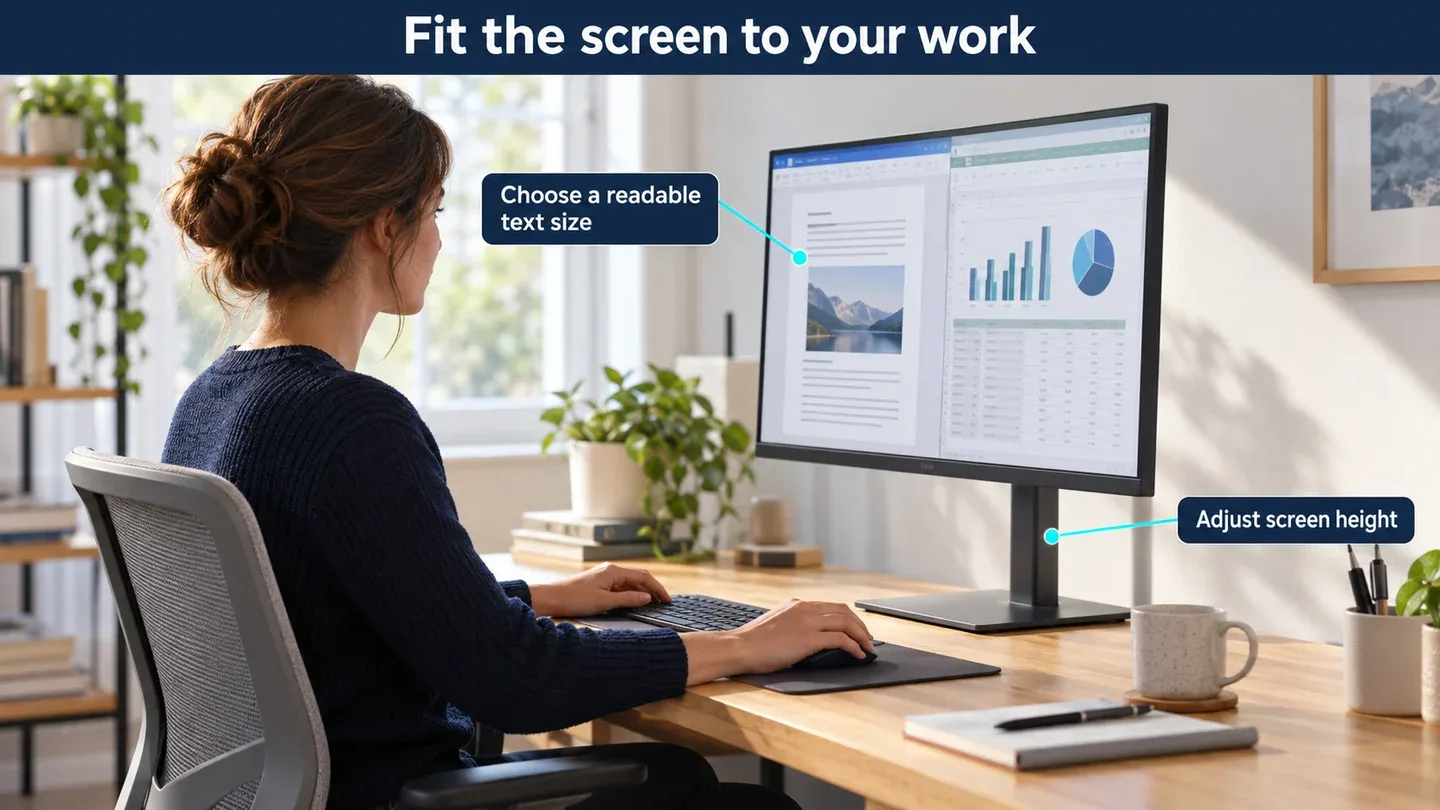
Generated explanatory illustration with generic equipment, not a product photograph or Decively test. Adjust screen height and text size to suit your desk and eyesight.
For documents and coding, 4K buys finer detail. At 27 inches, QHD is about 109 pixels per inch; 4K is about 163. The higher density helps render letter edges more finely. It does not require you to read tiny text: increase scaling to keep a comfortable size.
For spreadsheets, scaling changes how much fits. On Windows, QHD at 100% and 4K at 150% have approximately the same 2560 × 1440 logical workspace. The 4K panel uses more physical pixels to draw it. At 125%, 4K provides roughly 3072 × 1728 logical space, with smaller interface elements. These are calculations, not measured app results; Excel zoom and application behavior also matter.
Keep native resolution and adjust the interface. In Windows, use Settings → System → Display → Scale instead of lowering a 4K screen to 1440p. On a Mac, choose the connected screen in System Settings → Displays and compare the available larger-text/more-space options. macOS does not offer the same percentage controls; available modes depend on your setup. Try your actual work apps before deciding the text size suits you.
Which monitor should you buy?
Dell S2725DSM: save without dropping to Full HD
Choose this Dell when you mainly juggle email, spreadsheets and a browser and the saving over 4K is worthwhile. Its 144Hz specification can make scrolling more fluid than 60Hz, but refresh rate adds no spreadsheet cells. For text-heavy work, prioritize readable scaling over the difference between 120Hz and 144Hz.
The adjustable stand offers 110mm of height travel plus swivel and portrait rotation. Dell lists a 350-nit panel and built-in speakers. We did not find a robust independent lab test of this exact DSM variant, so those specifications do not establish measured color accuracy, glare handling or motion performance. Do not confuse it with the older 100Hz S2725DS.
Dell S2725QS: the most balanced work upgrade
This is our pick if you spend much of the day reading small text, PDFs or code and want smoother desktop motion as well. Compared with the LG, its key everyday upgrade is 120Hz, not additional workspace: both have the same native 4K resolution.
RTINGS found sharp text and useful stand adjustments in its S2725QS test, but also stand wobble and distracting reflections in sunny rooms. Its gaming assessment found blurry fast motion despite 120Hz. Position it away from direct window reflections and do not treat the refresh-rate number as proof of gaming-grade response.
LG 27UP650K-W: buy the discount, accept 60Hz
The LG suits mostly static documents, spreadsheets and reference windows when it saves enough over the Dell 4K model. You retain the same pixel count, height adjustment and portrait pivot. You give up the Dell's higher refresh rate and stand swivel; scrolling is less fluid at 60Hz.
LG specifies 400-nit typical brightness, DCI-P3 95% coverage and DisplayHDR 400. These are manufacturer figures, not evidence it is more accurate or handles sunlight better than the Dells. Independent measurements for this exact K variant were limited in our research. Choose it for the 4K/price combination, rather than the HDR badge.
Before ordering: check the desk and the connection
Start with your working position. Leave enough depth to sit back comfortably and read without leaning forward; there is no single ideal distance for every person. All three adjust in height and support 100 × 100mm VESA mounting. For a cramped desk, see our monitor arm buying guide and check the screen's stand-free weight against the arm's limits.
Verify the entire signal chain. A laptop or dock that supports 4K/60Hz may not support 4K/120Hz. Check its exact specifications, adapter, cable and display settings; keep the laptop charger connected separately. If adding two displays, use our guide to connecting two monitors to a laptop.
The buying rule: take the S2725QS when its premium buys text detail and smoothness you will use. Take the S2725DSM when the saving matters more. Take the LG when you want 4K and its price makes accepting 60Hz easy. None is the right shortlist if one-cable laptop docking is essential.
Research notes
Research checked 18–19 October 2026. Decively has not tested these monitors. Hardware specifications come from Dell and LG; independent observations are attributed to RTINGS. Workspace examples are calculations, not display tests. Recommendations reflect work needs and relative value, not a worldwide sales ranking. Product imagery: Dell and LG; composition: Decively.
Dell — S2725DSM specifications and stand adjustments Dell — S2725QS specifications and supported signals LG — exact 27UP650K-W specifications RTINGS — independent S2725QS testing Microsoft — resolution and display scaling guidance Apple — connected-display resolution settings