
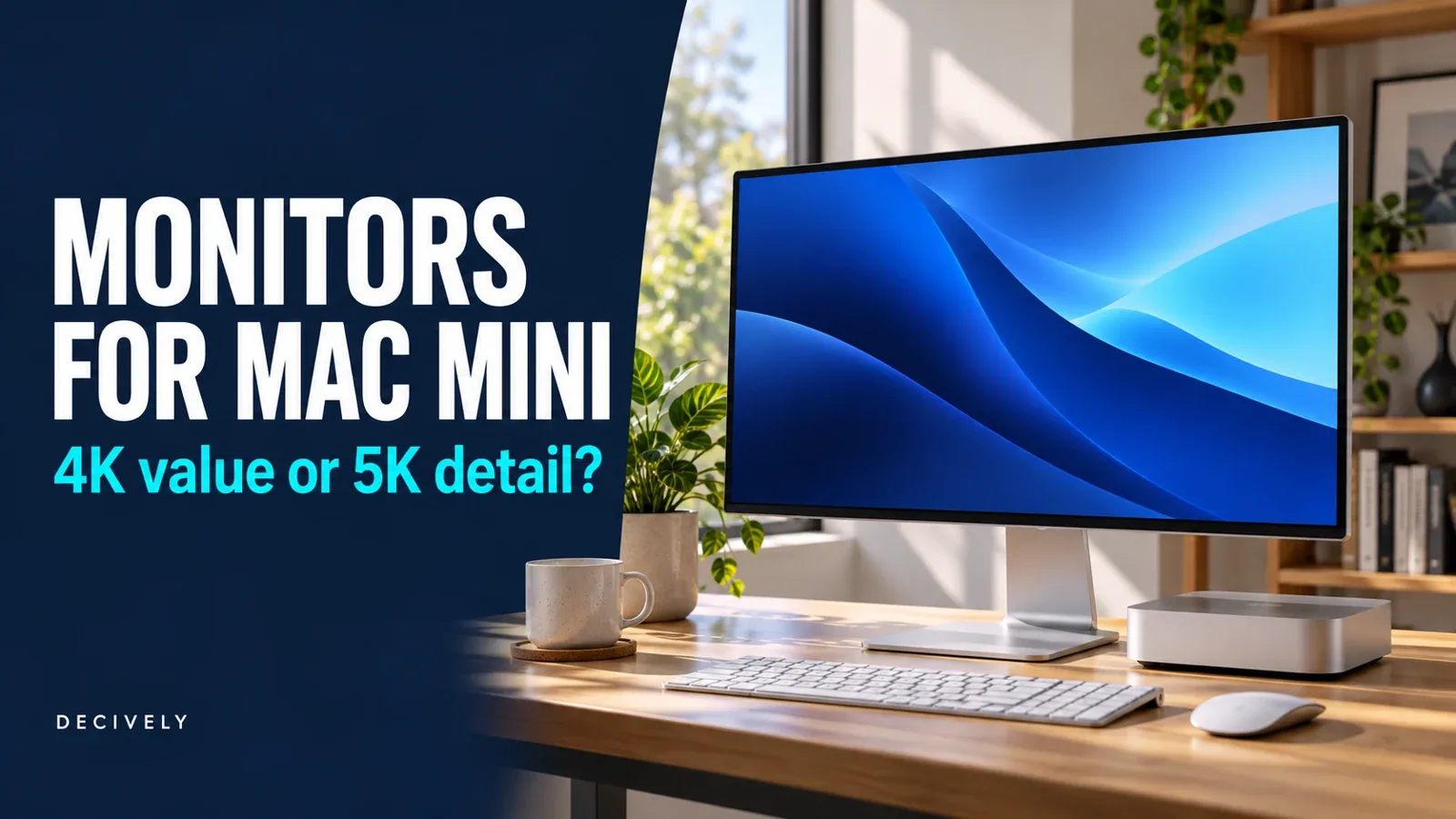
Best monitor for Mac mini: the short answer
The best monitor for Mac mini depends on which compromise you notice most: the price, the size of text, or the smoothness of scrolling. A good 27-inch 4K screen is a sensible starting point. A 27-inch 5K screen becomes more interesting when you want a comfortable 2560 × 1440-style workspace with exact 2× scaling.
Our shortlist has three different jobs: Dell S2725QS for a simpler 4K/high-refresh setup, ASUS ProArt PA27JCV for 5K density, and BenQ MA270U for 4K with Mac-oriented controls and a USB hub. None is the automatic winner for every desk.
This is a research-based buying guide, checked October 28, 2026. Decively has not physically tested these monitors. Specifications come from Apple and the manufacturers; recommendations are our assessment of their trade-offs. Amazon links are affiliate links. Prices, sellers and availability can change.
Compare the best monitors for Mac mini
Start with the experience you want, then check the connection. Our search for the best monitor for Mac mini centers on three 27-inch IPS models with adjustable stands. Their resolution, refresh rate and USB features create the meaningful differences.
On a small screen, swipe the table sideways to read every column.
Maximum panel refresh is not a promise for every Mac, dock, cable or multi-display combination. Verify the complete signal path. Check the exact suffix: Dell S2725QS is different from S2725QC, and BenQ MA270U is different from MA270UP or MA270S.
AVAILABLE ON AMAZON · AFFILIATE LINKS
Find the best monitor for Mac mini for your budget
Match the exact model suffix and size. Check current price, condition, seller and return terms, then confirm the connection for your Mac mini.
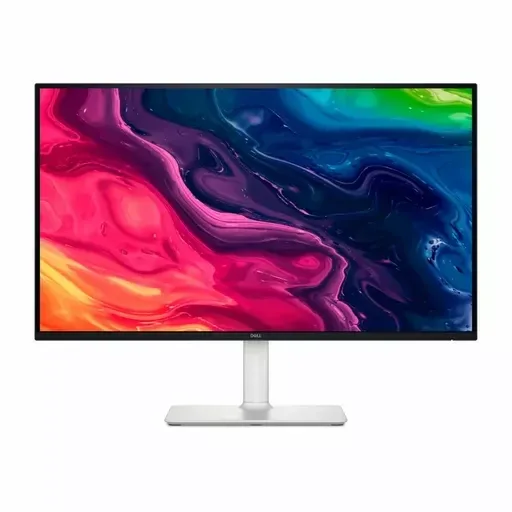
Dell S2725QS — 27-inch 4K / up to 120Hz
HDMI / DisplayPort model; no USB-C hub.
Check options on Amazon →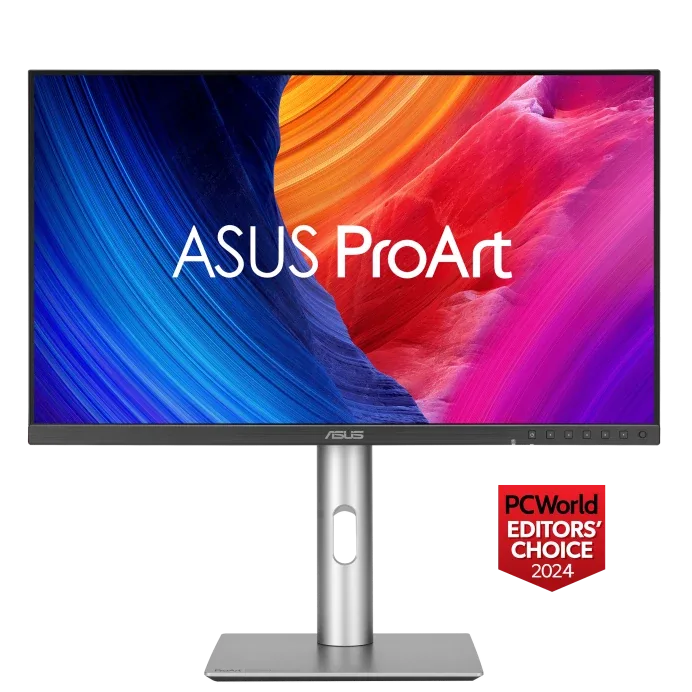
ASUS ProArt PA27JCV — 27-inch 5K / 60Hz
5K density with USB-C video and KVM.
Check options on Amazon →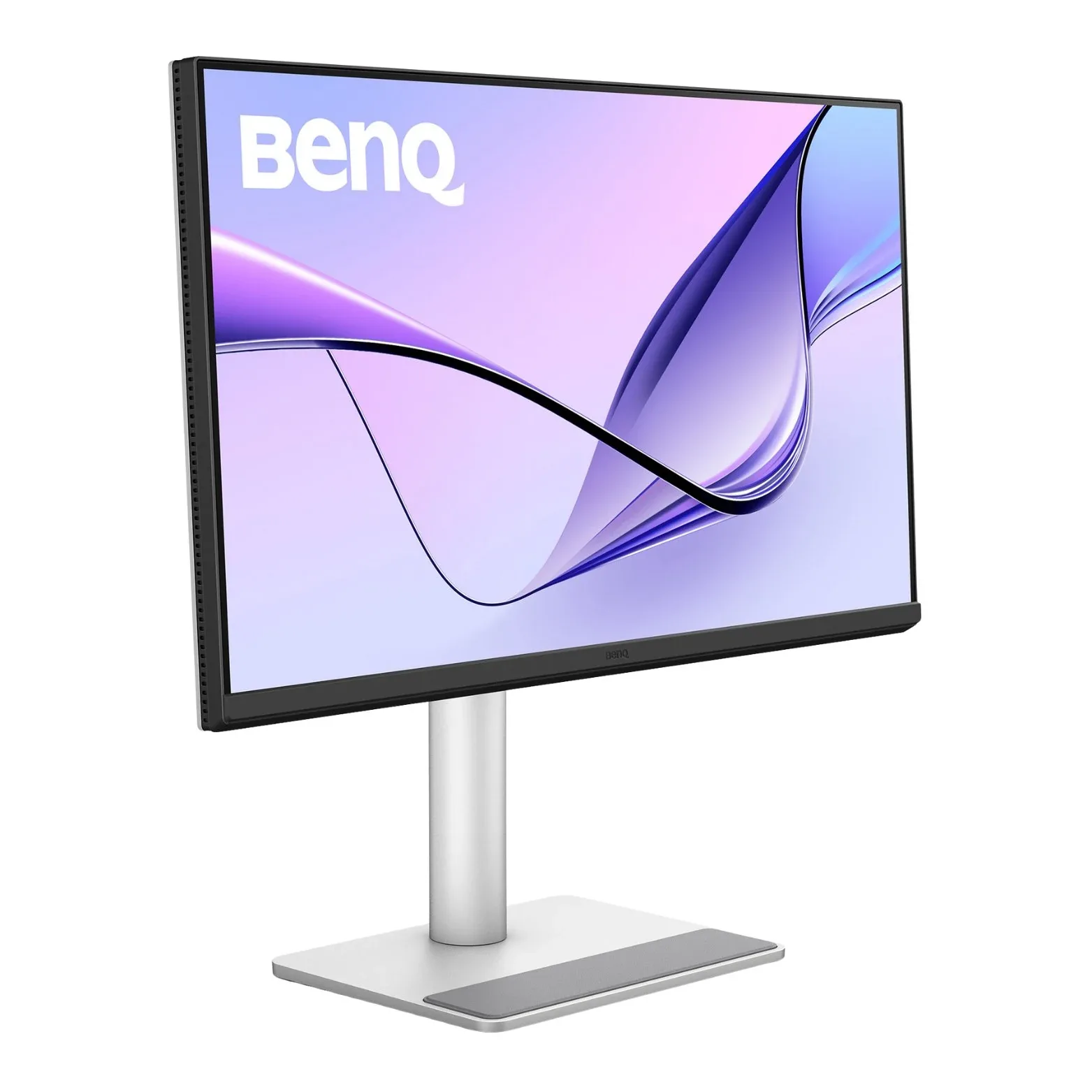
BenQ MA270U — 27-inch 4K / 60Hz
Nano Matte screen, USB hub and supported Mac controls.
Check options on Amazon →As an Amazon Associate, Decively earns from qualifying purchases, at no additional cost to you. Prices and availability can change.
Best monitor for Mac mini: understand 4K versus 5K
Finding the best monitor for Mac mini is partly about the size of the interface you can comfortably use. Physical resolution counts pixels. The scaled workspace describes how much desktop fits, with text and controls sized for reading.
At an exact 2× scale, a 3840 × 2160 panel corresponds to a 1920 × 1080 logical workspace. A 5120 × 2880 panel corresponds to 2560 × 1440. Both use two physical pixels in each direction for one logical unit; 5K fits more logical workspace at that scale.
On a 27-inch 4K display, a 1920 × 1080-style workspace can make controls pleasantly large but leave less room for side-by-side documents. Choosing a 2560 × 1440-style scaled option can give you more room. It does not turn the physical panel into a 5K display.
With a non-integer scale, macOS can render and resample the desktop. The result depends on the setting, application and display. Apple notes that scaled resolutions may affect performance. Avoid blanket claims that every 4K monitor looks blurry or that 5K makes every task faster.
On a small screen, swipe the table sideways to read every column.
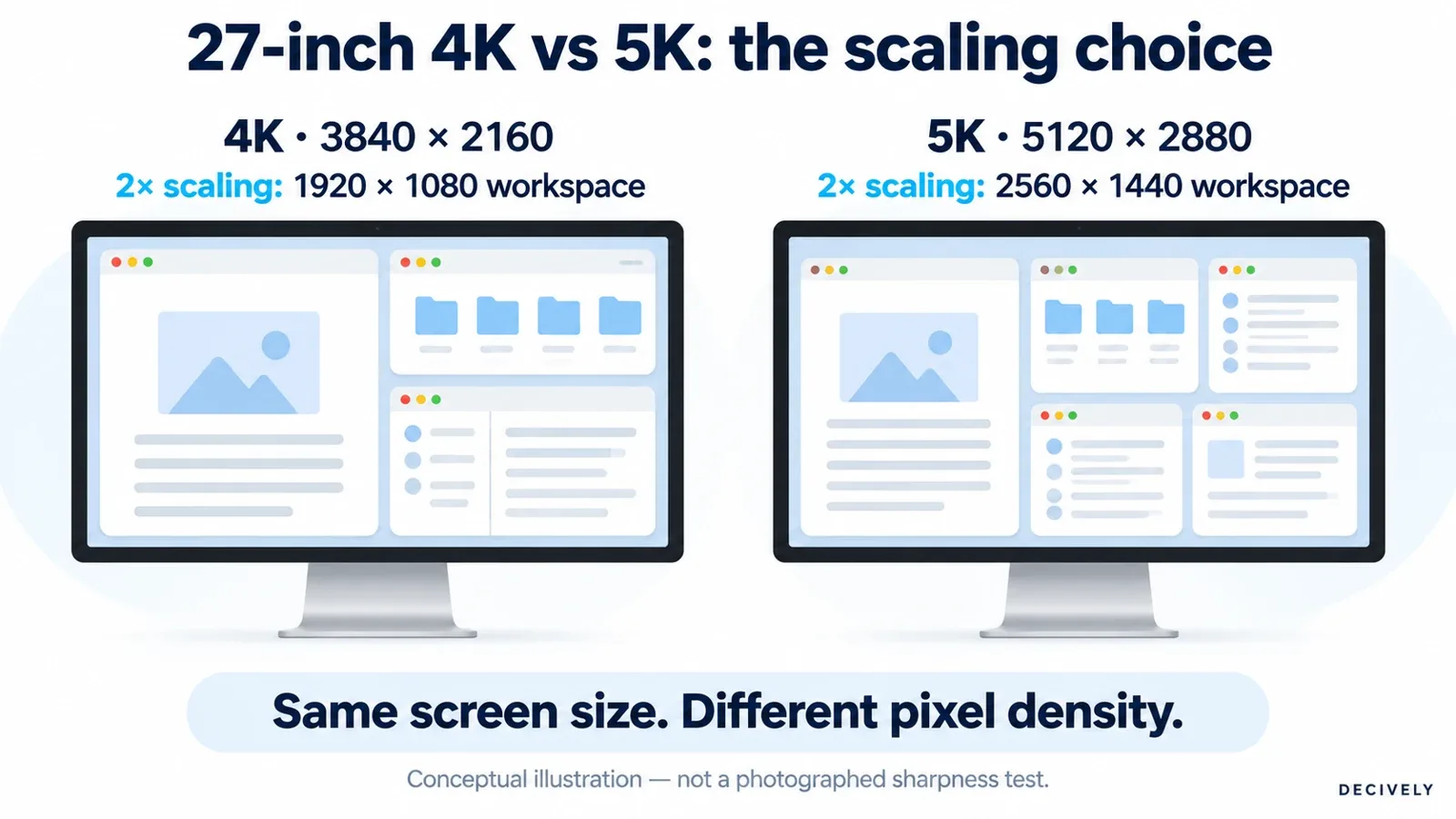
Conceptual scaling diagram. These are workspace examples, not actual screenshots or a photographed sharpness comparison. View diagram at full size →
For a text-heavy reader, the best monitor for Mac mini might therefore be 5K even when the job needs little graphics power. For someone using email, calls and a few browser windows, a well-chosen 4K screen can be entirely sufficient.
Dell S2725QS: the value route with 120Hz
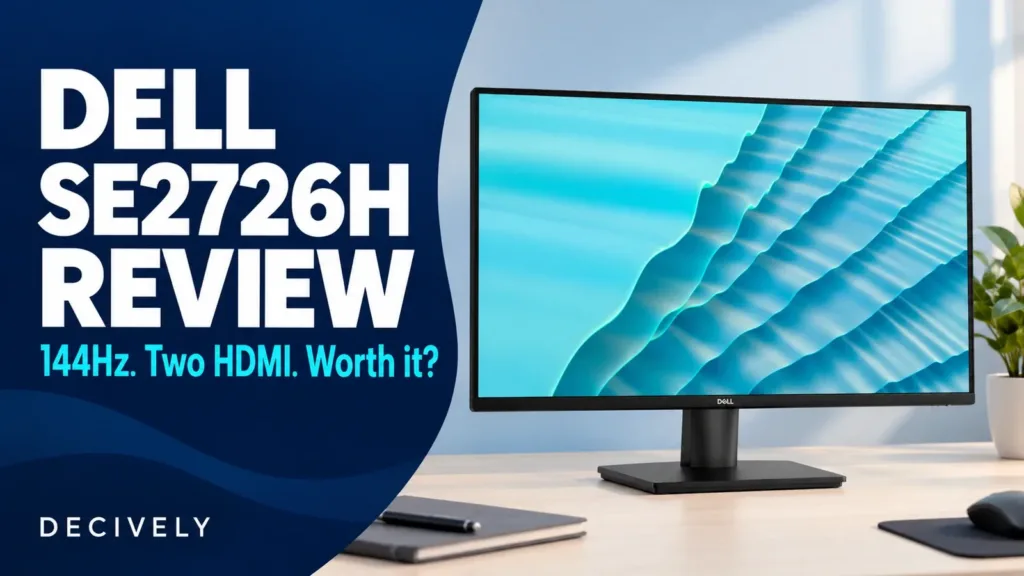
If your priority in the best monitor for Mac mini is smoother motion at a sensible price, consider the Dell. Its maximum 120Hz refresh rate separates it from the two 60Hz alternatives, while 4K resolution keeps it relevant for document work.
The S2725QS has HDMI and DisplayPort video inputs, built-in speakers and an adjustable stand. Dell lists no USB hub. Its published connections do not include USB-C video, even though wording in some retailer listings suggests otherwise. Use the manufacturer specification for the purchasing decision.
For a supported Mac mini, HDMI can make this a straightforward direct connection. A video-capable USB-C-to-DisplayPort cable is another route. Confirm the resolution and refresh rate in Displays settings after installation; the monitor’s 120Hz rating alone does not establish what your system is sending.
Choose it when you do not need a monitor hub and the current offer leaves a meaningful saving. Skip it when USB peripherals through one upstream connection are central to your setup. Our Dell S2725QC vs S2725QS comparison explains when paying for the other model’s USB-C arrangement makes sense.
ASUS ProArt PA27JCV: when 5K earns its place
The ASUS is our higher-density candidate for the best monitor for Mac mini, especially for people comparing documents, editing layouts or working with lots of fine text. It offers 5120 × 2880 pixels at up to 60Hz, rather than trading resolution for the Dell’s higher refresh.
Its USB-C input carries DisplayPort video, while its hub and KVM can be useful on a shared-computer desk. The stand adjusts in height, tilt, swivel and pivot. Check the manual’s upstream-port arrangement before planning how one keyboard and mouse will switch between computers.
When comparing the best monitor for Mac mini for design work, the reason to pay more is the combination of density and workflow features. A factory-calibration claim is not a guarantee that every unit perfectly matches your printer, another display or a specific client’s color workflow. Likewise, an HDR badge alone does not establish reference-grade HDR performance.
If this ASUS looks like the best monitor for Mac mini for you, be clear about the priority: a 27-inch 5K workspace. If you care more about high-refresh motion, or only open a few large windows, the premium may be harder to justify. Its USB-C power output is useful for a compatible laptop, not for powering the Mac mini.
BenQ MA270U: pay for controls and a hub, not extra pixels
The BenQ enters the best monitor for Mac mini shortlist for a different reason. It remains a 27-inch 4K/60Hz screen, but adds a Nano Matte surface, USB connectivity and Display Pilot 2 software.
BenQ lists a USB-C video/data input, two HDMI inputs, downstream USB-A ports and a downstream USB-C port. That is useful when you want a few peripherals attached to the display. Connecting by HDMI alone does not create a USB data connection to the computer.
BenQ promotes Mac-oriented color and software controls, which may influence your best monitor for Mac mini decision. Check current macOS, firmware and keyboard-control support for your exact setup instead of assuming every MacBook convenience transfers unchanged to a desktop Mac. A Mac mini has no built-in screen to color-match.
Before calling the BenQ the best monitor for Mac mini for your desk, ask whether its matte finish, controls and hub justify the difference from a simpler 4K monitor. You are not buying the ASUS’s 5K resolution or the Dell’s 120Hz ceiling. The MA270U is most persuasive when its particular conveniences matter every day.
Best monitor for Mac mini: check the connection first
Even the best monitor for Mac mini can disappoint through the wrong cable or an unsuitable dock. Identify your model and chip in About This Mac, then use Apple’s model-specific display-support guide. Supported combinations vary by generation, display count, resolution and refresh rate.
For the 2024 M4 and M4 Pro minis specifically, use a rear Thunderbolt port for USB-C display output. Apple lists the front USB-C connections as USB 3 data ports. Do not assume every socket with the same connector can drive a monitor.
For the Dell, plan HDMI-to-HDMI or a suitable USB-C-to-DisplayPort connection. For the ASUS or BenQ, the monitor’s upstream USB-C video input is a useful direct route from a compatible rear port. An accessory charging port on the display is not interchangeable with its video input.
Choose cables with an explicit rating for your target mode. A cable advertised as fast charging may lack the video capability you need. For a first setup, connect directly to the Mac before adding a dock; it removes one possible compatibility variable.
One detail matters in any best monitor for Mac mini guide: the mini needs its own power cord. A monitor advertising 90W or 96W USB-C Power Delivery does not power it. Both computer and monitor still need their appropriate power connections.
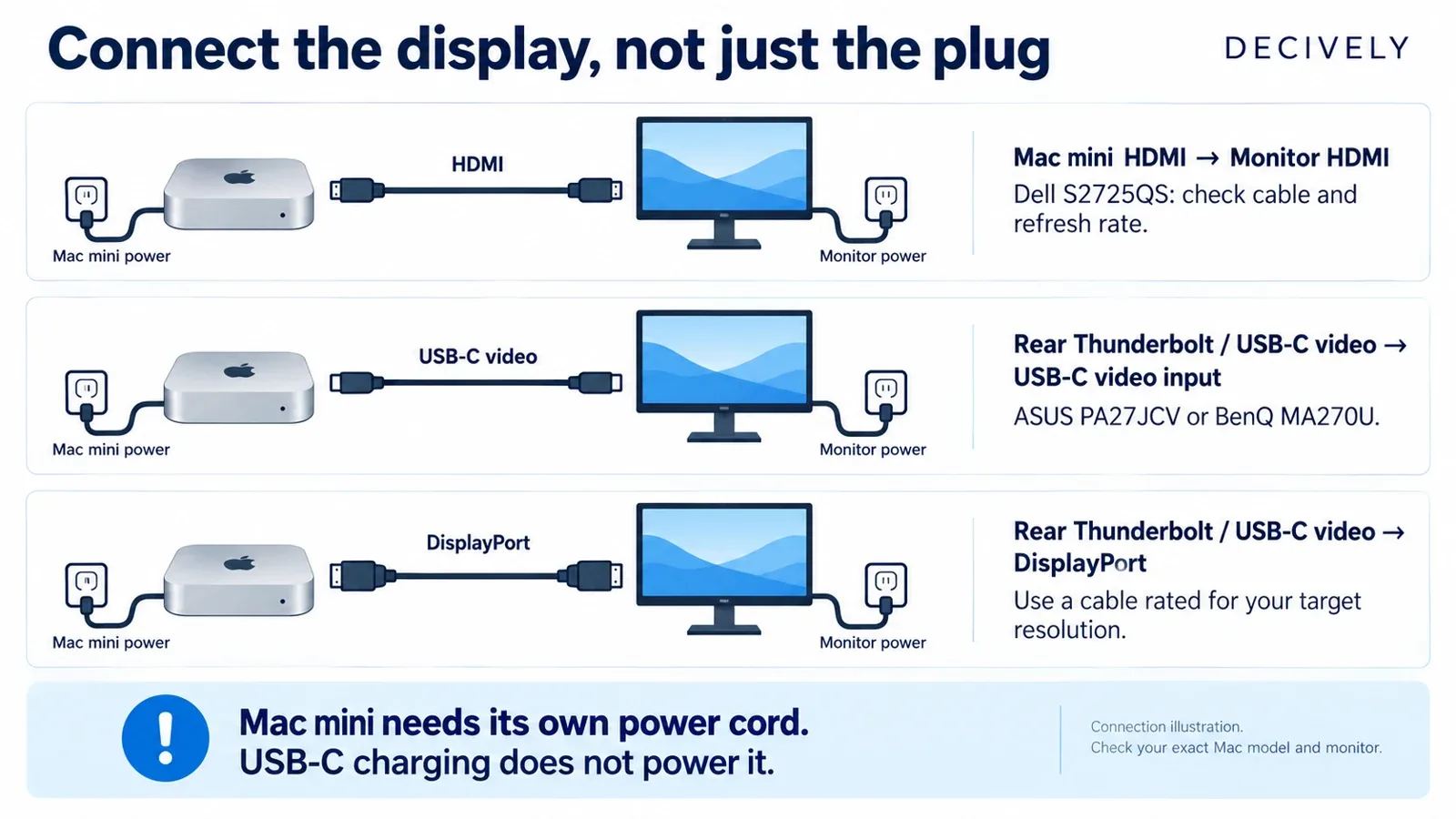
Connection illustration using generic icons. The computer and monitor need separate power; exact ports and supported modes depend on the models. View diagram at full size →
For anyone choosing the best monitor for Mac mini for a shared desk, a USB-C monitor is not automatically a Thunderbolt monitor. Neither a hub nor a KVM increases the Mac’s native display limit. If you plan two screens, verify Apple’s supported combination before buying a second identical panel.
Budget for the setup you will actually use
The best monitor for Mac mini is not necessarily the one with the lowest checkout price. Compare the display plus any cable, webcam, dock or mounting hardware you would actually need. Do not add equipment automatically: the included stand may already solve the positioning problem.
Use a simple personal calculation: divide the extra cost of 5K by the period you expect to keep it. An illustrative $300 premium over four years is $75 per year, or $6.25 per month. This is a budgeting example, not a quoted product price or a prediction of resale value.
For someone choosing the best monitor for Mac mini for long reading sessions, that premium can be worthwhile. It may be unnecessary for a secondary computer used briefly in the evening. Your actual price difference, preferred scaling and desk position matter more than the example.
Before choosing the best monitor for Mac mini, measure the available depth and check where the stand puts the screen. Set a comfortable text size before deciding how far back to sit. Avoid buying a larger panel just to make small text readable if a different scaling setting addresses the need.
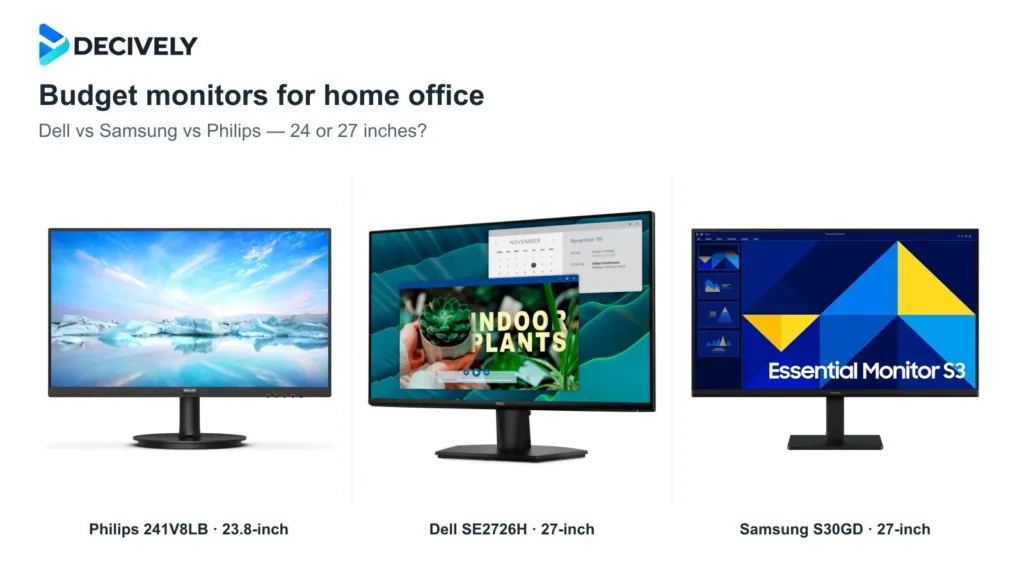
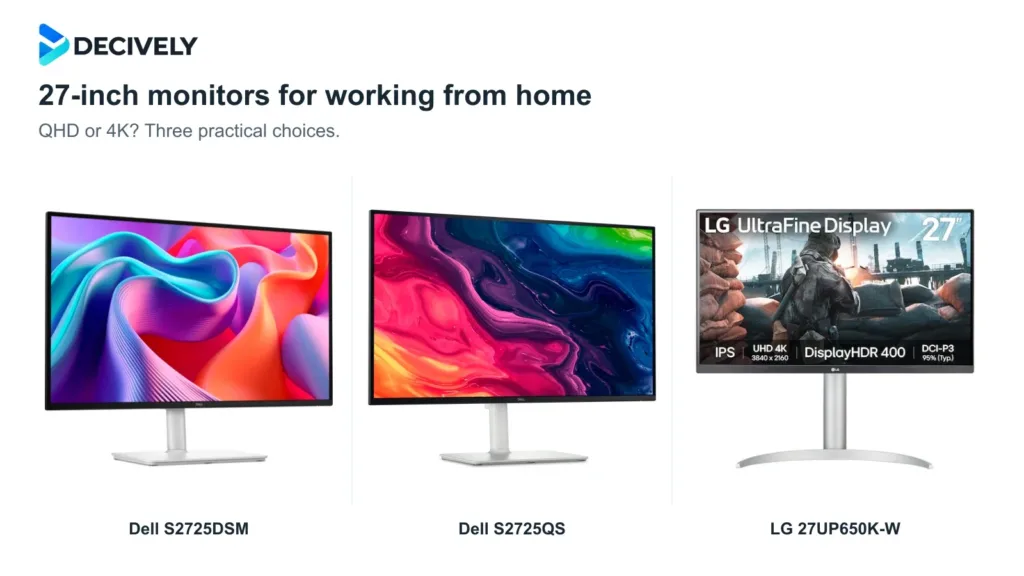
If the decision is mainly about size and general office use, our 27-inch monitors for working from home guide compares the broader QHD-versus-4K choice. This Mac mini guide focuses on macOS scaling and connection trade-offs.
Best monitor for Mac mini: your buying checklist
Write down these answers before choosing your best monitor for Mac mini. They make the shortlist more useful than a long list of specifications.
1. Mac and screens: Which chip do you own, how many displays will you connect, and at what target resolution and refresh rate?
2. Reading preference: Do you want large controls, a roomier workspace, or exact 2× scaling at a 2560 × 1440-style size? If possible, compare the settings in person.
3. Daily priority: Is the extra value in 120Hz motion, 5K density, or a hub and convenient display controls? Rank them rather than expecting one screen to lead in everything.
4. Total setup: Check the video cable, keyboard and mouse connections, webcam needs, stand depth and adjustment range. Add only the missing pieces to your budget.
5. Exact offer: Match the model suffix, size and finish to this guide. Check seller, condition, warranty and return terms for your location; marketplace listings can mix variants.
Confirm that your best monitor for Mac mini choice works in your normal applications during the return period: check readable text size, selected refresh rate, sleep/wake behavior, USB accessories and reflections at your desk. Those checks are more useful than judging an unfamiliar wallpaper for a few minutes.
Questions that change the recommendation
Is a 5K monitor necessary for Mac mini?
No. The best monitor for Mac mini can be 4K when its scaling, price and features suit your work. The specific case for 27-inch 5K is higher density and a larger logical workspace at exact 2× scaling. It is a useful advantage, not a requirement for macOS.
Is 4K/120Hz better than 5K/60Hz?
They improve different things. Higher refresh can make supported desktop movement and scrolling look smoother. Higher resolution increases physical detail at the same size. Choose the trade-off you will notice, then verify the target refresh rate works through your actual connection.
Can I use a monitor marketed for Windows or MacBook?
Often, but marketing labels are not a compatibility test. Check its video input against your Mac output, then investigate optional control software separately. Core display operation and vendor-specific keyboard controls are different questions.
Should I buy a USB-C monitor if I only own a Mac mini?
A USB hub or KVM may justify it. Laptop charging alone does not. When deciding on the best monitor for Mac mini, compare the conveniences you will use against the complete price of a simpler HDMI or DisplayPort setup.
Our recommendation: choose the benefit you will notice
For our best monitor for Mac mini shortlist, start with the Dell S2725QS when you want a simpler 4K display with higher-refresh potential. Move to the ASUS PA27JCV when a 27-inch 5K workspace is the reason for spending more. Choose the BenQ MA270U when its surface, USB hub and supported Mac controls are the features you value.
The best monitor for Mac mini is the one that fits your reading preference and connection plan at a defensible total cost. Confirm those two things before paying for a specification you may rarely notice.
AVAILABLE ON AMAZON · AFFILIATE LINKS
Choose the screen for your Mac mini workflow
Match the exact model suffix and size. Check current price, condition, seller and return terms, then confirm the connection for your Mac mini.
Dell S2725QS — 27-inch 4K / up to 120Hz
HDMI / DisplayPort model; no USB-C hub.
Check options on Amazon → ASUS ProArt PA27JCV — 27-inch 5K / 60Hz
5K density with USB-C video and KVM.
Check options on Amazon → BenQ MA270U — 27-inch 4K / 60Hz
Nano Matte screen, USB hub and supported Mac controls.
Check options on Amazon →As an Amazon Associate, Decively earns from qualifying purchases, at no additional cost to you. Prices and availability can change.
Research notes and primary references
Research checked October 28, 2026. This guide compares a deliberately limited shortlist rather than claiming to rank every monitor available. Maximum specifications are manufacturer claims; workspace and cost examples are calculations, not performance tests. No hands-on measurements, affiliate earnings or customer ratings are invented.
Apple — display support by Mac mini model
Apple — Mac mini (2024) specifications and port functions
Apple — resolution and scaling settings
Dell — S2725QS inputs, resolution, refresh rate and stand
ASUS — PA27JCV specifications
ASUS — PA27JCV connectivity and KVM overview
BenQ — MA270U specifications
BenQ — Mac compatibility scope and power-delivery notes
Product images identify the selected models: ASUS and BenQ manufacturer imagery; Dell product imagery supplied on AV Partsmaster’s S2725QS listing. Cover and explanatory diagrams are Decively illustrations, not photographs of our own testing. Amazon destinations were checked by exact ASIN and model; offers can change after the research date.