
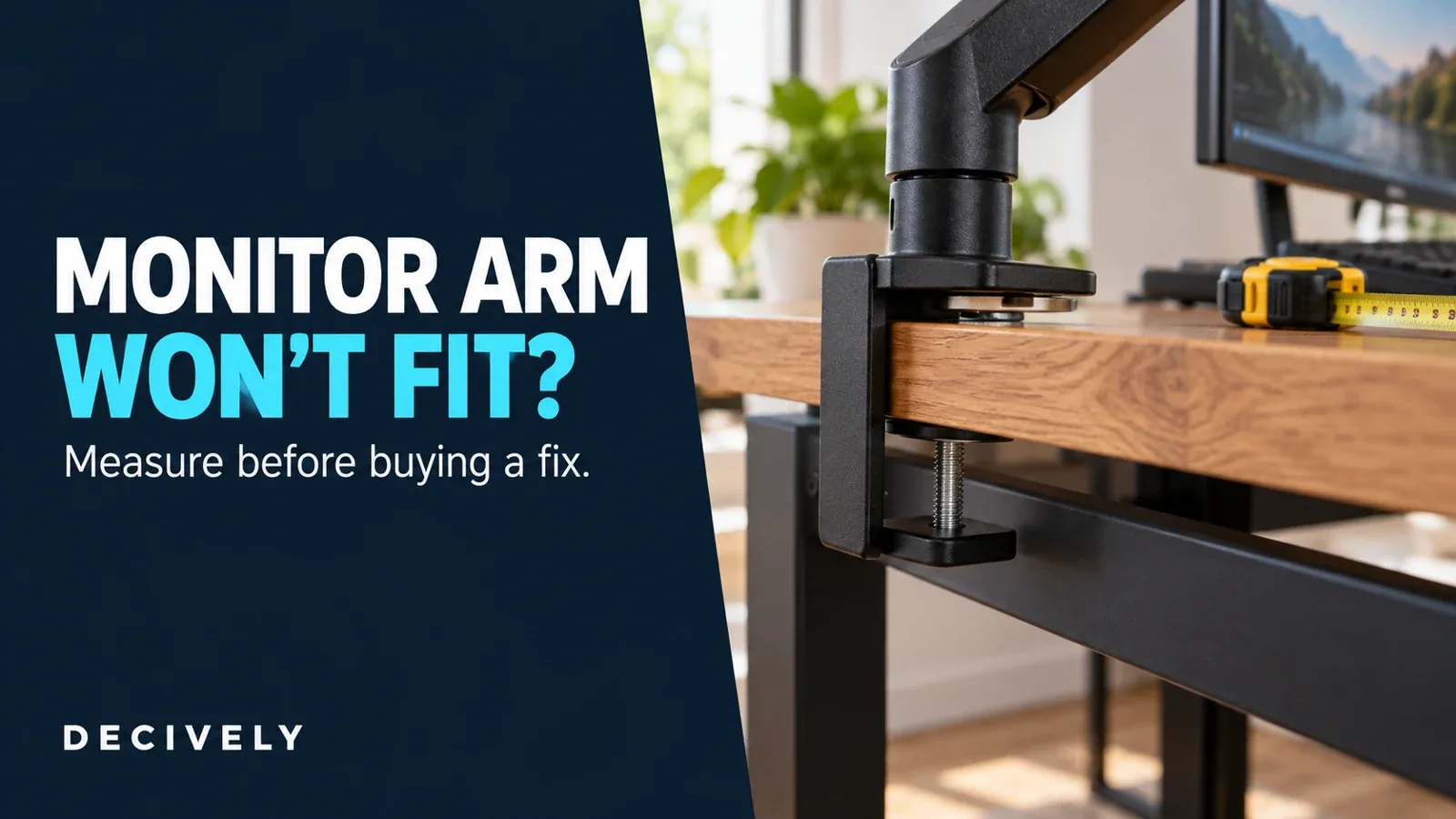
Monitor arm won’t fit? Start with the clamp, not another purchase
A monitor arm clamp can be within its advertised thickness range and still fail to fit your desk. A metal frame may block the lower pad, a beveled edge may prevent flat contact, or there may be too little room behind the desktop to assemble the bracket.
The useful question is where the fit fails. This guide walks through five checks, a measurement worksheet and two products for different situations. You may be able to use another approved mounting position, but some desks need a different support method entirely.
For screen weight, VESA compatibility and adjustment options, start with our Monitor Arm Buying Guide. This article concentrates on a mount that will not attach properly to the desk.
Research-based guide, checked October 20, 2026. Decively has not physically tested these products or installations. Diagrams are conceptual, not installation instructions. As an Amazon Associate, Decively earns from qualifying purchases.
Five checks for a monitor arm clamp that will not fit
Remove the screen or support it as instructed before inspecting a loose mount. Use the installation drawing for the exact model and revision. An advertised maximum desktop thickness tells you only one part of the story.
1. Measure the actual desktop thickness. Measure at the proposed mounting point, including any surface that the clamp must surround. A decorative lip can differ from the main desktop. Compare your measurement with both ends of the permitted range; a desktop can be too thin as well as too thick.
2. Measure clear underside depth. Look from the rear edge inward to the first frame rail, apron, drawer, cable tray or other obstruction. The monitor arm clamp needs a suitable lower contact area, and the bracket and screw need room around it. Measure usable space rather than assuming the visible overhang is enough.
3. Check the contact surfaces. The monitor arm clamp’s upper support and lower pad should meet the surfaces specified by the mount maker. A tapered underside can leave a pad touching only along an edge. Do not assume that tightening harder compensates for angled contact.
4. Check access behind and below the desk. Allow for sliding the bracket into position, turning the tightening tool and the arm’s folded position. A top-tightening design changes how you reach the screw; it does not eliminate the lower bracket or its clearance requirements.
5. Identify the desktop construction. Find out whether it is solid wood, particleboard, a hollow-core panel, glass or another construction. Check the desk maker’s mounting restrictions. If the material or approved mounting location is unclear, ask before attaching a monitor arm clamp.
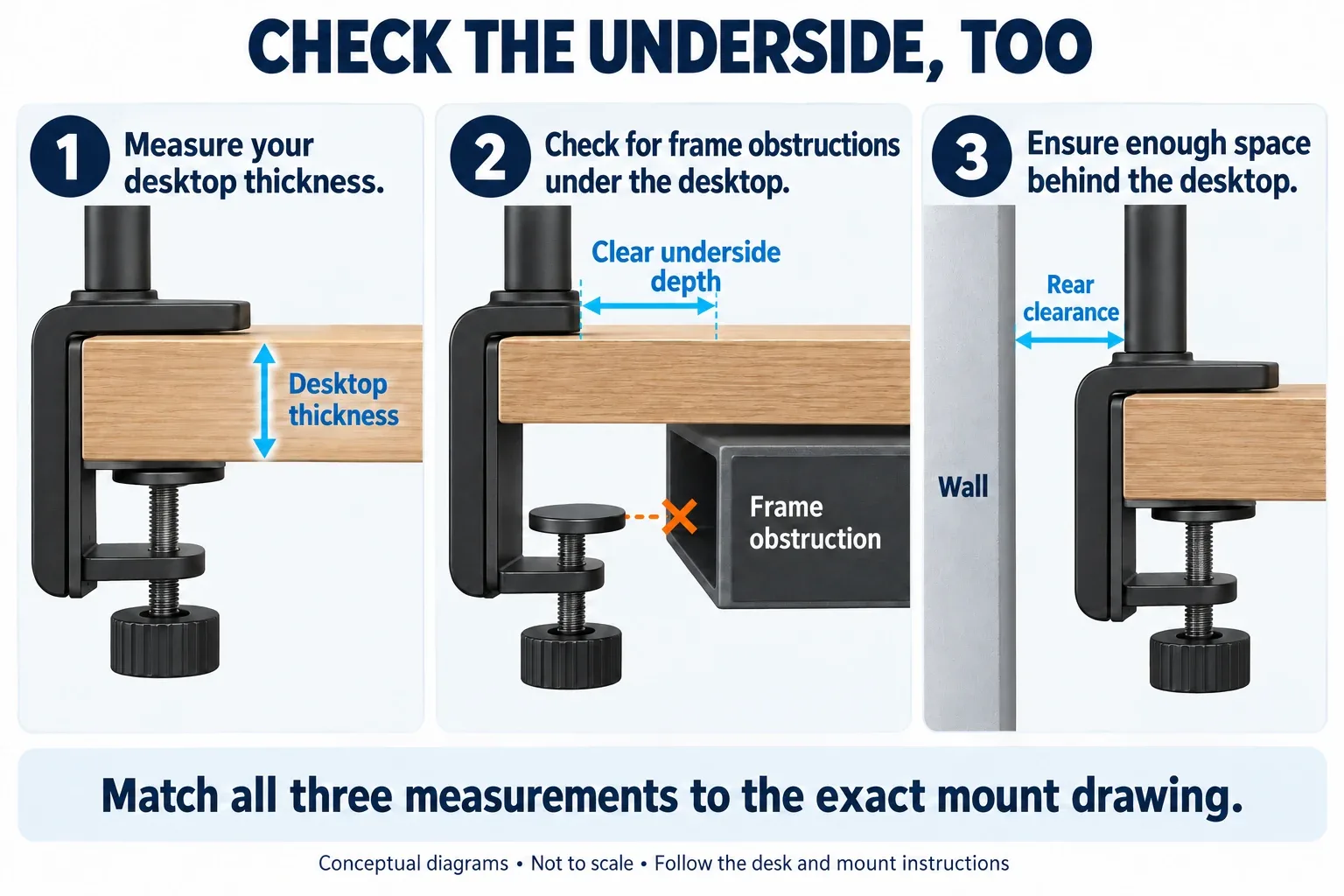
Conceptual side views: thickness, usable underside depth and rear clearance are separate checks. Not to scale. Open the diagram at full size to inspect the labels. View diagram at full size →
Ergotron’s desk-attachment drawings show why clamp geometry and installation access vary between mounting systems. Use the drawing for your own hardware rather than transferring dimensions from an unrelated model.
Monitor arm clamp fit: your measurement worksheet
Write down the desk measurements before shopping for a replacement monitor arm clamp. Photograph the edge from above, behind and underneath, with a ruler visible. These images also help manufacturer support assess an unusual frame or edge shape.
On a small screen, swipe the table sideways to read every column.
Example, not a product specification: suppose your desktop is 25 mm thick, but its frame starts only 35 mm inward from the rear edge. A mount that accepts 25 mm thickness is not automatically suitable. Its lower contact pad and bracket must also fit within that 35 mm space, with the clearances its instructions require.
Match the monitor arm clamp obstruction to a fix
Choose the response that addresses the actual monitor arm clamp obstruction. A reinforcement plate, a different bracket and a freestanding stand perform different jobs. None should be treated as a universal adapter for a monitor arm clamp.
On a small screen, swipe the table sideways to read every column.
If the monitor arm clamp fits but the screen still wobbles, investigate that separately: desk flex, loose joints and arm adjustment are different causes. Do not buy a mounting accessory until you know whether the movement comes from the desk attachment.
Option 1: VIVO STAND-AC01R reinforcement plates
Consider this accessory when a monitor arm clamp already fits the geometry and the supporting desk is suitable, but you want a larger contact area. VIVO supplies upper and lower steel plates that distribute the contact load over more surface area.
Published dimensions are approximately 7.9 × 6.1 inches (20.1 × 15.5 cm) for the main plate and 6 × 2 inches (15.2 × 5.1 cm) for the support plate. Each is 0.1 inch / 2.5 mm thick. Allow for both plates when checking the total clamped thickness.
Check whether the plates themselves fit around the desk frame and whether the lower pad sits where the instructions show. They cannot move an obstructing rail or increase the opening range of a monitor arm clamp.
VIVO markets the accessory for thin and other fragile surfaces, including glass. That description is not confirmation that your particular desktop and arm combination is approved. Follow the desk and mount restrictions as well as the plate instructions; ask the manufacturers if they conflict.
Buy for: distributing contact pressure on a confirmed compatible setup. Skip for: a blocked clamp, unknown hollow-core construction, damaged desktop or an unapproved mounting surface.
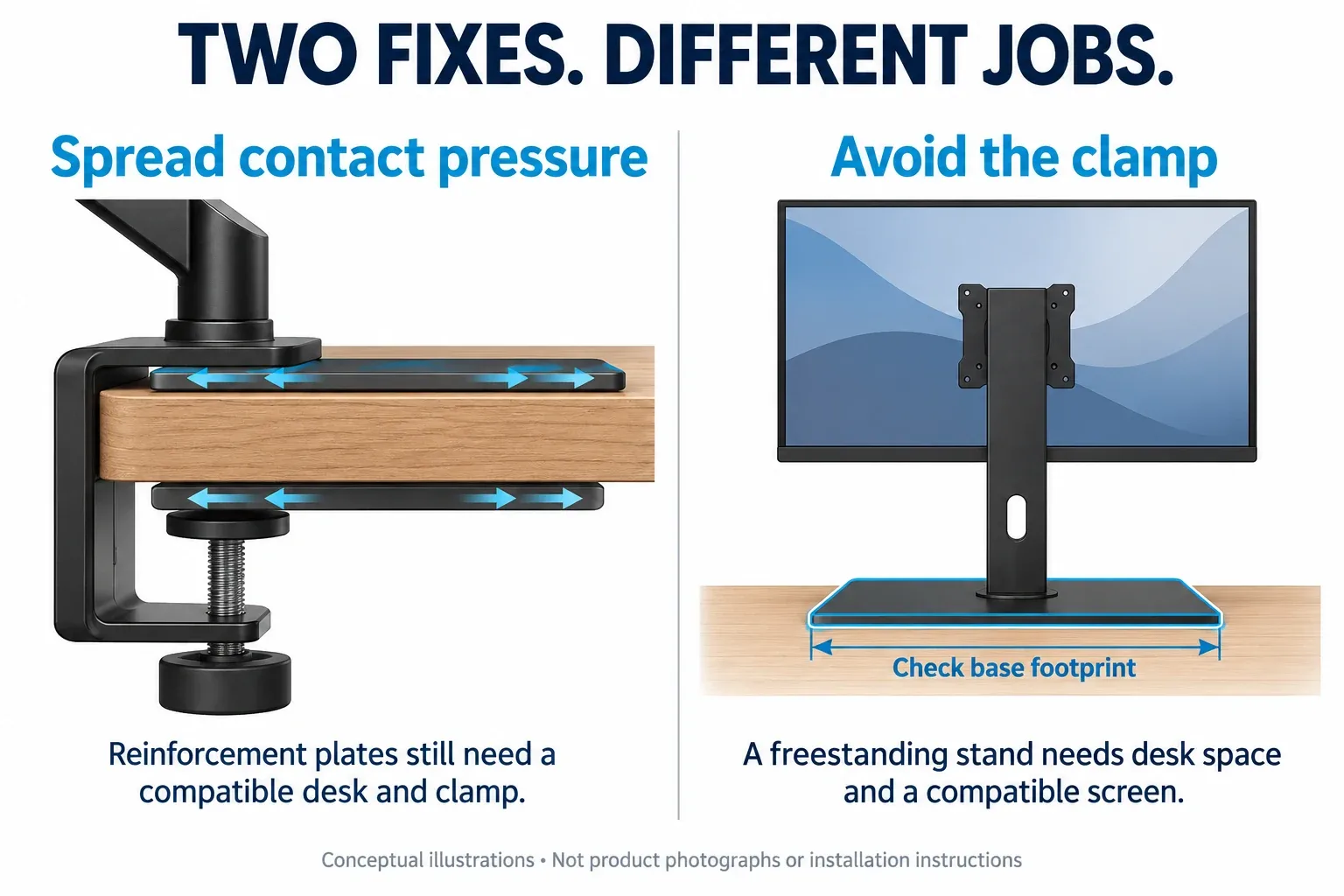
The plate system spreads contact pressure; the freestanding support avoids edge clamping. These conceptual diagrams do not represent product testing or guarantee a safe installation. View diagram at full size →
AVAILABLE ON AMAZON · AFFILIATE LINKS
Compare the fix that matches your desk
Choose plates only for a confirmed compatible clamping setup. Choose the stand only if its screen limits and base footprint fit your desk. Check the exact model, seller and return terms.
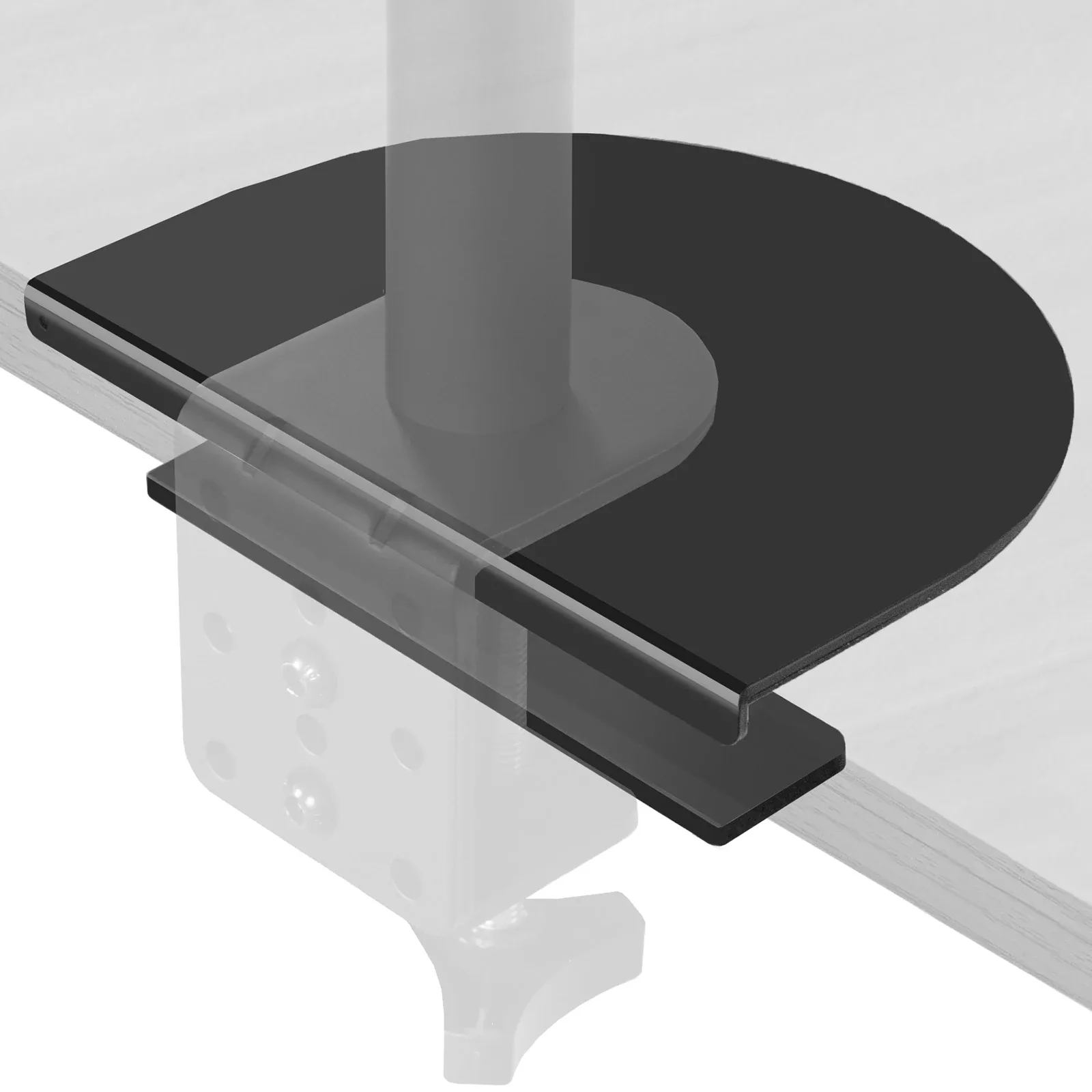
VIVO STAND-AC01R — reinforcement plates
Plate set only; monitor arm not included.
Check options on Amazon →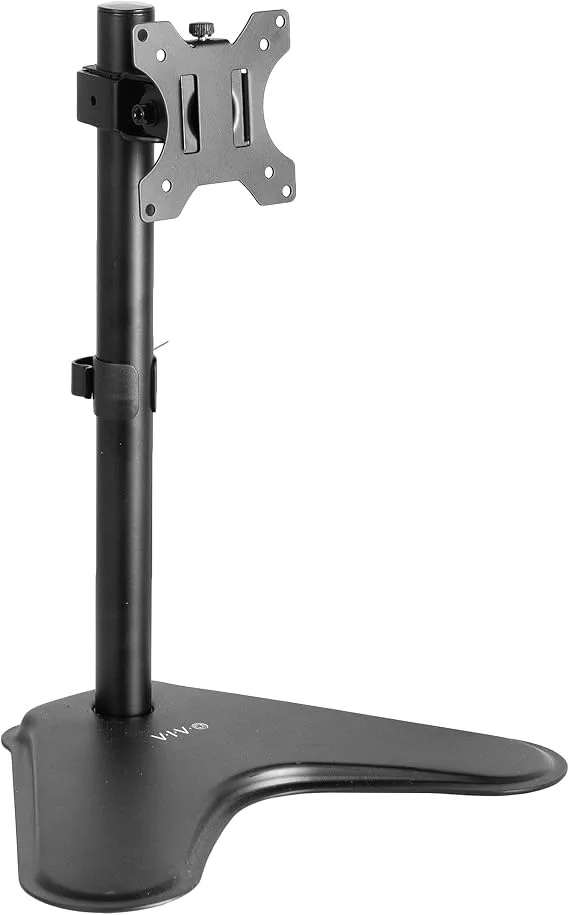
VIVO STAND-V001H — freestanding stand
Check options on Amazon →As an Amazon Associate, Decively earns from qualifying purchases, at no additional cost to you. Prices and availability can change.
Option 2: VIVO STAND-V001H freestanding monitor stand
A freestanding VESA stand avoids the rear-edge attachment altogether. This makes it worth considering when a monitor arm clamp cannot be fitted and you have sufficient space for a base. It is a stand on a pole, not a gas-spring arm for frequent one-handed repositioning.
VIVO specifies 75 × 75 and 100 × 100 mm VESA, a 22 lb (about 10 kg) load limit, regular screens from 13 to 32 inches and ultrawide screens up to 38 inches. Check every requirement against the exact display, including weight without its original stand.
The published base measures 15.5 × 11 inches, approximately 39.4 × 27.9 cm. Mark that rectangle on your desk with paper before ordering. Make sure it leaves space for the keyboard, does not overhang and works with your desired screen position.
Buy for: bypassing an unsuitable edge while retaining a VESA-mounted screen. Skip for: a desk too shallow for the base, an incompatible display or a need for frequent arm-style height adjustment. Check stability and positioning limits in the supplied manual.
If the space used by a stand is your main concern, our monitor arm alternatives for small apartments guide compares that trade-off in more detail.
Can another mount solve a blocked clamp?
Sometimes, but buy from a dimensioned drawing. Ask whether a different monitor arm clamp is compatible with the arm you already own; similar-looking bases do not establish interchangeability. A clamp accessory approved for one manufacturer’s system may not fit another.
An existing suitable grommet hole may offer a different attachment point, provided the mount supports that method and its plates clear the underside frame. Check the permitted hole diameter, desktop thickness and required contact areas. A cable opening with a plastic insert is not automatically an approved mounting hole.
For a rental, choose a reversible solution and check permission before drilling. Our monitor arm guide for renters explains no-drill choices. A wall mount introduces separate wall-material and fixing requirements; it is not a shortcut around checking the supporting structure.
Before you buy: the final fit checklist
Before choosing a monitor arm clamp, keep these six answers together: exact desk construction; thickness at the attachment point; clear underside dimensions; flat contact area; assembly clearance; and monitor weight with VESA pattern. Add the product’s dimensioned drawing and installation manual to your comparison.
Ask support a specific question: “Will this monitor arm clamp fit a desktop of this thickness, with this underside obstruction?” Include the three photographs and measurements. A general “supports most desks” statement does not answer that question.
Choose the smallest change that addresses the cause. If another permitted mounting position works, you may need no accessory. If clamping is unsuitable, compare a freestanding support with the original monitor base before replacing the whole arm.
Return to the Monitor Arm Buying Guide for the remaining screen, reach and adjustment checks. A monitor arm clamp that attaches properly is only the first part of a usable setup.
Frequently asked questions
Will reinforcement plates make any desk suitable?
No. Plates under a monitor arm clamp spread contact pressure but do not establish the strength of an unknown desktop, repair damage or override mounting restrictions. Check the complete desk, mount and plate combination.
Can I clamp onto the metal frame instead?
Only if the mount and desk manufacturers explicitly approve that attachment. Do not substitute the frame for the specified desktop contact surface simply because the lower pad reaches it.
Does a top-tightening clamp need no space underneath?
No. You tighten a top-mounted monitor arm clamp from above, but the lower attachment still needs its specified space and contact area. Check the drawing and installation sequence for the exact model.
Should I use a wooden spacer?
Use a spacer only when the relevant manufacturer approves its material, dimensions and placement for your installation. A loose block can change alignment and loading; it is not a general fix for a monitor arm clamp.
Sources and research notes
Specifications come from the manufacturers below. Product availability, configurations and instructions can change; confirm the exact item before buying. Dimensions converted to metric are approximate. Recommendations are editorial assessments of fit, not hands-on performance ratings.
VIVO — STAND-AC01R specifications
VIVO — reinforcement plate installation instructions
VIVO — STAND-V001H specifications
VIVO — freestanding stand manual
Ergotron — desk attachment drawings and access requirements