
Monitor arms for multiple monitors: the short answer
Choose the layout before choosing the mount. A dual mount can support two screens from one attachment point; two separate arms allow independent placement; a triple mount needs enough span for three displays. The right monitor arms for multiple monitors must fit every screen, reach the intended positions and suit the supporting desk.
If you rarely move your displays, a pole-mounted arrangement may be sufficient. If you regularly change their height or bring one closer, investigate independently counterbalanced arms. More joints do not automatically produce a better setup.
This is a research-based buying guide using manufacturer specifications and current Amazon listings checked October 16, 2026. Decively has not physically tested these mounts. As an Amazon Associate, Decively earns from qualifying purchases through marked affiliate links, at no extra cost to you.
Dual, separate or stacked: choose the working layout
For two screens used equally, a side-by-side arrangement can be practical. If one screen does most of the work, start by placing that display directly ahead and keep the secondary screen beside it. Plan around what you actually look at, rather than centering the gap simply because it looks symmetrical.
Two independent mounts are worth considering when the displays differ substantially in size, one needs portrait orientation or the useful attachment positions are far apart. They need two suitable desk locations. A shared base reduces the number of attachment points but concentrates the installed arrangement at that location.
Stacking can reduce the width occupied by a pair, but the upper display may be too high for frequent use. Check the mount's permitted stacking configuration, each screen's outside height and your viewing position. A dual mount described as adjustable is not necessarily designed for vertical stacking.
On a small screen, swipe the table sideways to read every column.
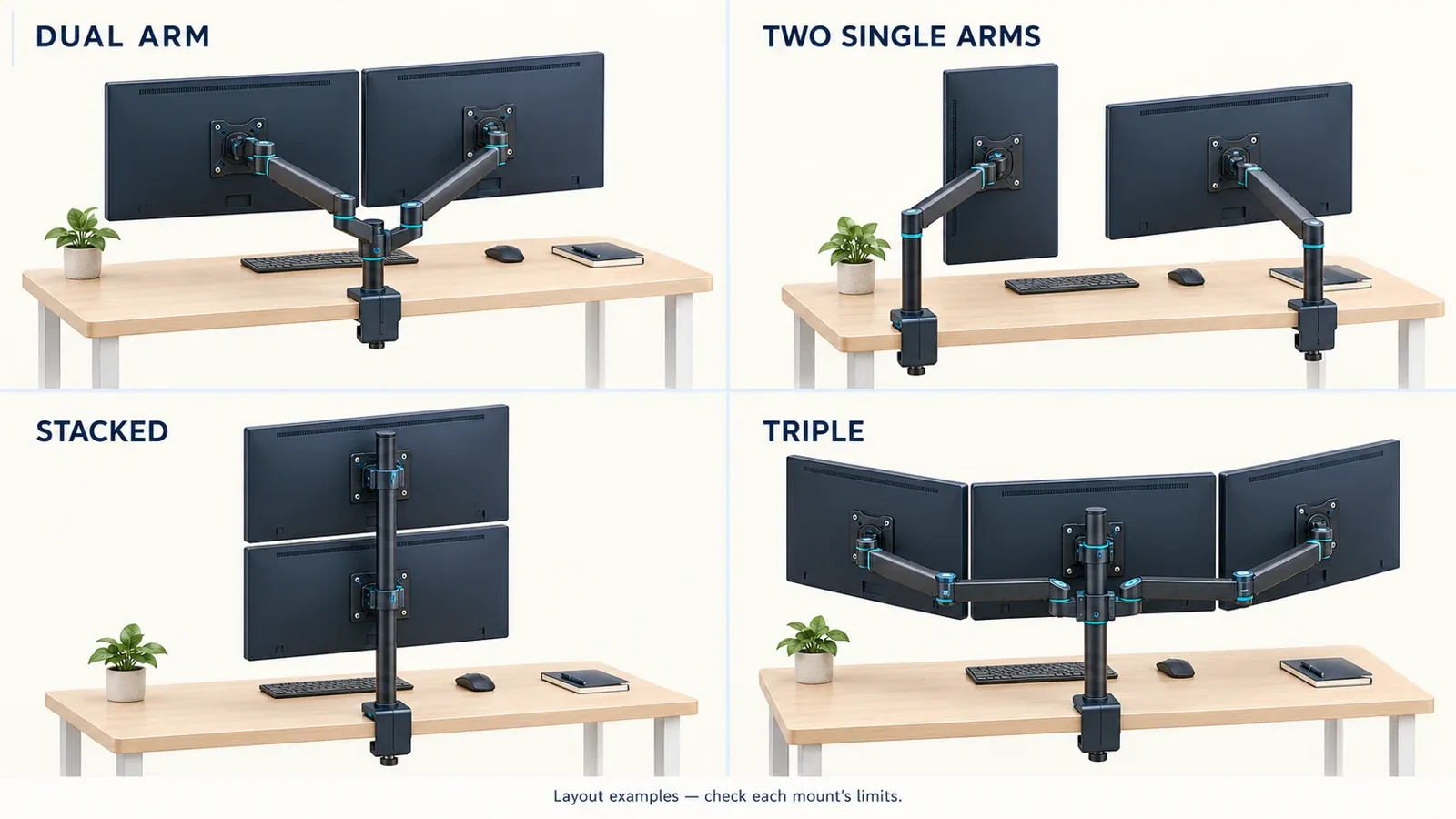
Conceptual layout examples. Screen dimensions, arm travel and permitted configurations must be checked for the exact mount.
Check every screen before buying a dual monitor arm
Record each monitor's exact model, weight without its original stand, VESA hole pattern and outside dimensions. Include attached adapters in the supported load. A mount rated for a particular weight per screen does not allow one heavy display to borrow unused capacity from a lighter one.
Counterbalanced models also have minimum loads: a screen that is too light may not stay in position correctly. Common VESA patterns are 75 × 75 and 100 × 100 mm, but matching holes do not establish that the weight, recessed mounting area or display depth is suitable.
For curved ultrawides, ask for compatibility with the exact monitor, including its tilt mechanism. Do not treat a diagonal size claim as approval for every panel of that size. When comparing monitor arms for multiple monitors, check each arm and any stated combined system limit separately.
Our monitor arm buying guide explains the wider VESA, screen-depth and mounting checks. Use it as the compatibility checklist before narrowing the layout.
Measure desk space and the attachment point
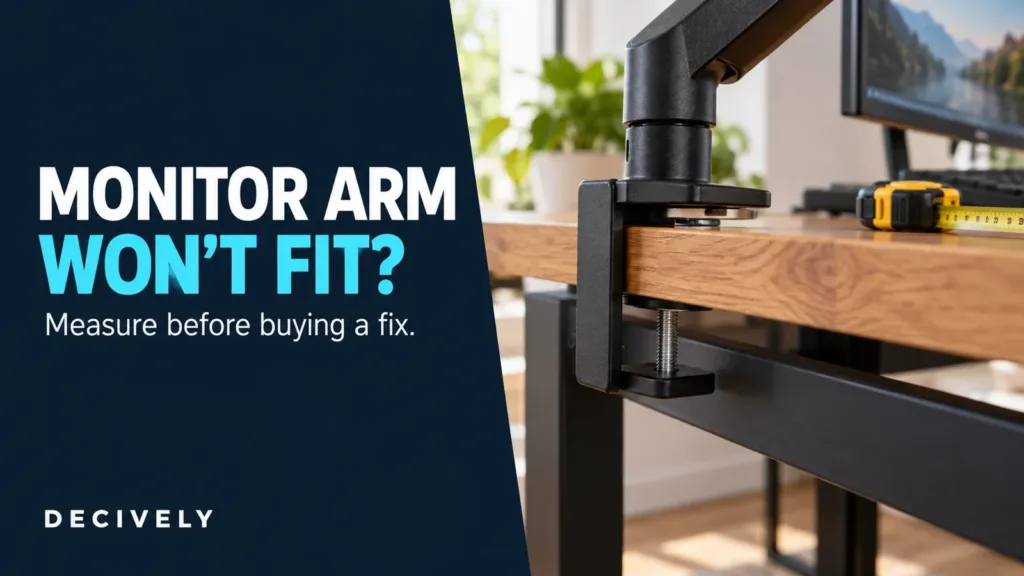
Measure the actual desk edge, underside access and rear wall gap. A drawer, apron or cable tray can block the lower clamp. Confirm the desktop material is permitted by both the furniture maker and the mounting instructions; a thickness measurement alone is insufficient.
The desk supports the installed system, including the mount, displays and accessories. Its general load rating does not automatically approve a concentrated clamp load. A reinforcement plate cannot establish that glass, a hollow panel or a damaged edge is suitable.
Map the screens' intended footprint with their outside widths and angles, then allow room behind them for joints and cable bends. Published arm span is not necessarily overall screen width. For a shallow workstation, our small-desk monitor arm guide develops the clearance checks.
Monitor arms for multiple monitors can remove bulky original bases, but the installed displays still need space. If the screens end up too close, the cleaner desktop has not solved the positioning problem.
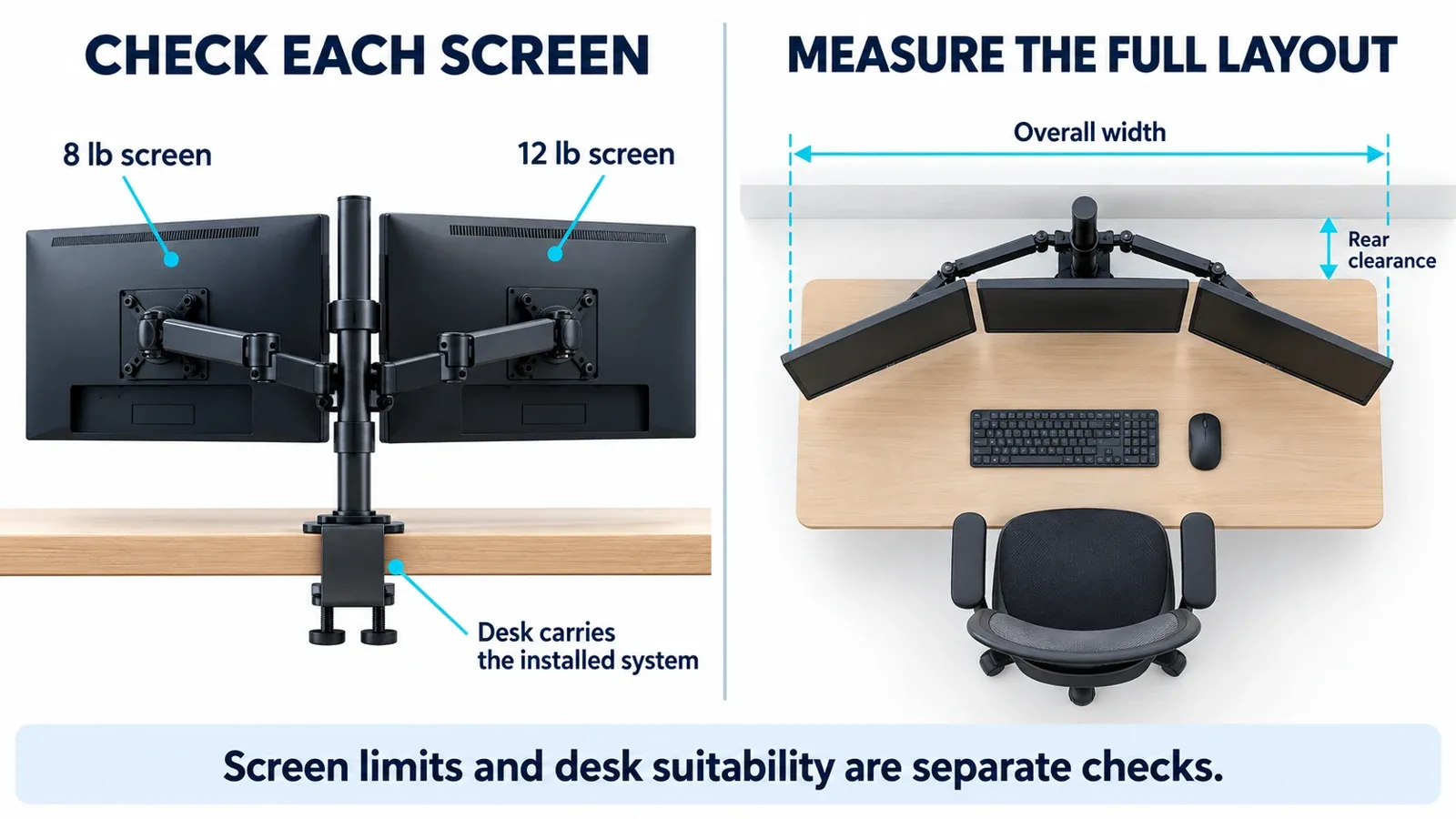
Each display has its own compatibility checks; the desk supports the installed arrangement. Numbers are illustrative, not approval of a particular setup.
What changes with a triple monitor mount?
With monitor arms for multiple monitors, three displays magnify the importance of geometry. Check whether the outer arms can place the screens at the intended angle without forcing the center screen too far forward. Three monitors below a mount's individual weight limit may still exceed its stated screen-size or span limits.
Compare a dedicated triple mount with a dual mount plus a separate single arm. The latter allows a different position for one display, but adds another attachment and potentially more rear clearance. Neither arrangement makes an unsuitable desktop suitable.
Do not assume you can add a third arm to an existing dual pole. Use only configurations and accessories approved for that exact system. If you are considering mixed sizes, sketch the outside dimensions and mounting-center positions before ordering.
Monitor arms for multiple monitors: three options to compare
These are three different buying directions, not a hands-on ranking. The table covers the specific black variants linked below; similar product names and larger variants can have different limits. Check the selected model at checkout.
On a small screen, swipe the table sideways to read every column.
All three specify 75 × 75 and 100 × 100 mm VESA patterns. The VIVO dual's stated 3.25-inch maximum desktop thickness also appears for the triple. The HUANUO listing specifies a 0.59–3.54-inch wooden desktop and excludes plastic or glass; inspect underside obstructions too.
The VIVO STAND-V002 suits investigation when you expect to set the height and leave it. It provides individual plate-level alignment adjustment, but is not a substitute for independently counterbalanced height movement. Its 30-inch version must not be confused with the larger STAND-V032 or STAND-V038 variants.
The HUANUO is the option to examine for regular movement. Check its minimum load and the current manual; convenient repositioning does not make every installation or tilt adjustment tool-free. Its family has appeared under different retail naming, so match the linked black listing's limits rather than a similar-looking variant.
The VIVO STAND-V003Y is deliberately the smaller-screen triple example. Do not buy it for three 27-inch screens: its published range ends at 24 inches. If your displays fall outside those limits, select a different approved model rather than stretching this recommendation.
AVAILABLE ON AMAZON · AFFILIATE LINKS
Compare the exact models on Amazon
Compare the exact configuration after checking screen weight, VESA fit and the supporting surface. Prices, bundles and availability can change.
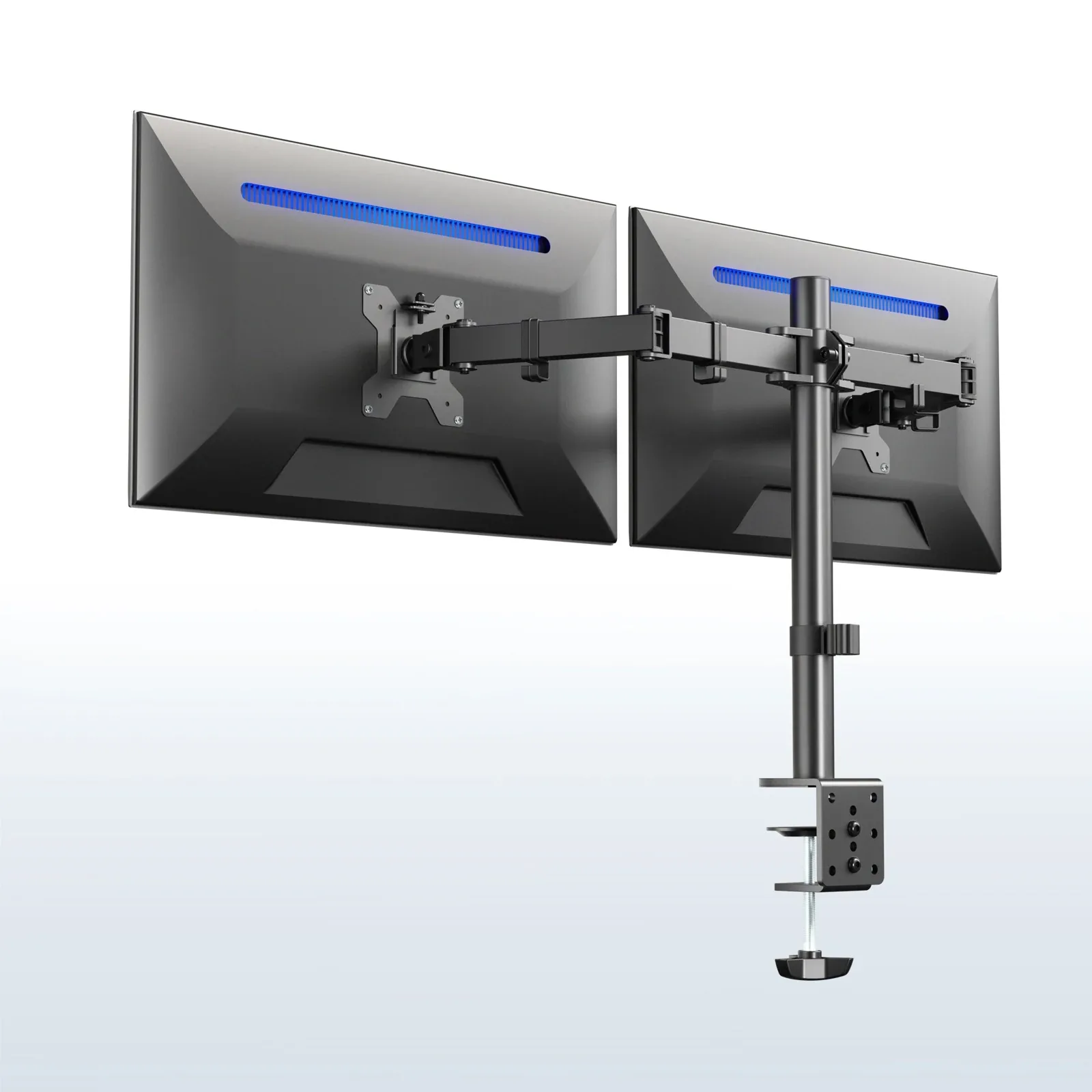
VIVO STAND-V002 — dual pole mount
Check options on Amazon →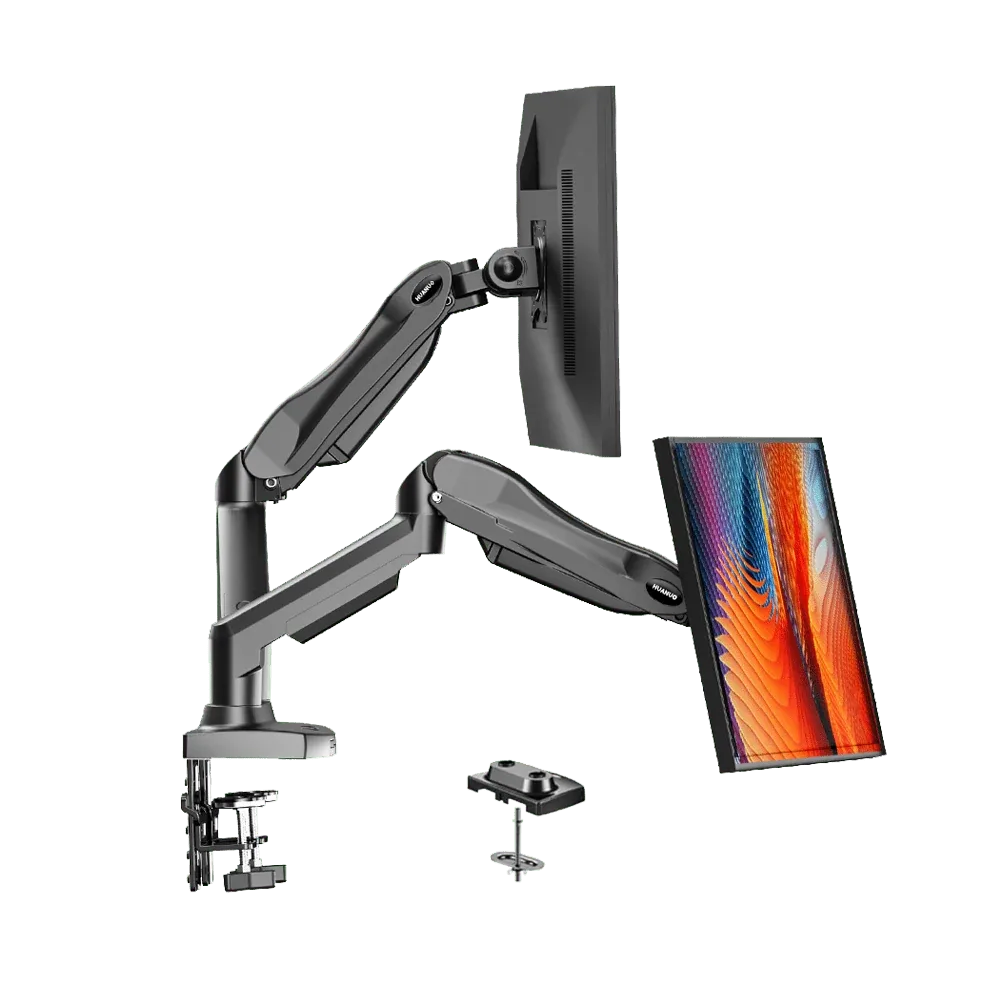
HUANUO FlowLift — adjustable dual
Check options on Amazon →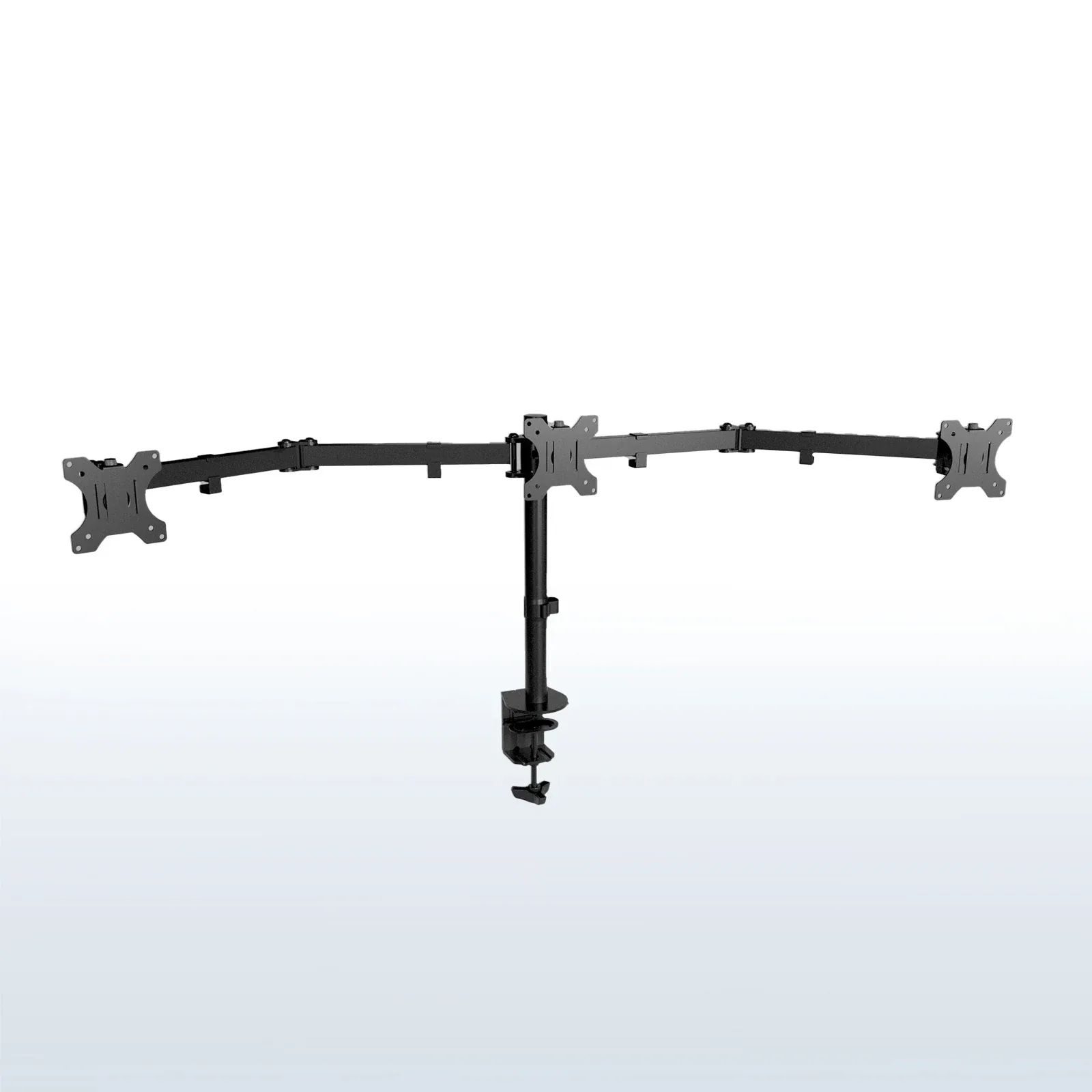
VIVO STAND-V003Y — triple mount
Check options on Amazon →Affiliate links use Decively’s tracking ID. Availability and the local Amazon destination can vary.
Position the screens around your main task
OSHA recommends keeping the monitor directly ahead, generally 20–40 inches away, with the top at or below eye level. Treat this as a starting point to adapt to the task, vision and seating arrangement. Multiple screens do not remove the need for a comfortable primary viewing position.
Check that your mouse and keyboard remain accessible after positioning the displays. For a lower screen requirement, our guide to lowering a monitor explains why vertical travel and minimum height are different measurements.
Monitor arms for multiple monitors only support and position displays. They do not add video outputs, dock bandwidth or external-display support to a laptop. For that separate requirement, read how to connect two monitors to a laptop before buying connection hardware.
Install, align and route cables in that order
Follow the exact manual for assembly order and permitted screen positions. Clear the workspace, protect the panels as instructed and arrange help for supporting displays. Do not assume that a configuration remains balanced with only one of its screens attached.
Adjust joints and counterbalance for the installed load as directed. Leave cable slack throughout the permitted movement, then check connectors at the furthest positions. A shorter cable can limit usable reach even when the arm itself moves farther.
Before buying monitor arms for multiple monitors, keep a written checklist: each screen's model and load, mounting interface, desired arrangement, desk material, attachment access and cable route. Check return terms and keep the original stands until the new setup is confirmed workable.
Choose the layout you can verify
The most useful monitor arms for multiple monitors are the ones that accommodate your actual displays and working positions. Start with a simple dual arrangement when it meets the need; choose independent arms for independently placed screens, or a triple system only after checking its complete geometry. Buying more mounting capacity is useful only when you can use it.
Monitor arms for multiple monitors: common questions
Is one dual mount better than two single arms?
It depends on the layout and desk. A dual base uses one mounting location; separate arms give independent attachment positions. Compare where the screens actually need to sit, then check clearance and supporting surfaces.
Can a dual monitor arm hold different-sized monitors?
Potentially, when each screen fits the arm's stated limits and the arrangement has enough width and adjustment. Matching their top edges may require different mounting-center heights. Check the drawings rather than assuming identical VESA patterns guarantee alignment.
Should I choose a triple monitor arm for future expansion?
Only when the approved configuration supports your present and planned displays, and its instructions permit the installation you need now. Extra unused mounting positions do not establish suitability for an arbitrary future monitor.
Sources and research notes
Primary references: VIVO STAND-V002 specifications and manual; HUANUO HNDS6-family specifications; VIVO STAND-V003Y specifications and manual; OSHA monitor positioning guidance. Exact Amazon listing identities were checked separately.
No durability, movement-force or desktop-damage testing was performed by Decively. Product photographs are manufacturer imagery; the cover and diagrams are AI-assisted conceptual illustrations. Prices, availability and retail variants can change.