
Choosing a monitor arm for people with disabilities: the short answer
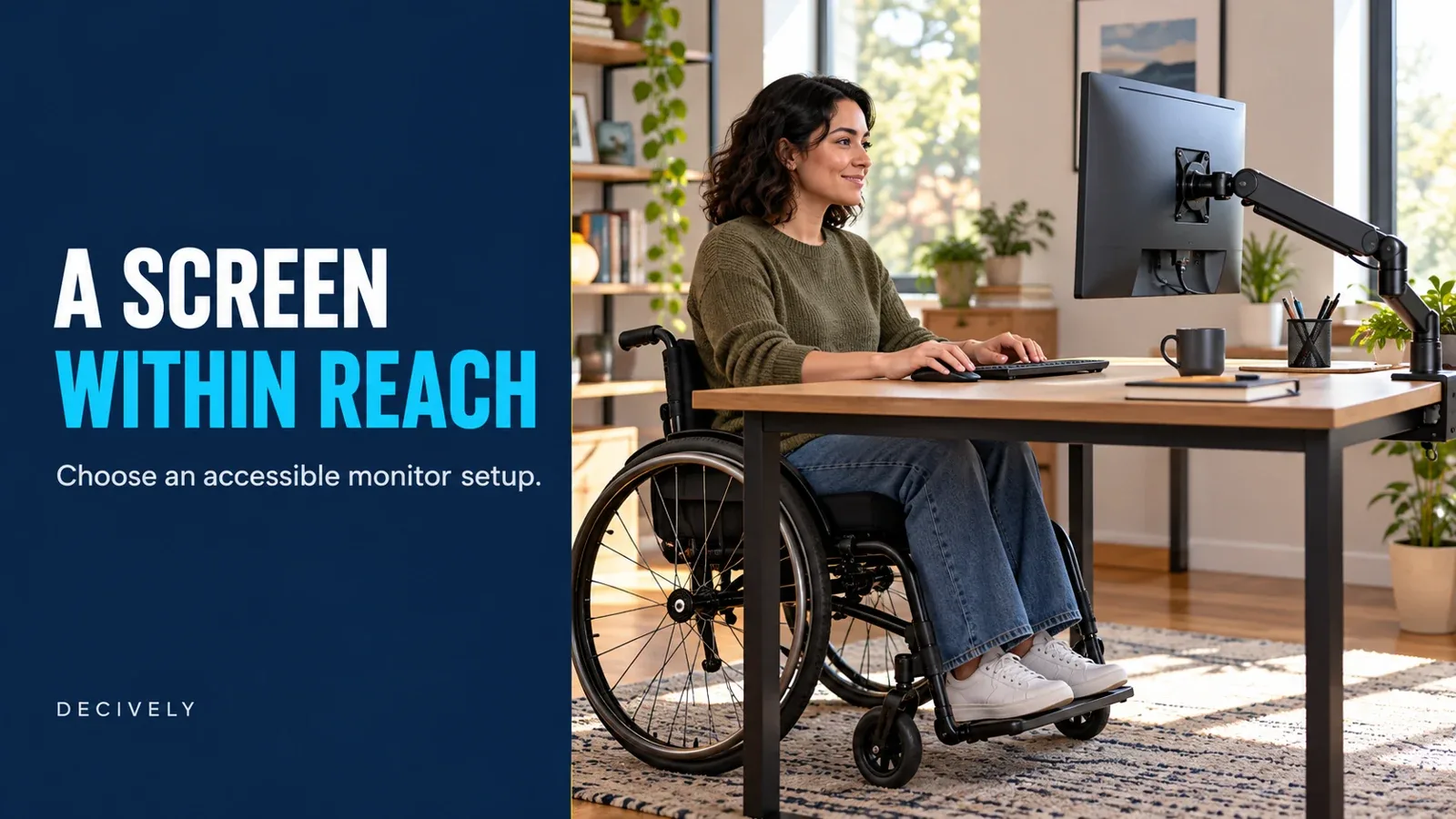
A monitor arm for people with disabilities should put the screen where you can comfortably see and use it, with adjustments you can actually control. Start with the movement you need: bringing the screen closer, lowering it, turning it toward another working position, or freeing space for accessible controls.
For the wider screen and mounting compatibility checks, use our monitor arm buying guide alongside the reach and control requirements explained here.
There is no universal accessible model. A wheelchair user who needs a fixed screen position may have different requirements from someone with limited grip strength who repositions it throughout the day. An arm helps only when its reach, mounting position and adjustment method match that person's workstation.
This is a research-based buying guide, not hands-on testing or an accessibility certification. Manufacturer documents and product listings were checked October 16, 2026. As an Amazon Associate, Decively earns from qualifying purchases at no extra cost to you.
Start with the task you cannot comfortably do
Before buying a monitor arm for people with disabilities, identify the specific barrier in the current setup. Can you read comfortably but cannot reach the screen? Does the stand keep it too high? Does moving it require a grip or twisting motion you cannot sustain?
Write down two or three positions you actually use. Include the keyboard, pointing device, wheelchair armrests and any assistive controls. Changing the screen position should preserve access to the rest of the workstation.
On a small screen, swipe the table sideways to read every column.
Measure a monitor arm for people with disabilities from the working position
Use your usual chair or wheelchair, including the supports you normally need. First find a readable display position with the existing stand or a supported demonstration screen. Measure its horizontal distance from the proposed mounting point and the height of its VESA mounting center above the desktop.
These are different from viewing distance, which runs from your eyes to the screen. OSHA suggests the screen directly ahead, its top at or below eye level, and generally 20–40 inches away. Treat those as starting points: vision, seating supports and the task can require a different arrangement.
If lowering is the main issue, our guide to lowering a monitor for a shorter seated position explains how screen size and VESA-hole location affect the result. A taller pole does not establish a lower minimum position.
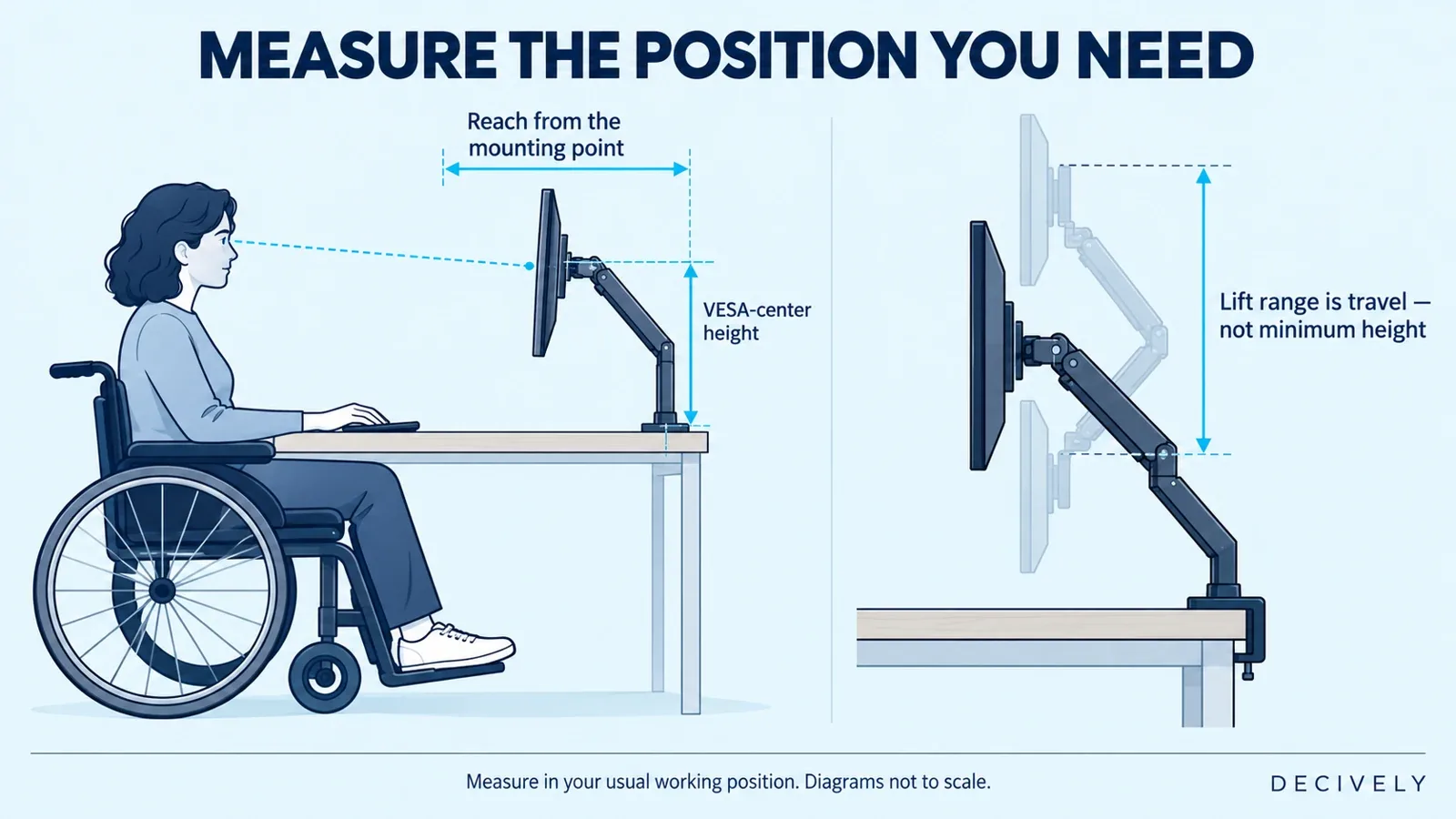
Conceptual measurements, not a prescribed posture or a product-specific movement path. Lift range describes travel; check the actual lowest and highest usable positions.
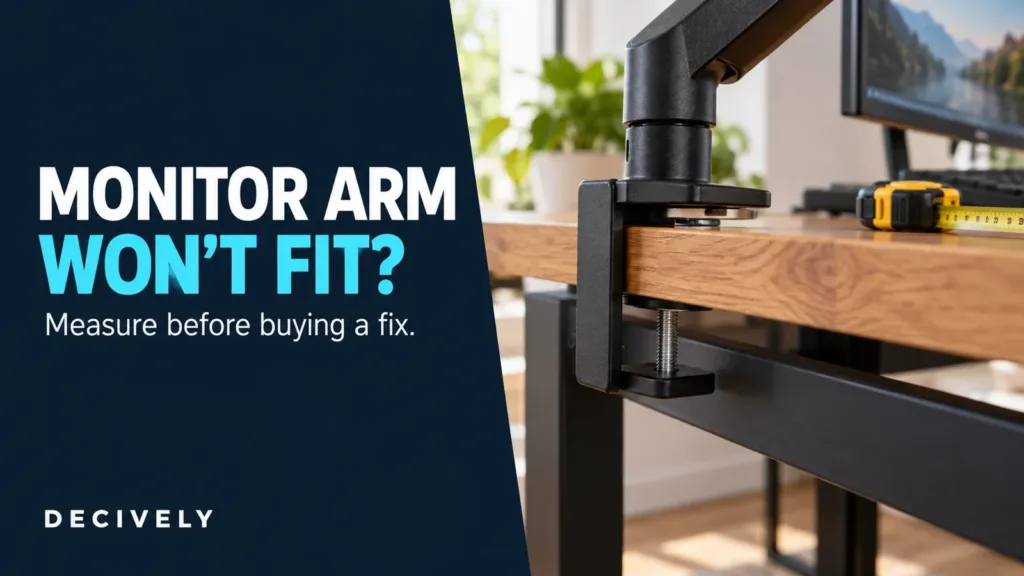
Also measure wall clearance and the underside of the mounting edge. The clamp must fit without obstructing knees, wheelchair components or transfers. For clamp fit and shallow-desktop constraints, see our monitor-arm buying guide for small desks.
What to buy: two monitor arms to investigate
These are conditional options for desk-based setups. Neither manufacturer document establishes a universal low-force requirement or suitability for every disability. Choose a monitor arm for people with disabilities around the measured position and the movements you can manage.
Ergotron LX Pro: investigate for regular repositioning
The LX Pro uses Ergotron's Constant Force mechanism. The standard desk-arm specifications list a 4–22 lb (1.8–10 kg) monitor range, 13 inches (33 cm) of lift and up to 25 inches (64 cm) of extension. The linked Amazon listing is the matte-black single arm for typical screens up to 34 inches.
Consider it when its movement range solves your positioning problem and you will use the adjustment regularly. Its spring assistance is still manual; the specification does not prove that lift, tilt and swivel will all feel light to your hand. Verify the exact mount and try the movements with a comparable screen before committing.
VIVO STAND-V001O: investigate for a smaller movement envelope
VIVO lists 17–32-inch screens, a 4.4–19.8 lb (2–9 kg) load range, 6.25–16-inch VESA-center height and 19.75-inch maximum extension. Both shortlisted arms use 75 × 75 or 100 × 100 mm VESA patterns. This is the mechanical STAND-V001O, not the pole-mounted STAND-V001.
Its manual makes two limitations especially relevant: initial counterbalance setup uses an Allen wrench, and vertical tilt requires loosening and retightening a screw. It also instructs users to keep the display over the desktop. Rule it out if you need frequent tool-free tilt changes or an off-desktop screen position.
On a small screen, swipe the table sideways to read every column.
Numbers describe the manufacturers' geometry, not guaranteed usable reach in your room. Include adapters and attached accessories in the load calculation. A screen below the spring mechanism's minimum weight can be incompatible too.
AVAILABLE ON AMAZON · AFFILIATE LINKS
Check the exact model on Amazon
Compare the exact model, mounting configuration and return terms. Neither option is certified here as suitable for every accessibility need.
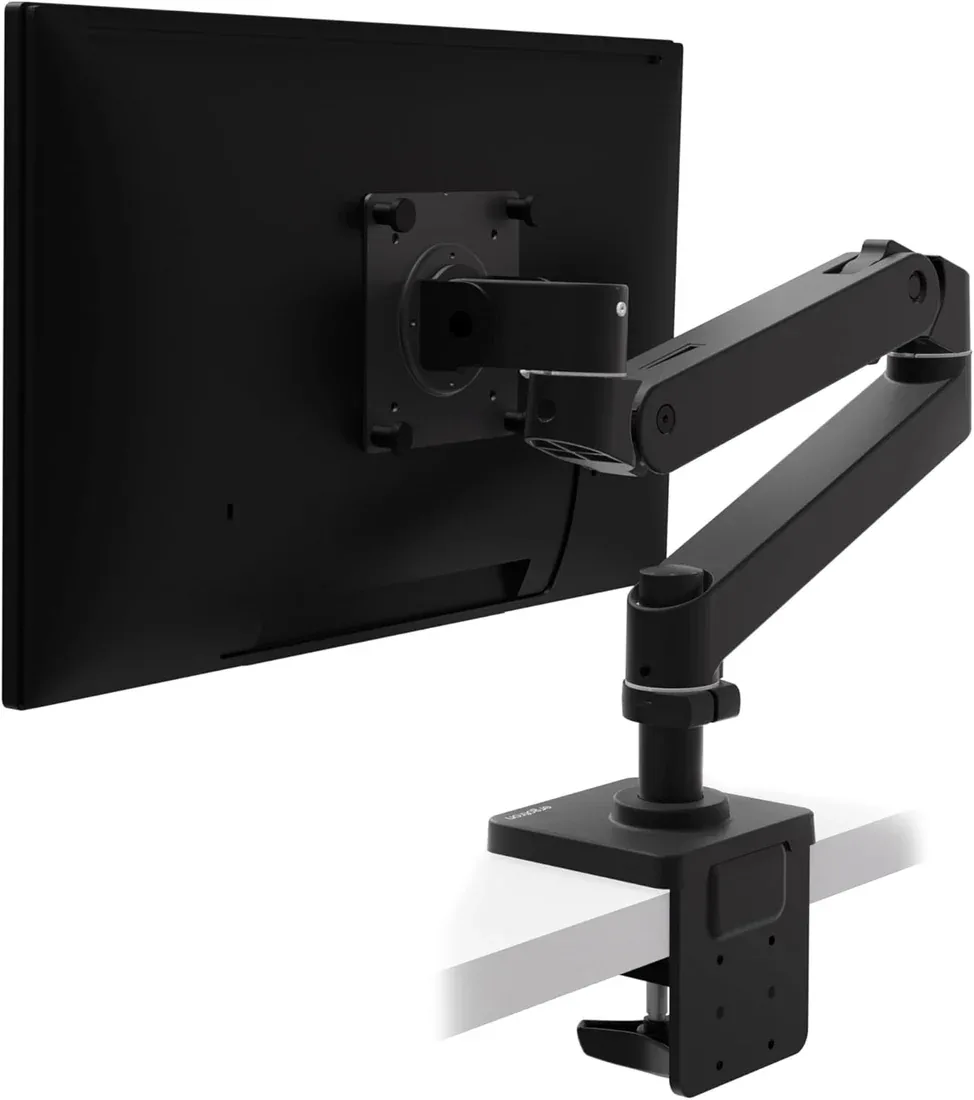
Ergotron LX Pro — matte black
Check options on Amazon →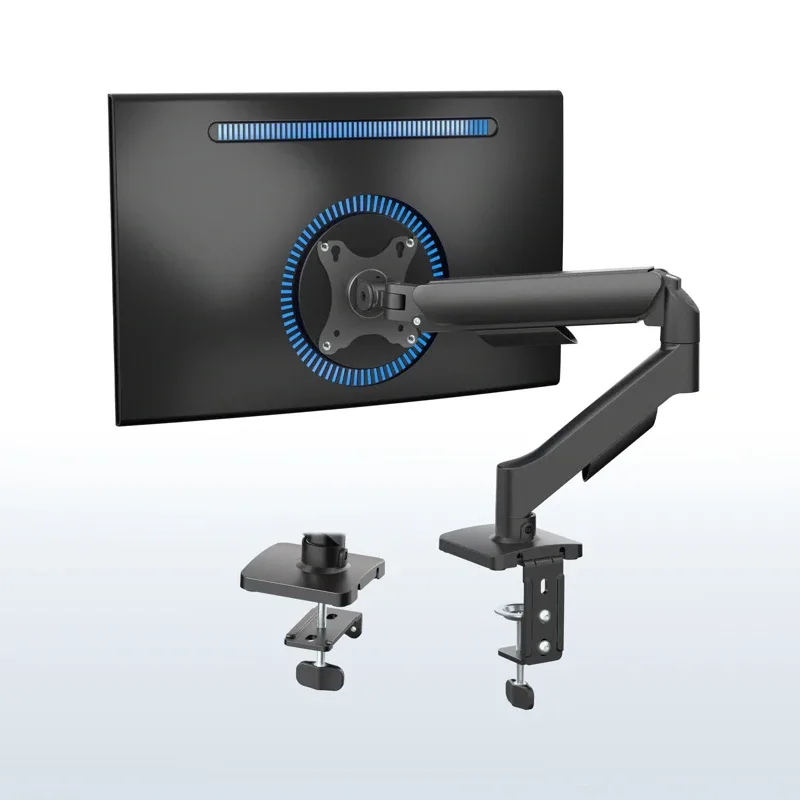
VIVO STAND-V001O — black
Check options on Amazon →Affiliate links use Decively’s tracking ID. Availability and the local Amazon destination can vary.
Try the controls before choosing an accessible monitor arm
If possible, test a demonstration unit or confirm the seller's return terms before ordering. For a monitor arm for people with disabilities, this practical check matters more than an unexplained claim of effortless adjustment.
Test separately: raising and lowering, moving closer and farther, swiveling sideways, and changing screen tilt. A balanced lift does not establish low effort at every joint. Check that you can start, control and stop each movement using a comfortable grip.
Have installation and initial tension adjustment completed according to the manual, with assistance if needed. Route cables with enough slack for the permitted movement, then repeat the check. A tight cable can restrict an otherwise usable position. Keep fingers clear of moving joints.
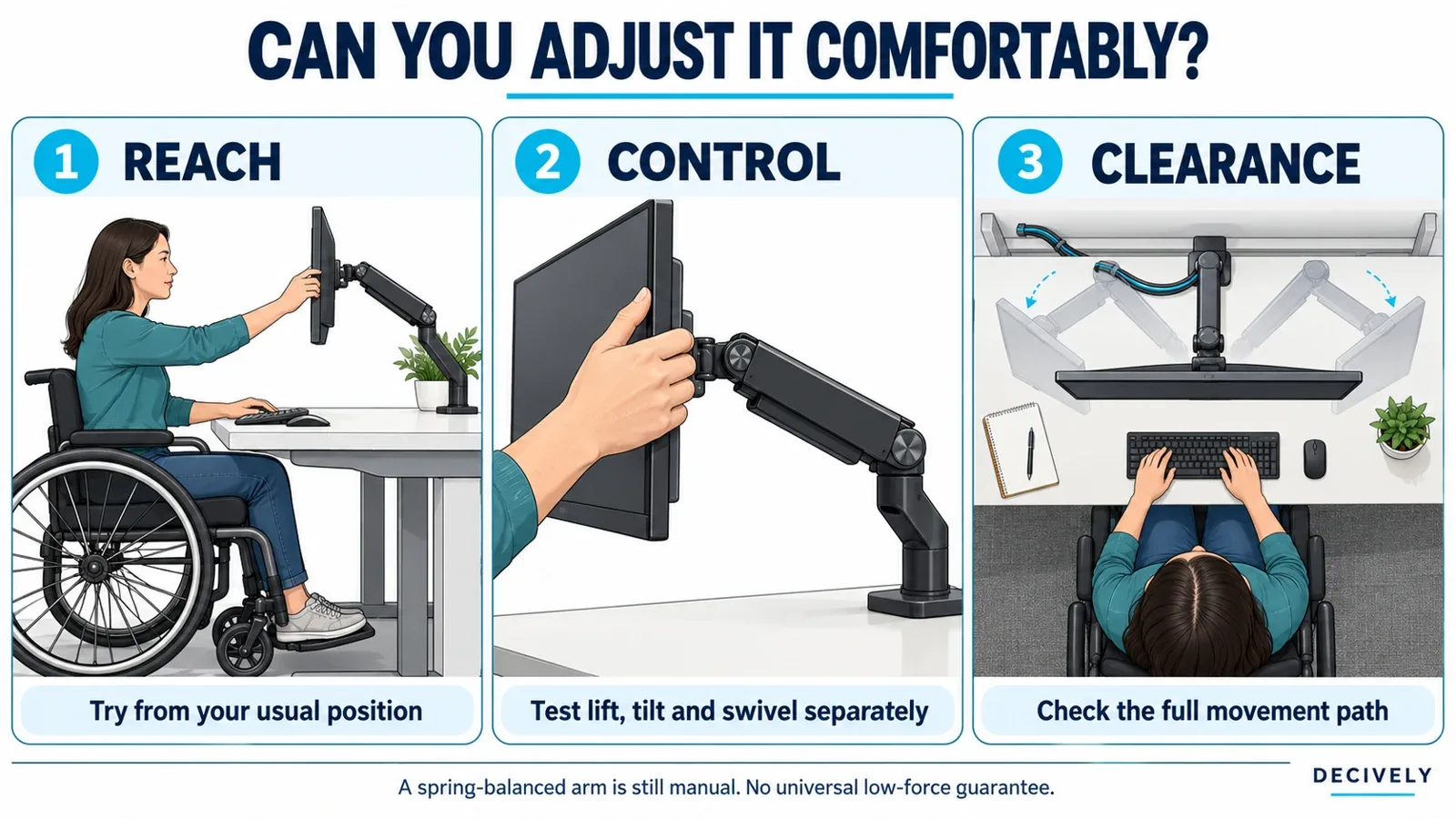
Illustration of separate usability checks, not evidence that either shortlisted arm can be operated with one hand or a particular force. Follow the monitor maker's handling guidance.
When a standard desk arm is not enough
If you need powered positioning, a release control adapted for very limited movement, or access from a bed, these two manually adjusted desk arms may not meet the requirement. Do not assume extra extension accessories make an unsupported installation suitable.
A specialist mounting assessment can help match the equipment to your working position and controls. The Job Accommodation Network's assistive-technology guidance starts with the work tasks and workstation, then evaluates compatibility, support and successful use. For complex positioning, an occupational therapist or assistive-technology professional can help evaluate the complete setup.
Questions before buying a monitor arm for people with disabilities
Will a monitor arm make a desk wheelchair accessible?
It can reposition the screen or remove a bulky base. It does not change desk height, knee clearance or access to the keyboard. Evaluate those separately before buying.
Is a gas-spring or counterbalanced arm automatically easy to use?
No. Screen weight, setup, joint resistance and the movement you need all matter. Tool-free daily height adjustment does not mean tool-free installation or tilt adjustment.
Can I add a handle to any monitor arm?
Only use an explicitly compatible accessory. For example, Ergotron's LX Dual Direct Handle Kit is specified for the LX Dual Direct system; it is not a universal handle for the single LX Pro recommended for investigation here.
The right monitor arm for people with disabilities is the one that reaches your intended position and remains manageable in everyday use. Measure the setup, verify the manual, and buy only when those checks support the choice.
Sources and research notes
Primary references: Ergotron LX Pro specifications; VIVO STAND-V001O specifications; VIVO assembly and adjustment manual; OSHA monitor positioning; Ergotron handle compatibility.
Decively has not tested movement force, comfort or accessibility with disabled users. Product images: existing supplied Ergotron photograph and VIVO manufacturer image. Cover and diagrams: AI-assisted editorial illustrations, not product demonstrations. Check the selected Amazon model, regional availability, seller and return terms.