
Monitor arm buying guide: start with the fit
The right monitor arm supports your screen, attaches securely to your furniture and reaches a useful viewing position. This monitor arm buying guide explains those checks in order, then points you to more detailed advice for small desks, rented homes, lower screen positions and accessibility needs.
Start by deciding what the current stand cannot do. You might need more keyboard space, a lower screen or frequent repositioning. If the original stand already provides the position and usable workspace you need, replacing it may add little.
This is a research-based guide using manufacturer documents and OSHA workstation guidance checked October 16, 2026. Decively has not physically tested these mounts. Amazon links are affiliate links; as an Amazon Associate, Decively earns from qualifying purchases at no extra cost to you.
On a small screen, swipe the table sideways to read every column.
Choose the mounting method before the brand
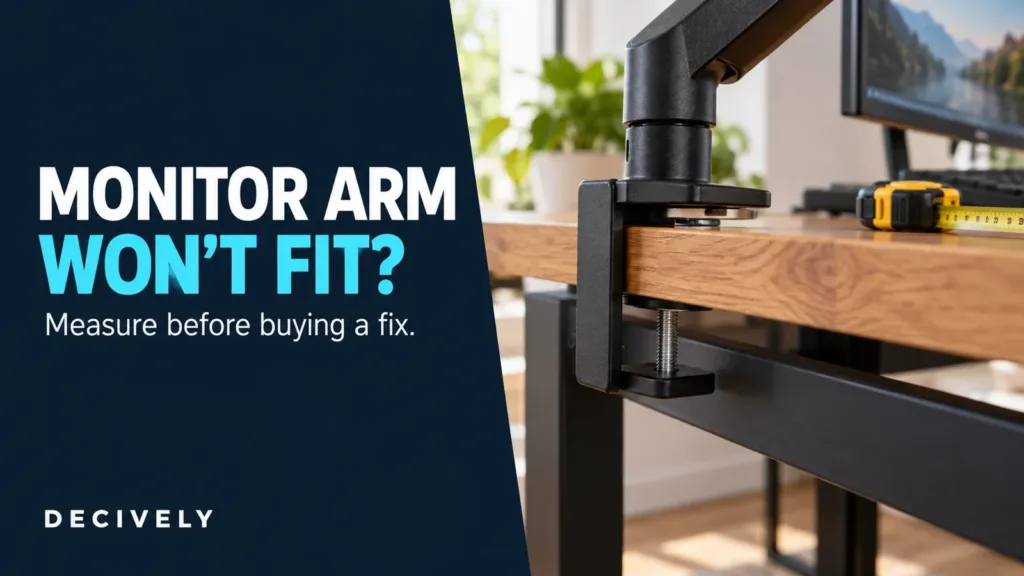
A desk clamp grips the desktop's edge with contact surfaces above and below it. It normally avoids drilling, but needs suitable material, thickness and underside access. A drawer, apron or cable tray can obstruct the clamp.
A grommet mount passes through a desktop hole and secures underneath. An existing cable opening may work only when its dimensions, location and supporting material meet the mount's instructions. Check what hardware the selected bundle includes.
A wall mount removes the desktop attachment but needs an appropriate wall and fixing method. Check structural support, permitted installation and where cables will run. The bracket's depth does not equal the final distance from the wall to the front of the screen.
A freestanding VESA stand rests on its own base. It can help when clamping or drilling is unsuitable, but occupies desk space and has balance limits. This monitor arm buying guide treats it as an alternative support method, rather than assuming every setup needs an articulated arm.
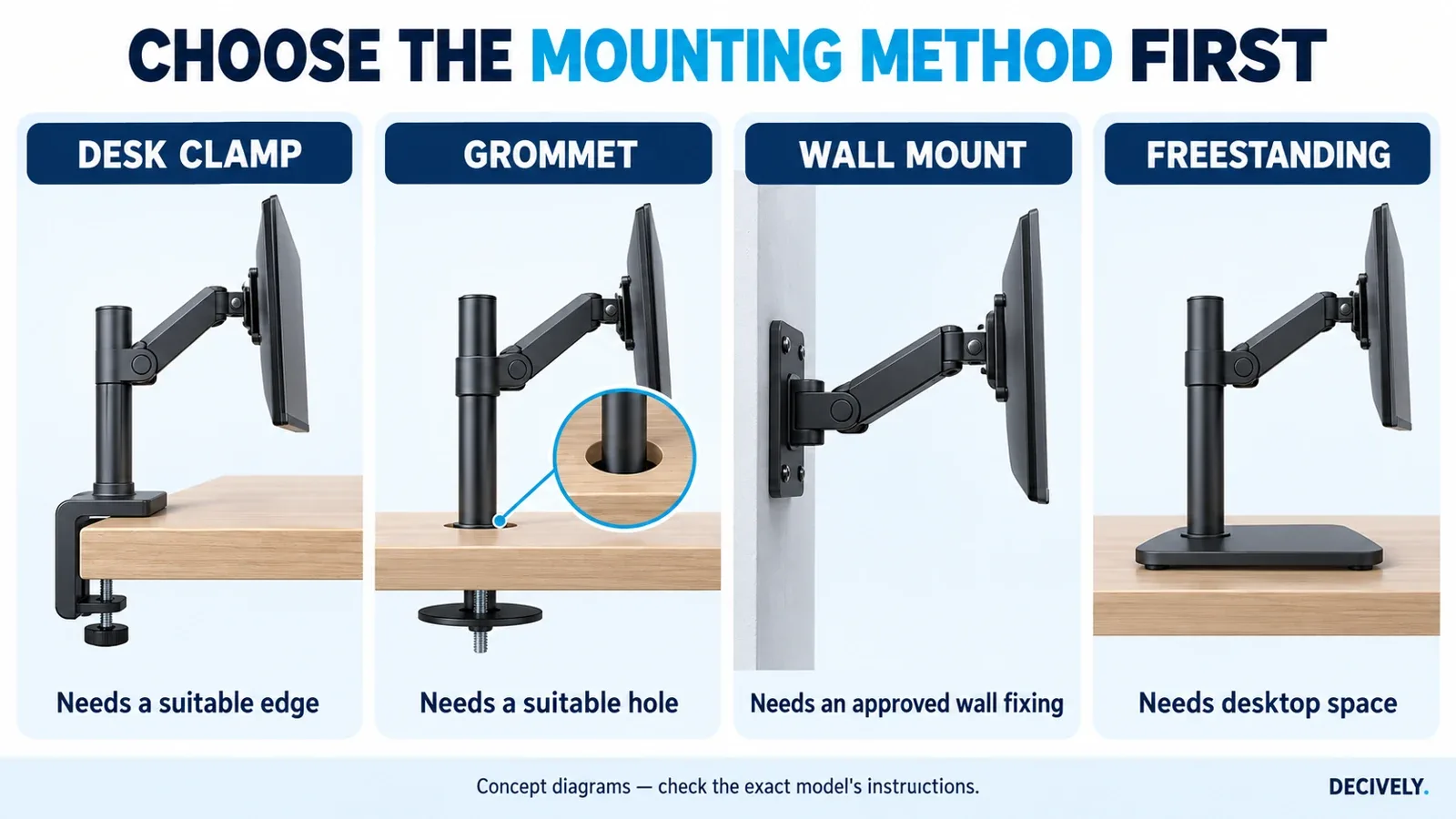
Four attachment methods, illustrated conceptually. Assembly and permitted positioning depend on the exact model.
Monitor arm buying guide: screen weight, VESA and depth
Look up the monitor's weight without its original stand. Add anything that remains attached, including an adapter or accessory. Stay inside the arm's complete stated load range: a spring-balanced arm may not hold a screen below its minimum load correctly.
Next, confirm the VESA mounting pattern. Common desktop patterns are 75 × 75 and 100 × 100 mm, measured between screw-hole centers horizontally and vertically. Check the monitor manual for screw requirements and inspect any recessed mounting area. A matching pattern does not establish weight compatibility.
An adapter must be suitable for the particular screen and mount. Do not assume a universal adapter fits a monitor with no mounting holes, or that longer screws solve a recessed fitting. Include the adapter's weight and check the specified hardware.
Finally, consider display depth and shape. A deep curved screen can place different demands on the tilt mechanism than a shallow flat display of the same weight. Use the arm maker's compatibility information for your exact monitor. A diagonal screen-size claim is only one part of the fit check.
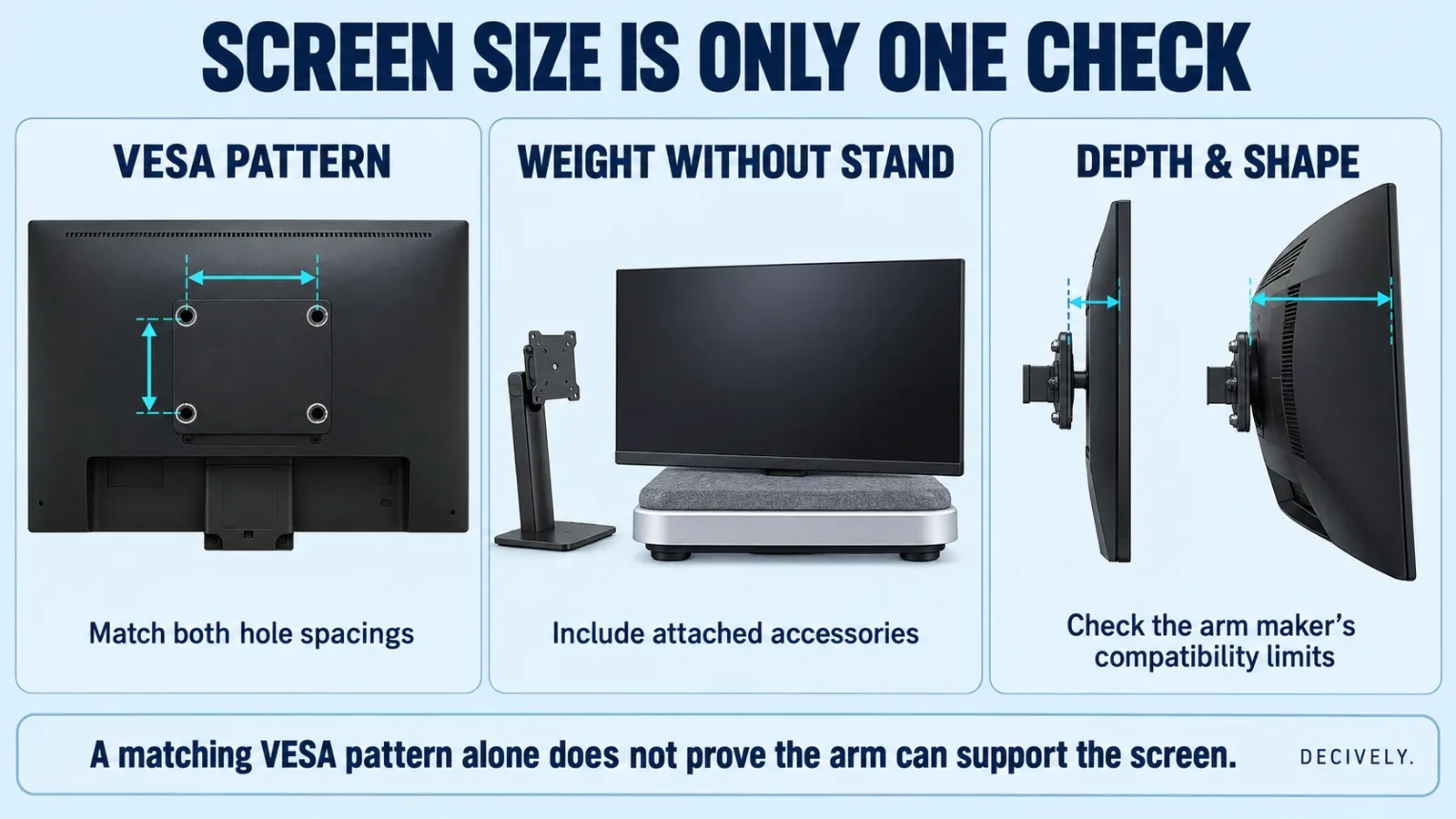
Check hole spacing, monitor-only weight and depth. Illustrations do not certify any particular screen-and-arm combination.
Measure the desk, not just the monitor
Measure desktop thickness at the actual clamp position. Check that the upper and lower contact surfaces can sit as the instructions require. A bevel, raised lip or rear frame can prevent a proper fit even when the advertised thickness range appears correct.
Identify the desktop construction and consult its maker where suitability is uncertain, especially with glass, hollow panels, thin material or an existing damaged edge. A desk's overall weight rating does not by itself approve a concentrated clamp load. A reinforcement plate is not automatic approval for an unsuitable surface.
In this monitor arm buying guide, usable space means the layout after installation. Allow for the arm's folded joints, rear wall gap, monitor thickness and cable bends. A long arm that cannot fold into your room can push the screen too close and reduce keyboard space.
Measure the proposed position before ordering. For a freestanding stand, compare its base envelope with the current base. For any mount, include access to ports, clamp controls and the route your power and display cables will follow.
If your chosen mount will not attach to the desktop, use our guide to a monitor arm clamp that will not fit your desk to check frame obstructions, contact surfaces and alternative supports before buying an accessory.
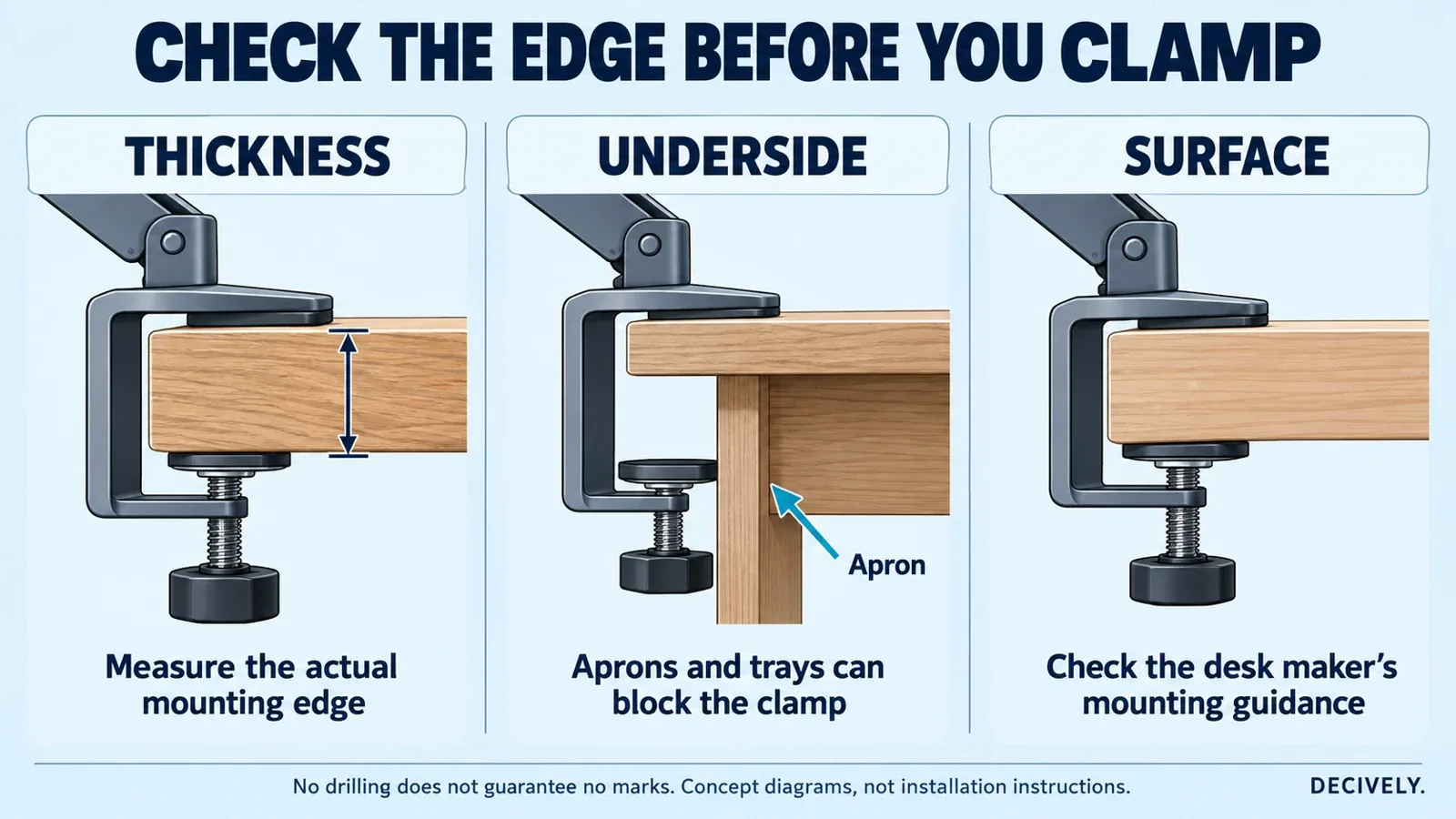
Desk-edge checks from our no-drill guide. A compatible thickness alone does not prove that the material or underside layout is suitable.
Choose the adjustment you will actually use
For a position you rarely change, a pole-mounted arm or stand may be enough. Height is typically set along the column; supporting the display and loosening a fitting may be necessary. Follow the specific manual rather than moving it under load by guesswork.
For regular repositioning, a gas-spring, mechanical-spring or other counterbalanced design is worth investigating. Set its tension for the attached screen. Daily movement and initial setup are separate tasks: convenient height adjustment does not imply tool-free tilt or installation.
Check lift, reach, swivel, tilt and rotation individually. Lift describes vertical travel, not the lowest achievable screen position. Reach describes extension from the mount, not the distance between your eyes and the display. Portrait rotation also needs enough clearance for the screen's corners and cables.
The practical question in a monitor arm buying guide is whether the screen reaches and holds the positions you need. Published travel figures cannot establish that a particular user can comfortably operate every joint. A demonstration or suitable return policy is useful when movement effort is important.
Set the viewing position around the whole workstation
OSHA suggests placing the monitor directly ahead, with the top at or below eye level and generally 20–40 inches (50–100 cm) away. Adjust text size so you can read comfortably. These are starting points to adapt for your task, vision and seating arrangement.
Keep the keyboard and pointing device accessible while adjusting the screen. Moving a display does not change desk height or provide knee clearance. If reaching the screen is the main issue, check how the new position affects the rest of the workstation.
For a low screen, determine the required VESA-center height using the actual monitor. Mounting holes are not always centered on the display. Confirm that the screen's lower edge and connectors still clear the desk at the intended height.
Use the detailed guide for your setup
Use this monitor arm buying guide as the main checklist, then follow the article that matches your particular constraint. Each develops a different decision rather than ranking the same equipment for every person.
A small or shallow desk: our monitor arms for small desks guide examines clamp clearance, folded-arm space and adjustment approaches.
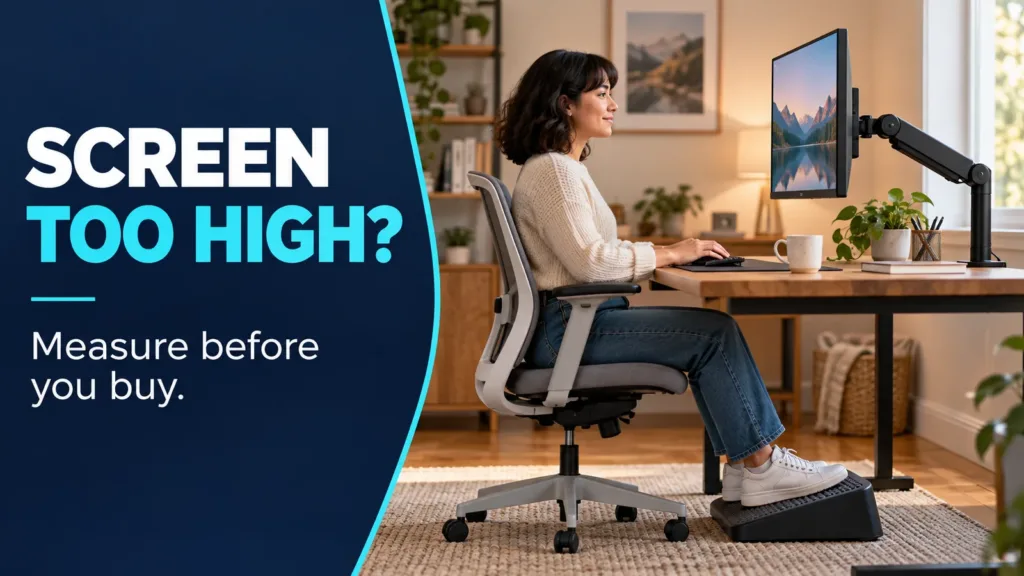
A screen that remains too high: the guide to lowering a monitor for shorter seated users explains the height measurements and why taller poles do not establish a lower minimum position.
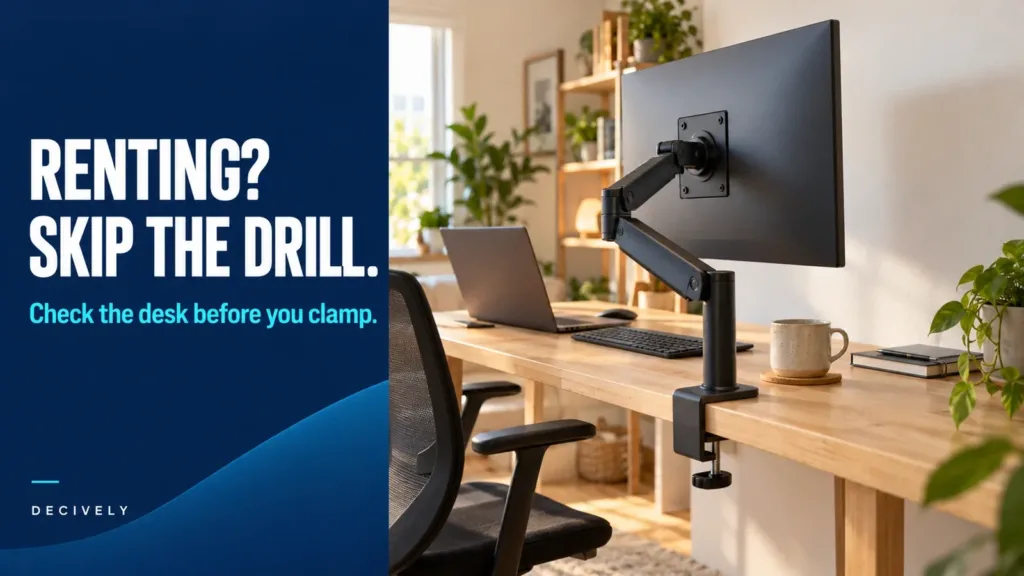
A rented home or supplied desk: our monitor arm for renters guide focuses on no-drill mounting, furniture contact and removal. A removable clamp can still leave marks.
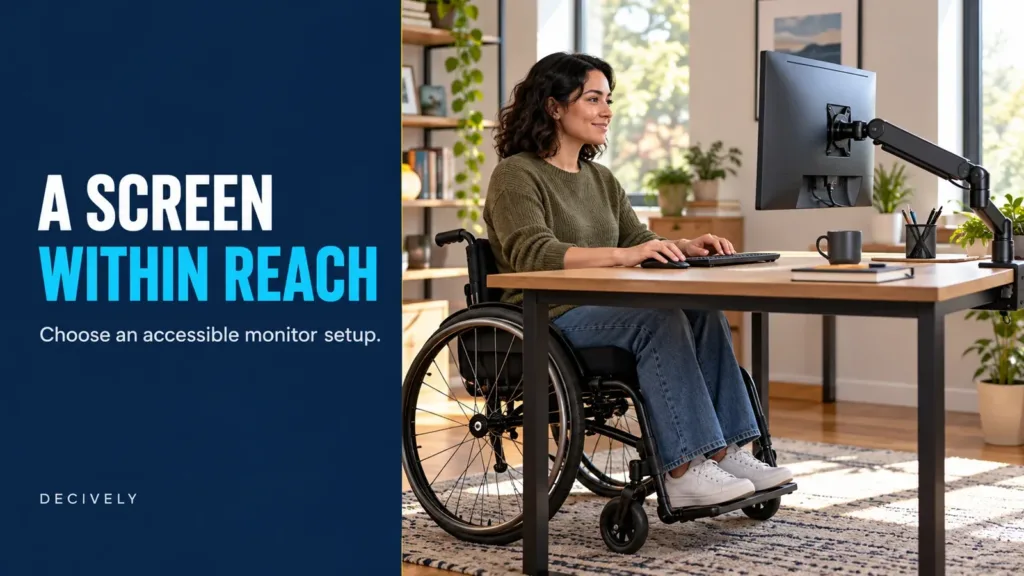
Limited reach, grip or mobility: our accessible monitor setup guide separates positioning needs from the effort required to move the screen. No single arm fits every accessibility requirement.
No workable clamp location: our monitor arm alternatives for small apartments compares freestanding bases, risers and wall mounting, including their space trade-offs.
What changes with two monitors or an ultrawide?
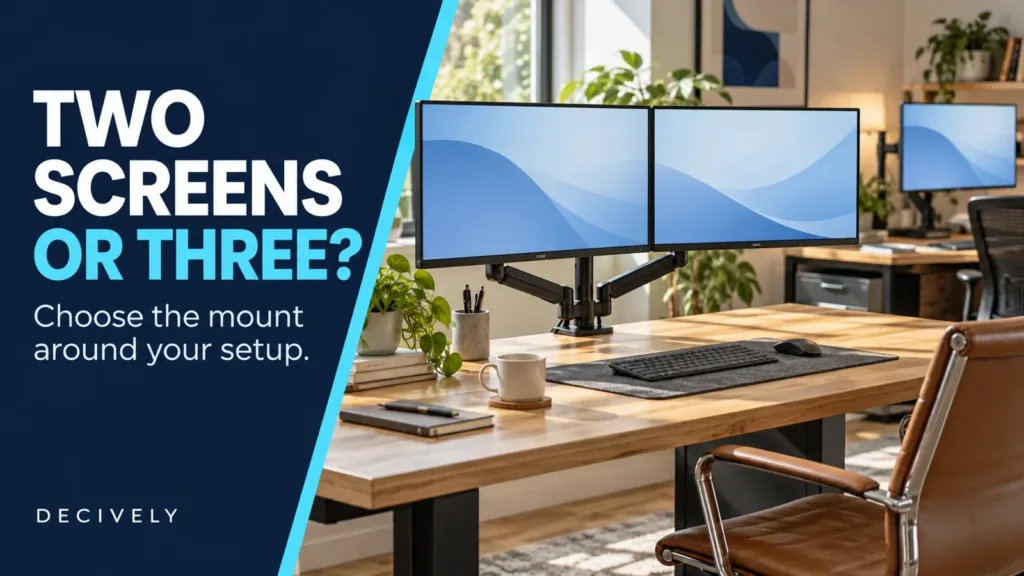
For dual monitors, check the load limit per screen as well as any total system limit. Confirm that the arms or crossbar accommodate both screen widths, the desired angle and any portrait orientation. A total load figure does not establish that either pivot supports an unevenly weighted pair.
Two separate mounts give you different placement options but require two suitable mounting locations. A shared dual mount concentrates the arrangement at one attachment point. Plan the screen positions and supporting desktop before deciding which layout is more convenient.
For a detailed layout comparison and product-fit table, see our guide to monitor arms for multiple monitors. It explains when a shared dual base, two separate arms or a triple mount is worth considering.
For a large curved ultrawide, ask for model-specific compatibility, including the tilt pivot. Do not stretch a standard single-arm recommendation beyond its limits because the monitor's weight seems acceptable.
Monitor arm buying guide: three representative options
These examples show different approaches; they are not a universal best-products ranking. Match the measurements first, then compare the exact current bundle, seller, warranty and delivered cost.
On a small screen, swipe the table sideways to read every column.
All three list 75 × 75 and 100 × 100 mm VESA patterns. The linked LX Pro is matte black; the VIVO listings are black. STAND-V001O is the articulated mechanical arm, while STAND-V001H is the freestanding stand. Similar-looking names do not identify interchangeable hardware.
Choose the VIVO arm when its mounting geometry and adjustment method suit the desk. Investigate the LX Pro when you will use its movement regularly. Consider the freestanding VIVO when a clamp is unsuitable and its base leaves enough working room. Keeping the original stand remains an option.
AVAILABLE ON AMAZON · AFFILIATE LINKS
Compare the matching models on Amazon
Compare the exact configuration after checking screen weight, VESA fit and the supporting surface. Prices, bundles and availability can change.
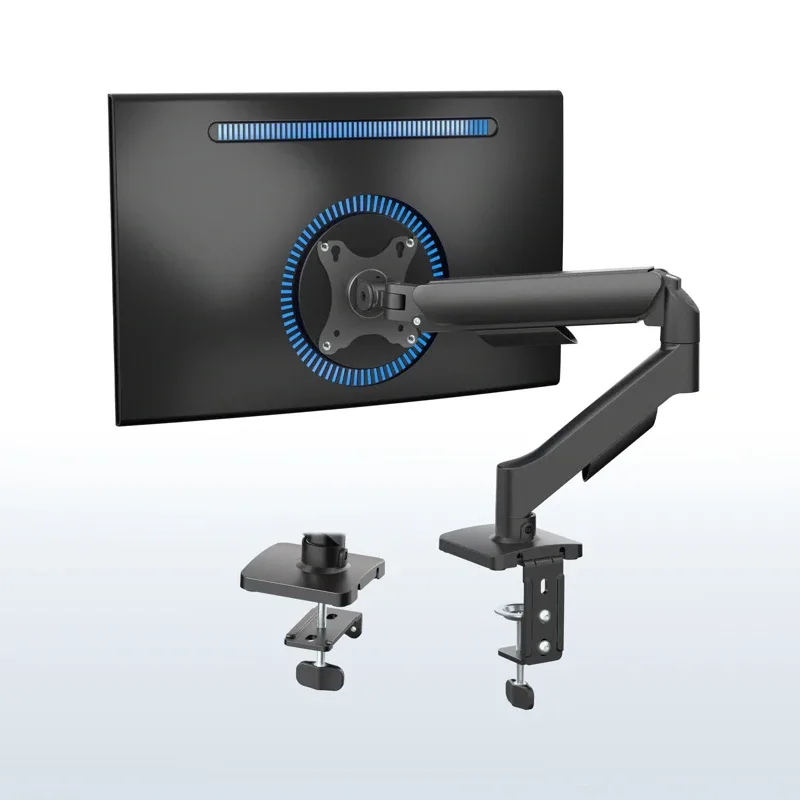
VIVO STAND-V001O — clamp arm
Check options on Amazon →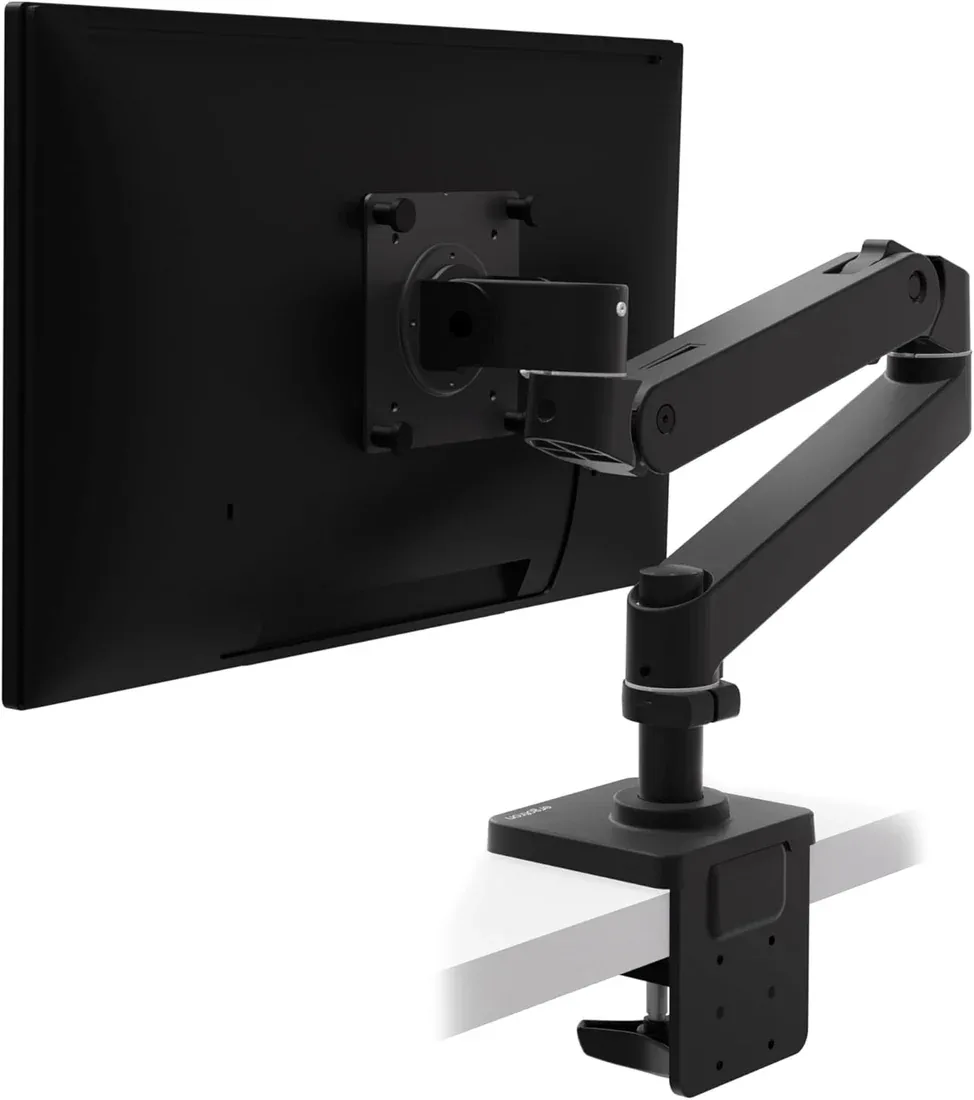
Ergotron LX Pro — matte black
Check options on Amazon →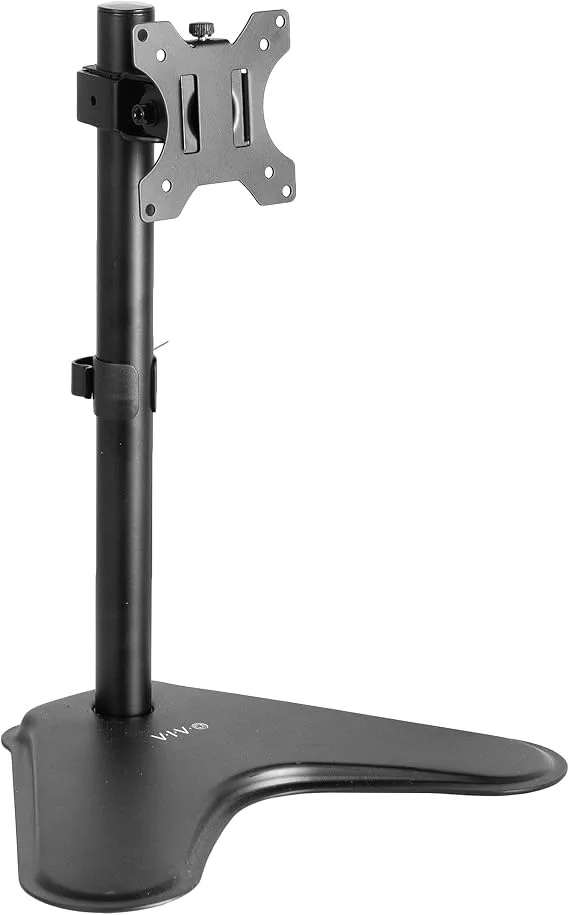
VIVO STAND-V001H — freestanding
Check options on Amazon →Affiliate links use Decively’s tracking ID. Availability and the local Amazon destination can vary.
Install and adjust in the right order
Finish the compatibility checks before removing the original stand. Clear the desk, protect the screen as its manufacturer instructs and keep the original fittings. Arrange help if supporting the monitor while attaching it is difficult; some manuals recommend two-person installation.
Fit the mount using the specified contact surfaces and hardware. Attach the display with the correct screws and spacers, supporting it throughout. Set counterbalance and joint adjustments according to the model's instructions. Do not force a screen past a mechanical stop or try to compensate for overload by overtightening.
Try the permitted movement before securing the cables neatly. Leave sufficient slack at every position and check that power, video and USB connections remain clear. An arm does not extend a cable's reach or change the connection standards your computer supports.
A monitor arm buying guide can explain what to inspect, but the product manual determines the installation procedure. If the surface deforms, a clamp slips or a correctly adjusted joint cannot hold the screen, stop and recheck the fit instead of continuing to add tension.
Your monitor arm buying guide checklist
Before ordering, record the exact monitor model, weight without stand, VESA pattern and any adapter requirement. Add desk material, mounting-edge thickness, underside clearance and available wall gap. Confirm the lowest and highest useful screen positions.
Then check the selected package: clamp or grommet hardware, included screws, separately required accessories, usable cable length and any installation help. Compare the total cost rather than the arm's headline price.
Finally, check the seller's return terms and applicable warranty. Keep a copy of the installation manual. This monitor arm buying guide is most useful when it leaves you with a measured shortlist you can verify against the current product documentation.
Common questions before buying
Will any VESA monitor work with any arm?
No. Hole spacing, screen load, display depth, mounting recess and the arm's specified compatibility all need checking. VESA describes a mounting interface; it does not establish that every combination is suitable.
Does a monitor arm always save desk space?
Removing a base can free surface area, but folded joints, the mounting point and the final screen position still occupy space. Compare the installed layout and usable keyboard area.
Should I buy a taller pole to lower my screen?
A taller pole adds upper mounting possibilities. It does not prove a lower minimum position. Compare the VESA-center height you need with the exact arm's drawing.
Is a premium arm automatically the better fit?
No. Pay for movement, compatibility, support and accessories you will actually use. A premium mechanism still needs a compatible screen and supporting surface.
Sources and research notes
Primary references: Ergotron's VESA interface guide; OSHA monitor positioning; LX Pro specifications; LX Pro dimensioned drawing; VIVO STAND-V001O specifications and manual; VIVO STAND-V001H specifications and manual.
No movement-force, surface-damage or long-term durability testing was conducted by Decively. Product photographs are supplied/manufacturer imagery. Cover and diagrams are AI-assisted conceptual illustrations. Prices, regional availability and selected retail bundles can change.