
Two monitors start with the laptop—not the dock.
To connect two monitors to a laptop, you need two supported display connections and the right cables. That might mean HDMI plus a video-capable USB-C port, a compatible dual-output hub, or a DisplayLink dock. A USB-C connector alone does not guarantee video output.
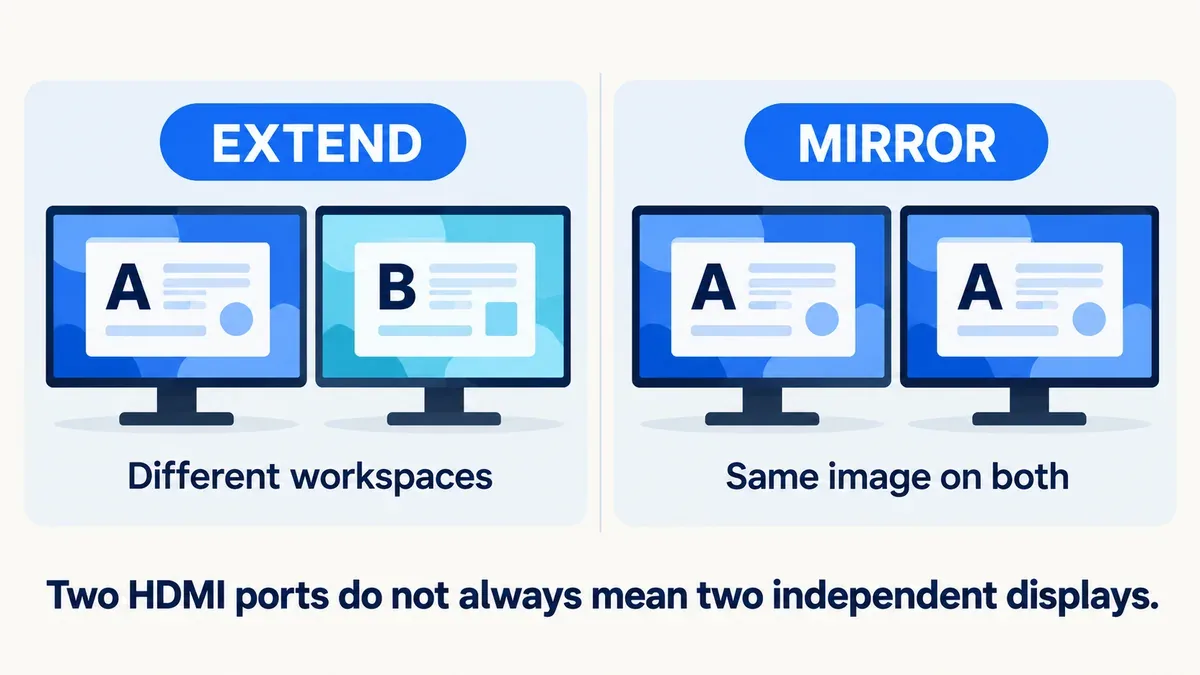
For most office work, choose extended displays: one monitor for your main task and another for reference material. Mirroring simply repeats the same picture.
Research method: Desk research using manufacturer specifications and Microsoft and Apple documentation. We have not tested these accessories. Information checked October 3, 2026.
Affiliate disclosure: As an Amazon Associate, Decively earns from qualifying purchases. This does not increase your price.
Check these four things before buying.
- Your exact laptop: Look up its supported number of external displays. Mac limits vary by model and chip; USB-C does not override them automatically.
- The port: A direct USB-C video cable or conventional hub needs DisplayPort Alt Mode or an appropriate Thunderbolt connection. A charging-only USB-C port will not work.
- The monitors: Match HDMI or DisplayPort inputs, resolution and refresh rate. One working 4K screen does not prove the same hub supports two at that setting.
- Power and software: Check charger requirements and whether your employer allows display-driver installation.
Windows and Mac do not treat every hub alike.
Many Windows laptops can extend two screens through an MST-based USB-C hub, provided the host supports it. macOS does not support that same MST arrangement for two independent displays: two HDMI outputs on a hub can show the same image.
A suitable Thunderbolt dock is another route on Macs that support the required displays. DisplayLink uses software-driven USB graphics, offering a different route—but with its own installation and usage trade-offs.
How to connect two monitors to a laptop: three routes.
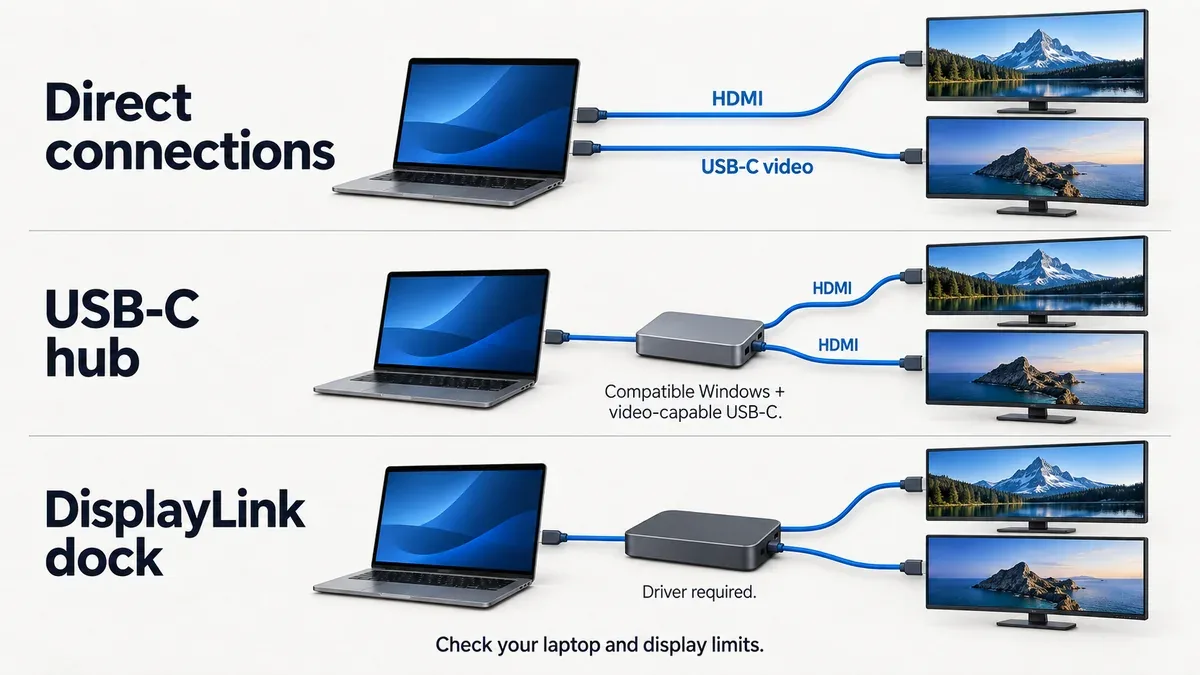
These diagrams show connection principles, not photographs of the products below.
1. Direct cables: Cable Matters 201062
Start here if your laptop has native HDMI and a separate video-capable USB-C port, and supports two external displays. Use HDMI for one screen and the Cable Matters 201062 USB-C-to-HDMI cable for the other. The cable supports up to 4K at 60Hz with compatible equipment. It connects one monitor and does not charge the laptop.
2. A Windows hub: Anker 553, A8380
The Anker 553 8-in-1 hub is worth considering for a compatible Windows laptop when you want two HDMI outputs and extra ports. Check the host’s video capability and supported dual-display resolution. On Mac, those HDMI outputs do not create two independent extended screens. Charging requires a separate suitable USB-C charger; pass-through delivery reaches up to 85W.
3. A software-driven dock: WAVLINK WL-UG69PD2
The WAVLINK WL-UG69PD2 supports two displays up to 4K at 60Hz through HDMI or DisplayPort and up to 65W charging on compatible USB-C hosts. Its four display sockets support two monitors—not four. DisplayLink software is required; macOS also needs Screen Recording permission. Consider it for documents and office applications. Protected streaming video is restricted because the dock does not support HDCP; it is not our shortlist for demanding gaming.
Check the exact accessory on Amazon.
Match the exact model before purchasing. Prices, sellers and regional redirects can change. The Cable Matters link opens search results; the WAVLINK link may also open a regional Amazon search.
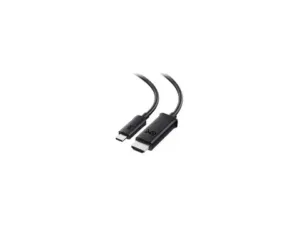
Cable Matters 201062
Find Cable Matters on Amazon →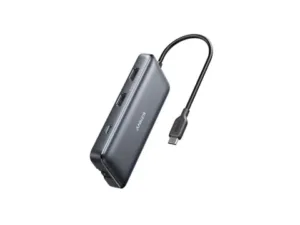
Anker 553 · A8380
View Anker 553 on Amazon →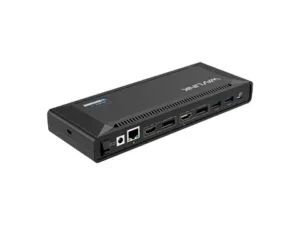
WAVLINK WL-UG69PD2
Find WAVLINK on Amazon →Check current price, exact model, included cables, seller and return terms. These are affiliate links.
Connect, extend, then arrange.
- Connect power if required, select each monitor’s correct input, and attach the cables or dock.
- For DisplayLink, install the manufacturer’s recommended software and approve the required macOS permissions.
- On Windows, press Windows + P → Extend, then open Settings → System → Display to identify and arrange screens.
- On Mac, open System Settings → Displays and select extended display operation where supported.
- If a screen stays blank, test it alone, check its input and cable, then verify the laptop’s display limits.
Buy the simplest route your laptop supports.
Choose direct cables when existing ports are enough. Consider Anker for a compatible Windows setup that needs extra connectivity. Consider WAVLINK when software-driven displays suit your workflow, driver installation is acceptable and up to 65W charging meets your laptop’s needs. Avoid buying any dock solely because it has two HDMI ports.
Once both screens work, check desk space and mounting compatibility with our monitor arm buying guide.
Primary references
Method: Desk research. Checked: October 3, 2026. Scope: U.S. buying context; Cable Matters 201062, Anker A8380 and WAVLINK WL-UG69PD2 (65W version). No measured performance, universal compatibility guarantee or current checkout price.