
Why is my laptop overheating? Start with airflow
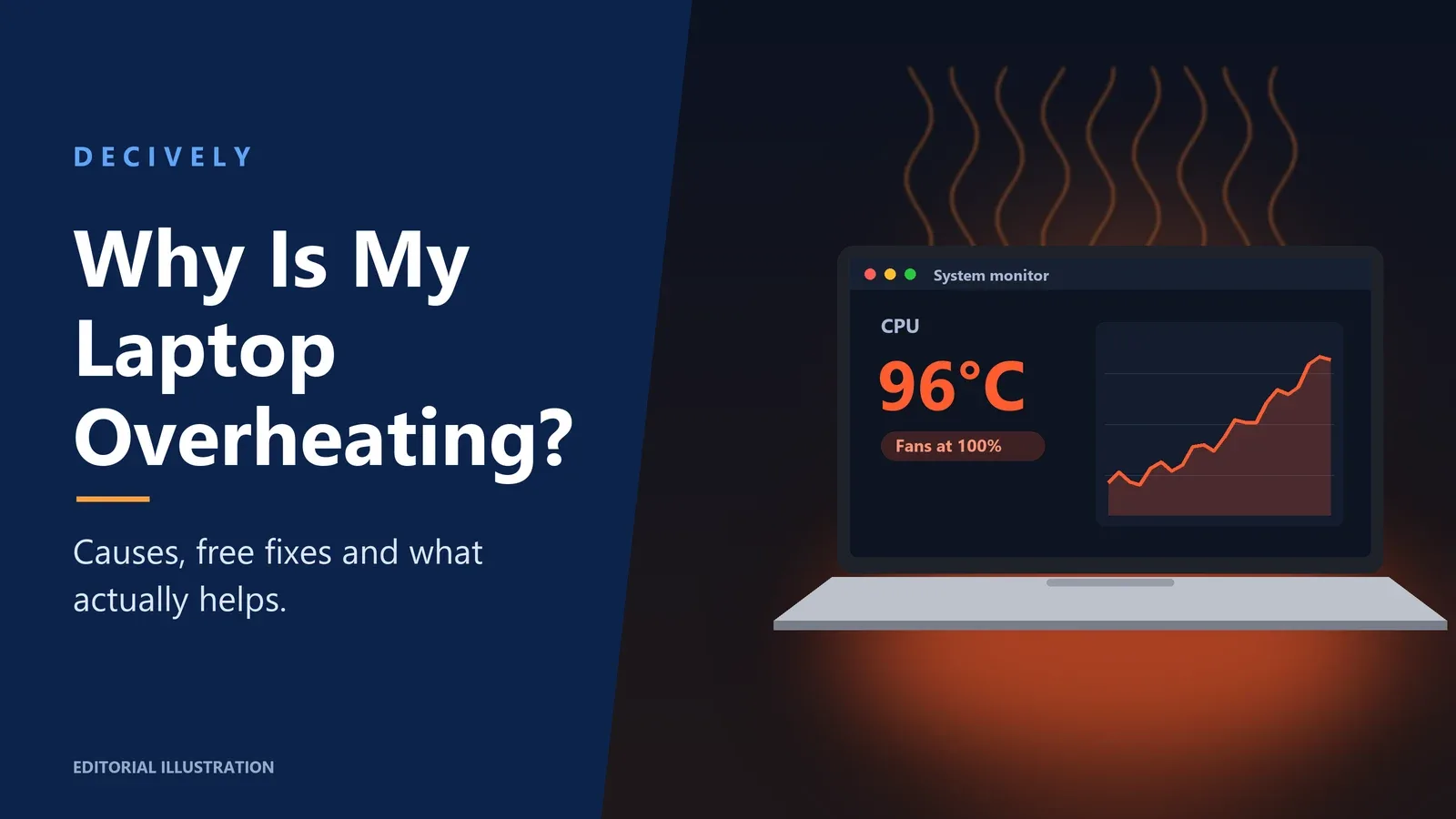
If you’re asking why is my laptop overheating, the answer is usually simple: hot air can’t get out fast enough. Dust, a soft surface or a demanding app causes most laptop overheating, and the first fixes cost nothing.
Some warmth is normal. A laptop that gets hot during a game or video export is doing its job. Laptop overheating is different: the fan roars during light tasks, the bottom is too hot to touch, performance drops, or the machine shuts down on its own.
These are research-based suggestions using Apple, Microsoft and HP guidance plus manufacturer product information, not hands-on lab tests. Checked October 7, 2026.
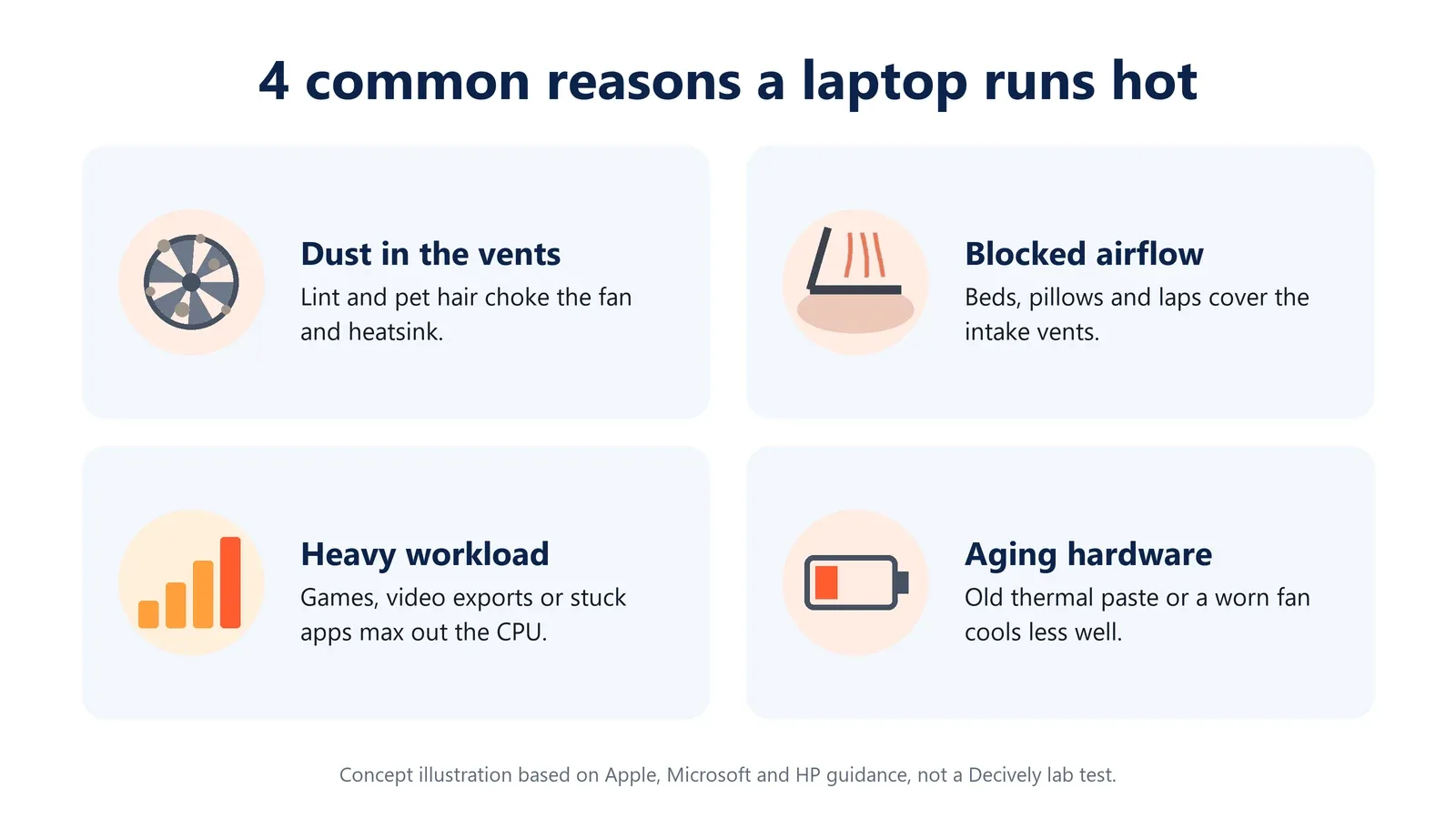
4 common causes of laptop overheating
Dust is the usual suspect. Lint and pet hair collect on the fan and heatsink, so the same fan moves less air. Blocked vents come next: beds, pillows, blankets and laps cover the intake many laptops use underneath.
A heavy workload, such as gaming, video editing or a stuck background app, keeps the processor at full power. Aging hardware matters too: dried thermal paste or a worn fan cools less well after a few years.
How to fix laptop overheating for free
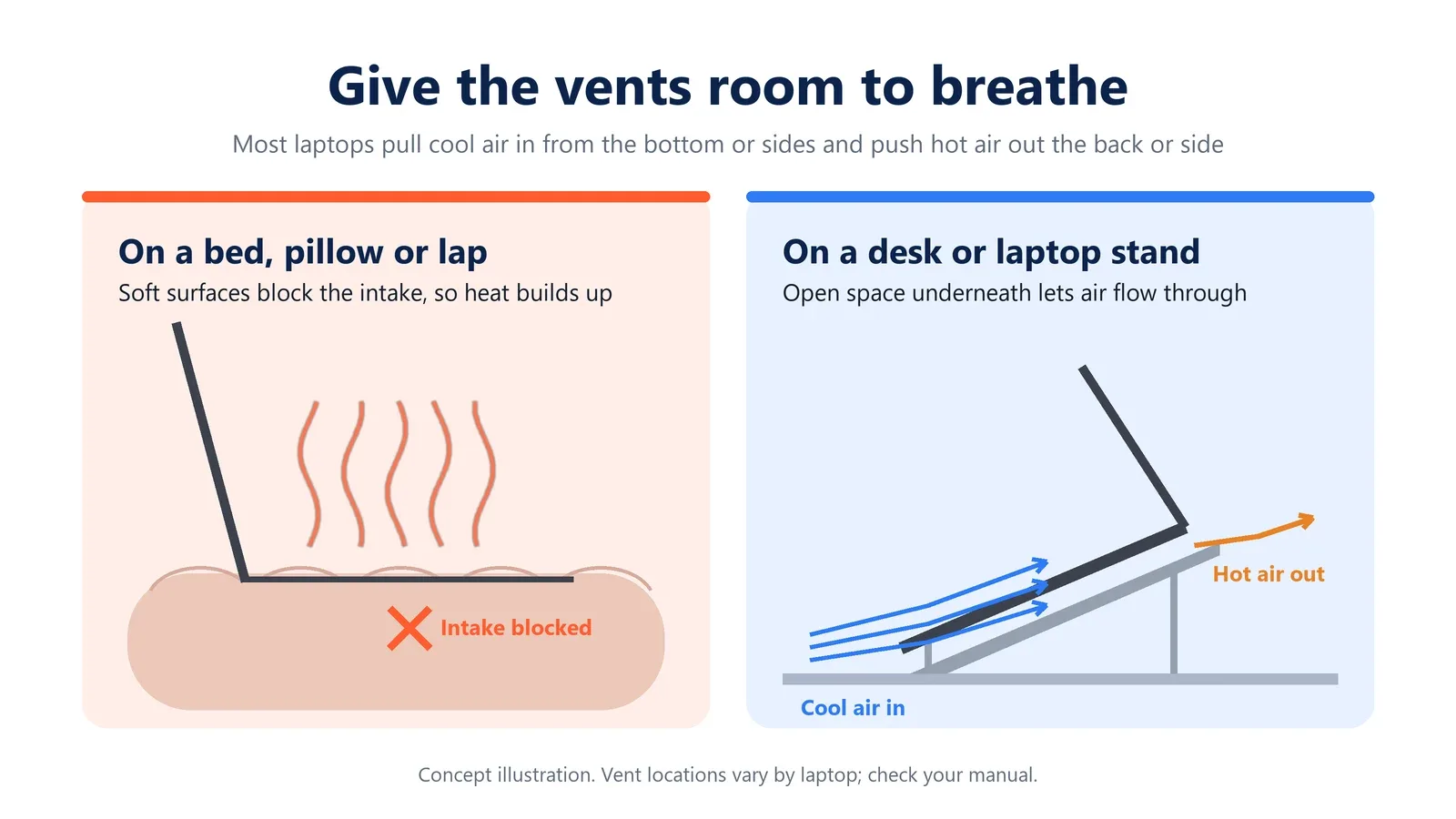
1. Use a hard, flat surface. Apple advises using its laptops on a stable surface with good ventilation, not on a bed, pillow or bedding. The same rule applies to any brand.
2. Find the app that’s working hard. On Windows, press Ctrl + Shift + Esc to open Task Manager and sort by CPU. On a Mac, use Activity Monitor. Close anything stuck at high usage.
3. Change the power mode. In Windows 11, Microsoft lets you choose a balanced or efficiency-focused power mode instead of best performance when you don’t need full speed.
4. Update, then clean. Install system, driver and BIOS updates, as HP recommends for fan and heat issues. Then shut the laptop down and blow dust out of the vents in short bursts.
What to buy to fix laptop overheating
WOLFBOX MegaFlow 50: for dusty vents
This rechargeable electric air duster replaces disposable cans of compressed air. WOLFBOX lists up to 110,000 RPM, three speed settings and four nozzles. Start on the lowest setting with the laptop powered off, and use short bursts so the fan doesn’t over-spin.
The limitation: it clears dust you can reach through the vents. Dust packed deep inside the heatsink may still need a professional cleaning.
Nulaxy Adjustable Laptop Stand: for everyday desk use
This foldable aluminum stand lifts the laptop so air can reach the bottom, and its top panel is vented. Nulaxy lists it for 10–16-inch laptops, and the raised screen helps your neck too.
It has no fans, so it suits mild heat during long workdays, not heavy gaming. Pair it with an external keyboard and mouse for comfortable typing.
havit HV-F2056 Cooling Pad: for gaming and heavy loads
This pad adds three USB-powered fans under a metal mesh surface, with two height settings, for 15.6–17-inch laptops. It’s the pick when your laptop gets hot under sustained load.
Pads blow air upward, so they help most when your laptop takes in air from the bottom. Expect some fan noise, and it uses one USB port for power.
AVAILABLE ON AMAZON · AFFILIATE LINKS
Compare the current offers.
Pick the fix that matches your cause. Check the exact model, current price, seller and return conditions.
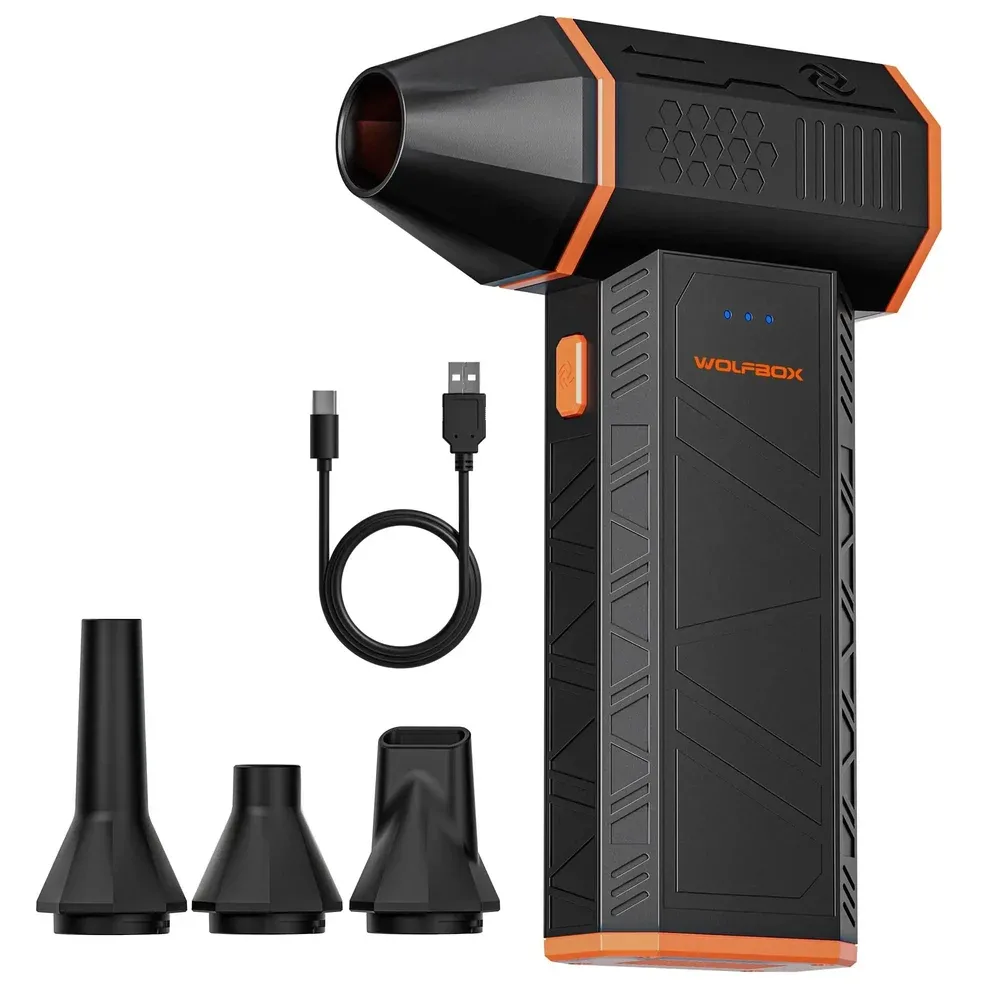
WOLFBOX MegaFlow 50
Check price on Amazon →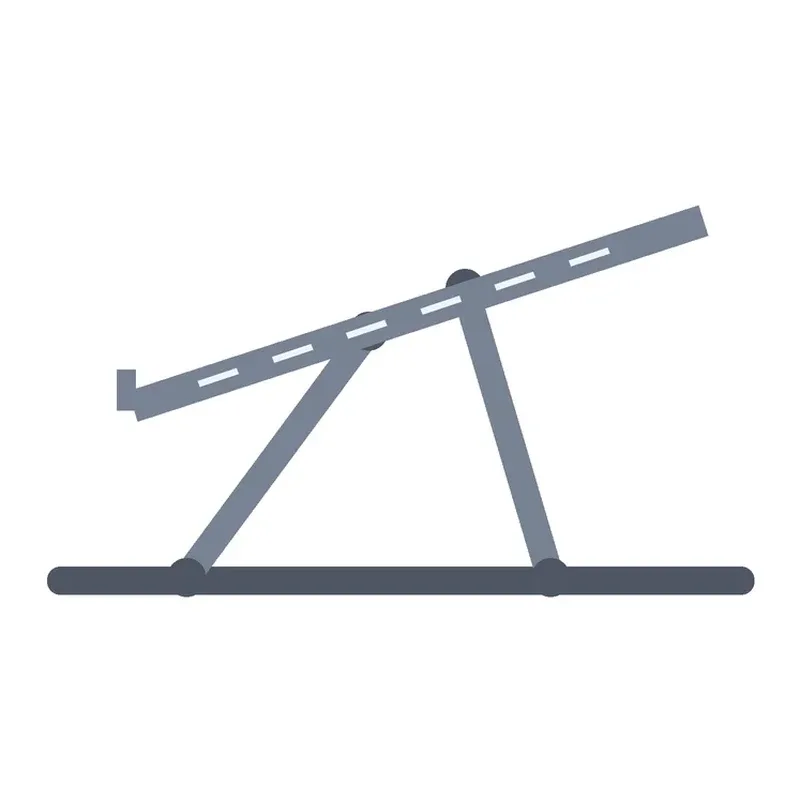
Nulaxy Adjustable Laptop Stand
Check price on Amazon →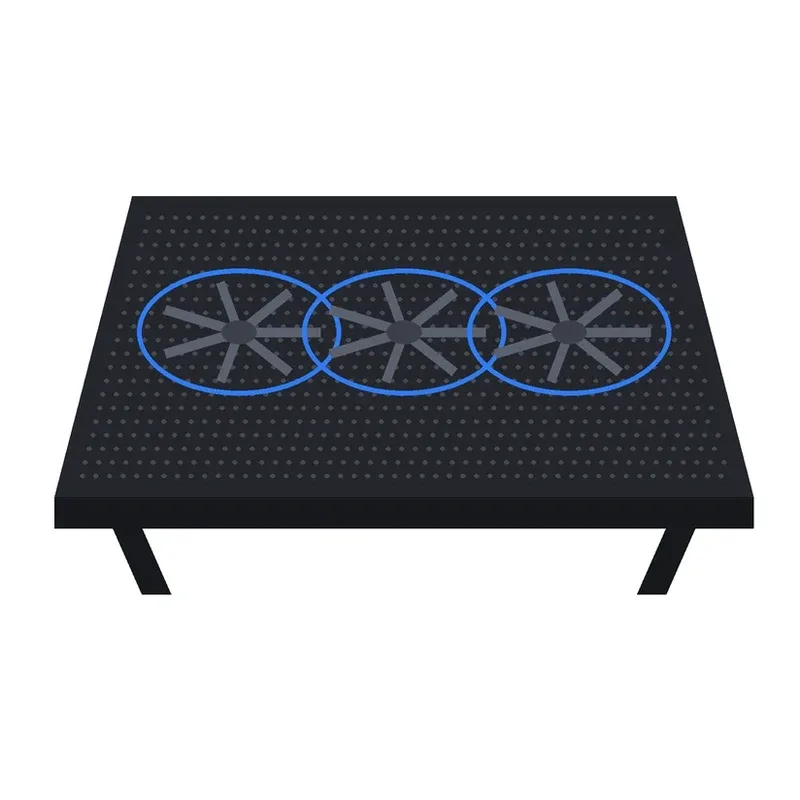
havit HV-F2056 Cooling Pad
Check price on Amazon →As an Amazon Associate, Decively earns from qualifying purchases. Offers and availability can change.
Cooling pad vs. laptop stand for laptop overheating
Choose a stand if the laptop runs warm during normal work and you also want better ergonomics. Choose a cooling pad if it overheats during games, video editing or long exports. Neither helps much if the vents are clogged, so clean first.
Working at a desk every day? Our guides to connecting two monitors to a laptop and the best monitor arms for small desks can help you build a cooler, more comfortable setup.
When laptop overheating needs a repair shop
Stop using the laptop and contact the manufacturer or a repair shop if it shuts down from heat, the fan grinds or stops, or the case or battery looks swollen. Replacing thermal paste or a failing fan is an internal repair; use warranty service if you’re covered.
AVAILABLE ON AMAZON · AFFILIATE LINKS
Fix the cause, then buy the right helper.
Clean first, then add airflow. Check the exact model, current price, seller and return conditions.
WOLFBOX MegaFlow 50
Check price on Amazon → Nulaxy Adjustable Laptop Stand
Check price on Amazon → havit HV-F2056 Cooling Pad
Check price on Amazon →As an Amazon Associate, Decively earns from qualifying purchases. Offers and availability can change.
Primary references
Official guidance supports the troubleshooting steps above. Product details come from manufacturer and retailer listings; Decively did not run temperature tests.
Apple — Keep your Mac laptop within acceptable operating temperatures
Microsoft — Change the power mode for your Windows PC